

I meet many people who feel confused when their phones drain fast, because they do not know how to check battery health in a simple and clear way.
You can check mobile phone battery health with system settings, diagnostic apps, built-in hardware tools, and external testers. These tools show charge cycles, capacity loss, and performance stability.
I want to show you the most direct way to read battery condition and understand what each number means, so you can make better repair or replacement decisions.
What tools read battery condition?
Many phone users feel stressed when the phone slows down, because they cannot tell if the battery is weak or something else is wrong.
Battery condition can be read with system tools, hardware testers, and diagnostic software that measure capacity, voltage, charge cycles, and temperature performance.
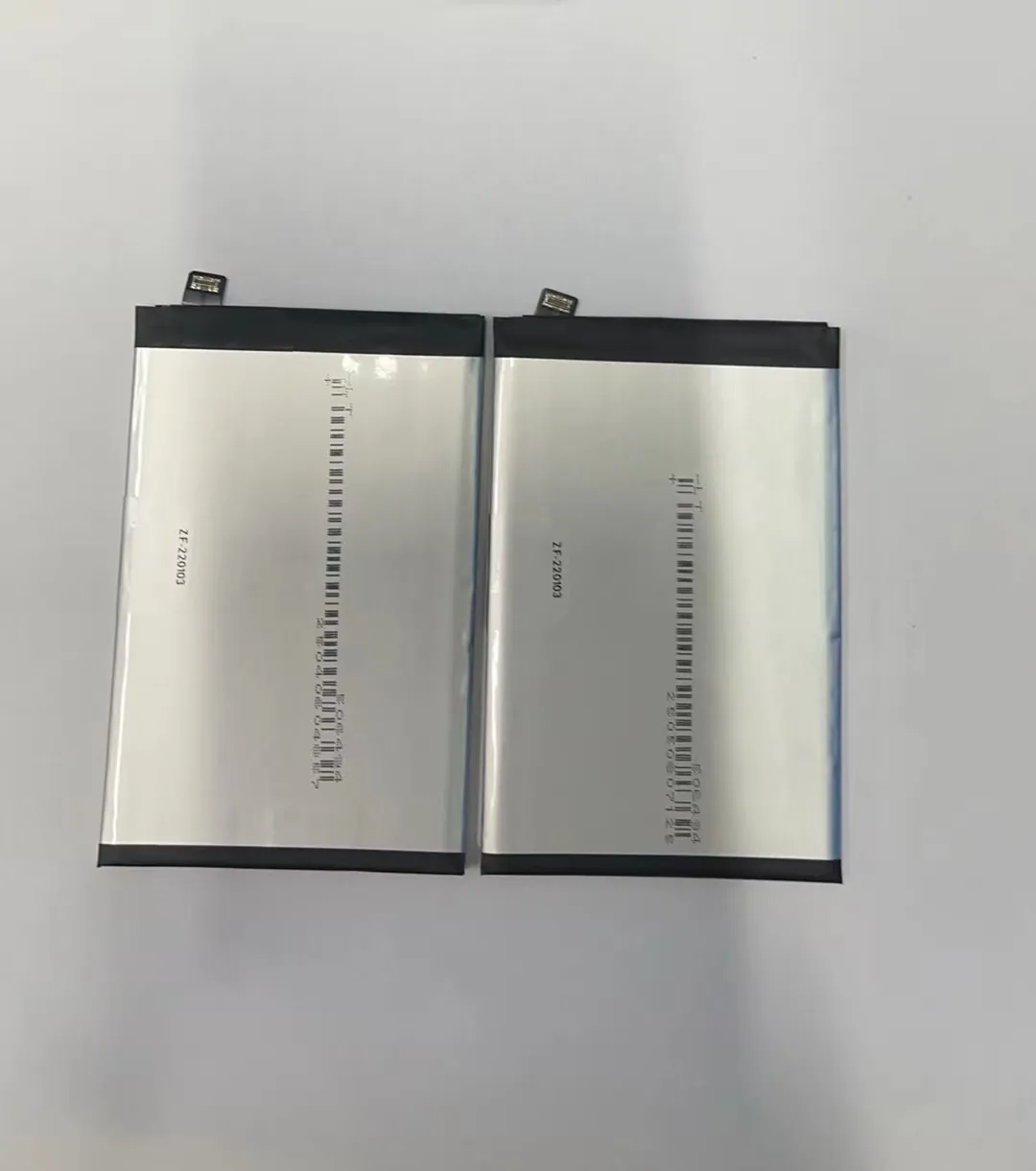
I talk about battery testing almost every day, and I notice that many people only check the health number on the screen. I want to explain the tools that go deeper, so you can read real battery behavior and avoid wrong guesses.
Hardware testers for precise readings
Hardware testers give the most accurate results. These testers read real capacity, cycle count, internal resistance, and voltage stability. I use these testers in my daily work, because they show the real condition of the cell. They can detect weak cells even when the phone still reports normal health.
Key values hardware testers show
- Full charge capacity
- Cycle count
- Internal resistance (IR)
- Voltage curve under load
- Temperature changes during discharge
These values show how the battery behaves over time. A battery with high IR or unstable voltage often fails soon.
System built-in diagnosis on modern phones
Many modern phones include simple tools. They show basic values like battery health percentage or cycle count. These values help users understand when the battery is weak. The phone reads these numbers from the battery chip.
Some phones allow users to open a service menu with dial codes. These menus show temperature, voltage, and usage stats. These values help diagnose sudden drain problems.
Table: Tool types and accuracy
| Tool Type | Accuracy Level | What It Shows |
|---|---|---|
| Hardware tester | High | Capacity, IR, cycles, voltage |
| System settings | Medium | Health %, cycles |
| Service menu | Medium | Voltage, temperature |
| Apps | Medium–Low | Estimates, usage data |
Long-form insight
When I compare tool results, I always trust hardware testers. They show real numbers, not estimates. Phones sometimes report wrong health values after repairs or system updates. Hardware testers read the chip directly, so the data stays stable. This is why repair shops rely on hardware tools for replacements. They save time, avoid returns, and give clean reports to customers. I always tell buyers that a phone’s health reading gives a simple view, but hardware testers give the truth. This difference is important when you want to know a battery’s real future life.
How can settings reveal battery stats?
Many people skip their phone’s battery menu, because they think it only shows usage, not real health numbers.
Phone settings can reveal battery health percentage, cycle count, capacity level, and performance limits that usually show when the battery starts aging.
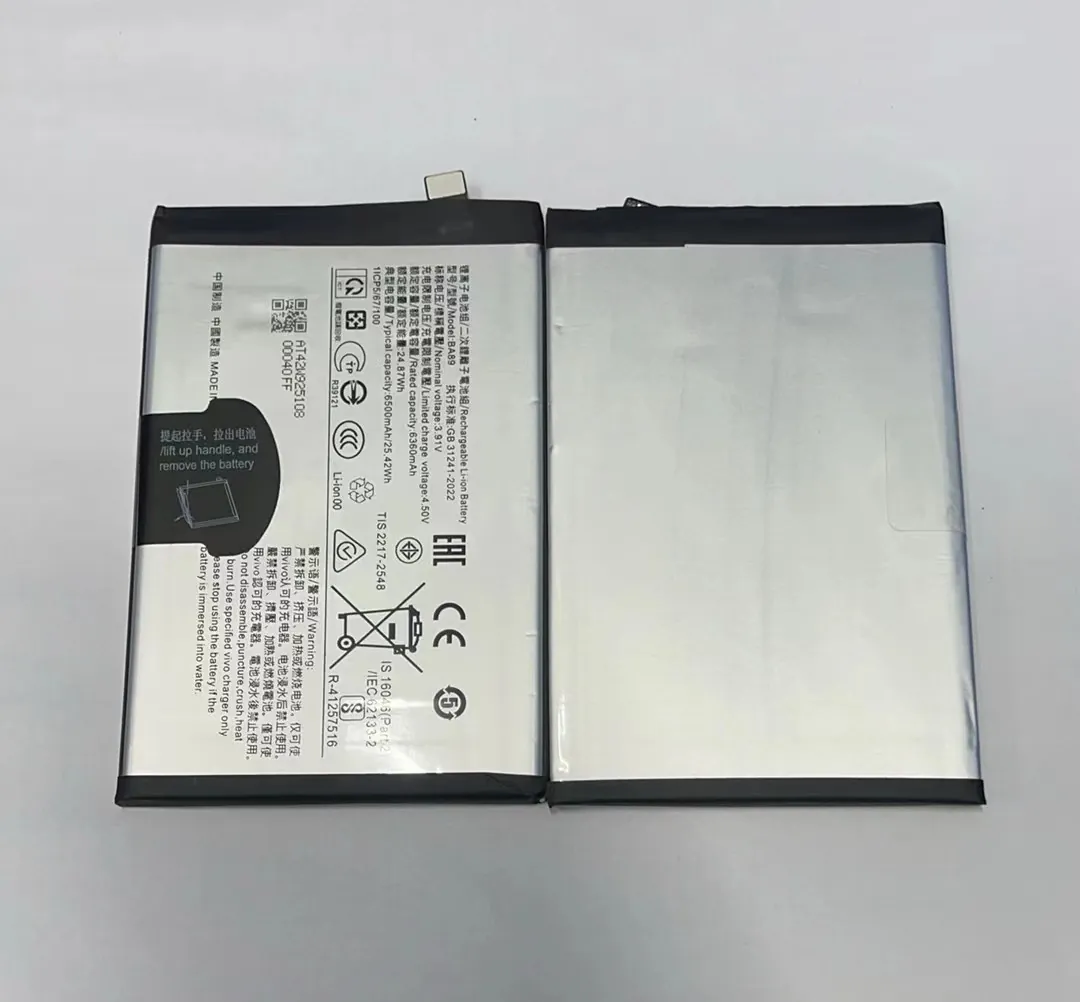
I help many users read their battery stats, and most feel surprised when they see how much information the phone already shows. I want to point out the key spots you can check inside settings.
Health percentage in settings
Most modern systems show a simple health number. This number compares current full capacity to the original design capacity. When the number drops, the phone may slow down or shut down early.
Cycle count
Some systems show cycle count. A cycle is a full charge from 0% to 100%. Many batteries start losing health faster after 400–600 cycles. This number helps predict future performance.
Battery performance warnings
Phones sometimes show warnings that the battery cannot support peak performance. This means the battery has aged and cannot handle high load. This is a clear signal that you may need a replacement.
Usage history
The settings menu also shows drain patterns. If the battery drains fast even with normal apps, this may show damage or aging.
Extended explanation
When I check settings stats for buyers, I see patterns that explain many problems. A phone may show 85% health but drain fast. This often means the internal resistance is high, but the phone does not display IR in settings. This is why settings give a good first check, but not a full picture. Still, settings help most users understand when health starts to drop. It is a simple tool that everyone can check without special equipment.
Why do health percentages drop?
Many people feel worried when the health number falls, because they think they did something wrong.
Battery health drops because lithium cells lose capacity with every cycle, heat stress damages internal materials, and fast-charging habits increase wear over time.
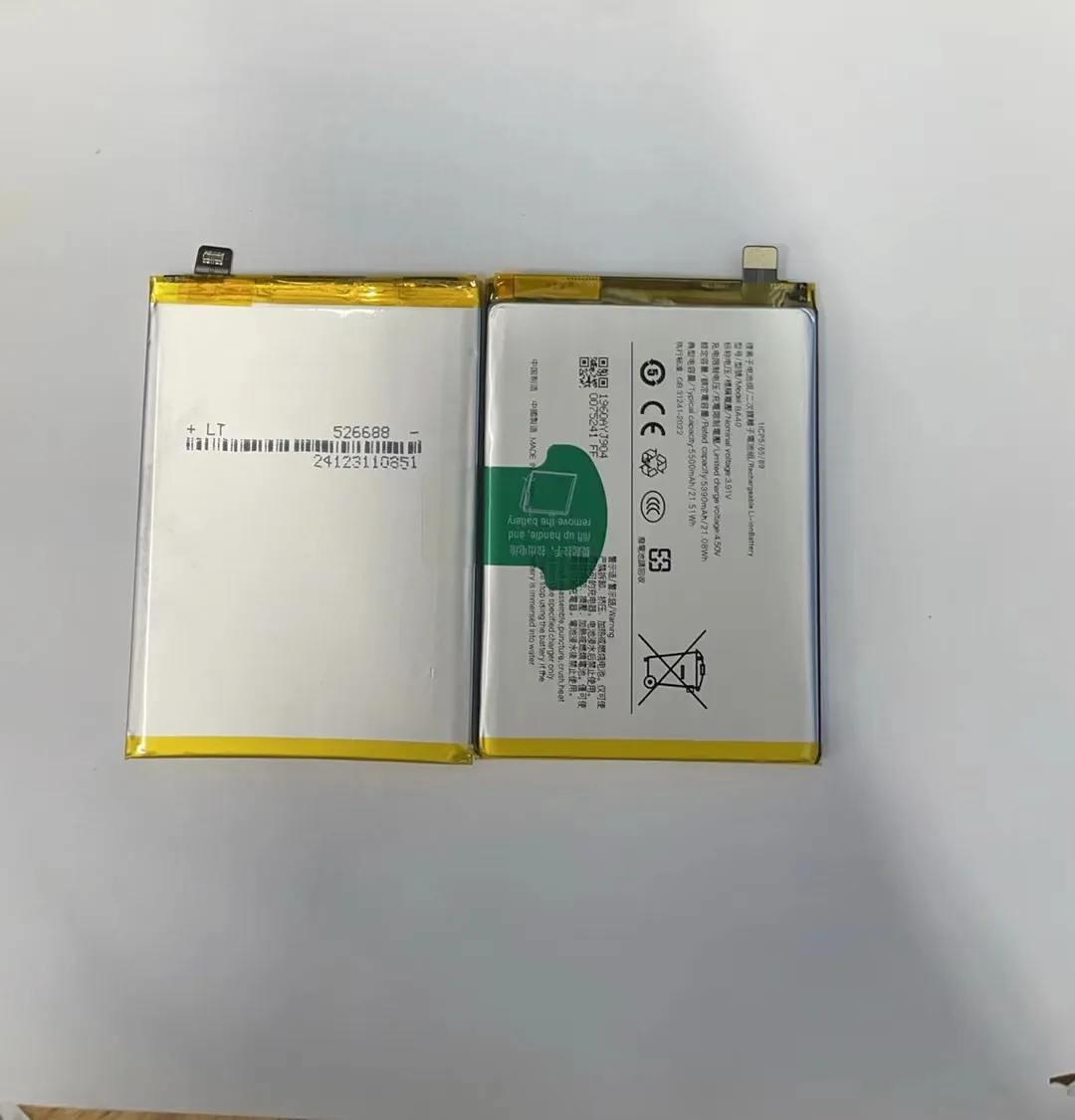
I explain battery aging very often, because many users want to know why health numbers fall even when they use the phone carefully. I want to show the simple reasons behind this slow drop.
Natural aging
All lithium batteries age. Each cycle causes small internal changes. These changes reduce the chemical ability to hold charge. Even light users see slow drops, because aging continues every day.
Heat damage
Heat is the biggest enemy of batteries. High temperature causes the material inside the battery to break down faster. Phones heat up during gaming, charging, or long video calls. When heat builds up, health drops faster.
Fast charging
Fast charging pushes more energy into the battery at once. This increases heat and stress. Many users love fast charging, but it speeds up aging. Slow charging is safer for long battery life.
Deep discharge
When you drain the battery to 0% often, the battery becomes unstable. This lowers cycle life. Keeping the battery between 20% and 80% helps health stay stable.
High internal resistance
As batteries age, internal resistance rises. This makes the phone shut down early under load. Health may drop quickly after resistance becomes too high.
Deep explanation with sections
Chemical breakdown over time
Lithium cells change structure with use. The changes are small, but they build up. This is why old batteries hold less energy. This slow change is normal and happens in all devices.
Heat cycles and long-term stress
When the phone heats up often, the battery ages faster. Heat makes the material expand and shrink repeatedly. This weakens the internal layers. Many users notice rapid health loss after hot summers or heavy gaming.
Voltage stress during fast charging
Fast charging stresses the battery with high current. This improves convenience but reduces cycle life. I see many batteries with fast drop in health because users charge them fast several times a day.
Which apps offer accurate diagnostics?
Many users download battery apps, but they feel confused because the numbers are not always correct.
Some battery apps offer useful estimates, but no app can match the accuracy of hardware testers or system-level data. Still, good apps can show temperature, usage, and performance trends.
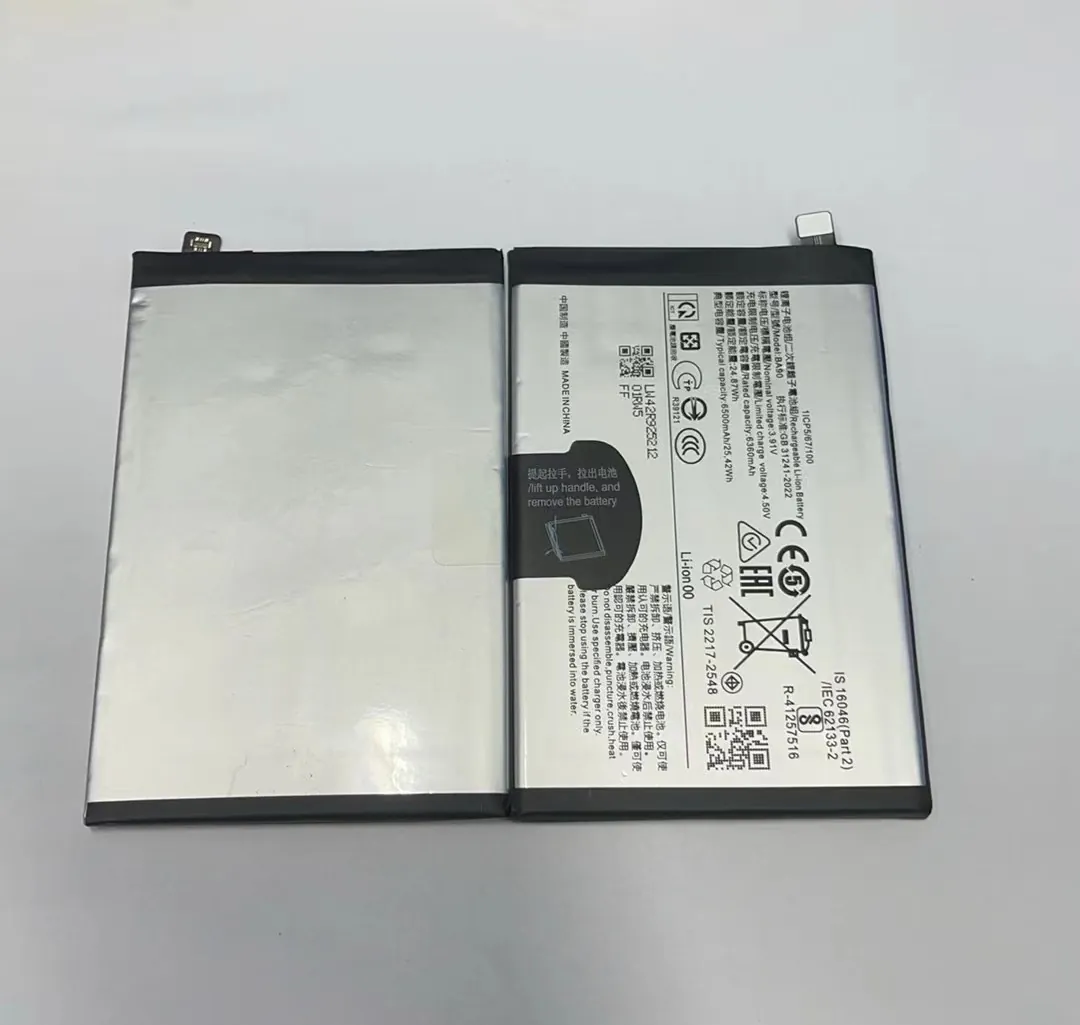
I review many apps when I help users check battery problems. Some apps show clean data, while others show random numbers. I want to explain which features you should look for when using apps.
Apps with temperature and voltage tracking
Good apps read temperature and voltage from system sensors. These values help you understand if the battery overheats. Overheating is a strong sign of aging.
Apps that show usage patterns
Many apps track drain over time. This helps you see if certain apps drain fast or if the battery drops too fast when the screen is off. These patterns show hidden issues.
Apps that estimate capacity
Some apps estimate capacity by tracking charge and discharge cycles. These estimates are not exact, but they help you see trends.
Apps with performance tests
Some apps let you run small load tests. These tests show if the battery voltage drops too fast under pressure.
Deep explanation with structured insight
Why apps are not 100% accurate
Apps do not read the battery chip directly. They gather system data and calculate estimates. This means the numbers depend on the phone’s software quality. Still, apps help users understand daily battery behavior.
When apps are useful
Apps are good for quick checks. They help users see heat problems, drain patterns, and background app behavior. They also help confirm if the phone shuts down early under load.
When apps fail
Apps cannot detect internal resistance, real capacity, or cell damage. They also cannot replace hardware testers. Still, many users rely on apps because they want fast checks without tools.
Conclusion
Phone battery health is easy to check with system settings, diagnostic apps, and hardware tools. When you understand what each number means, you can judge battery condition with confidence and plan replacements at the right time.
