
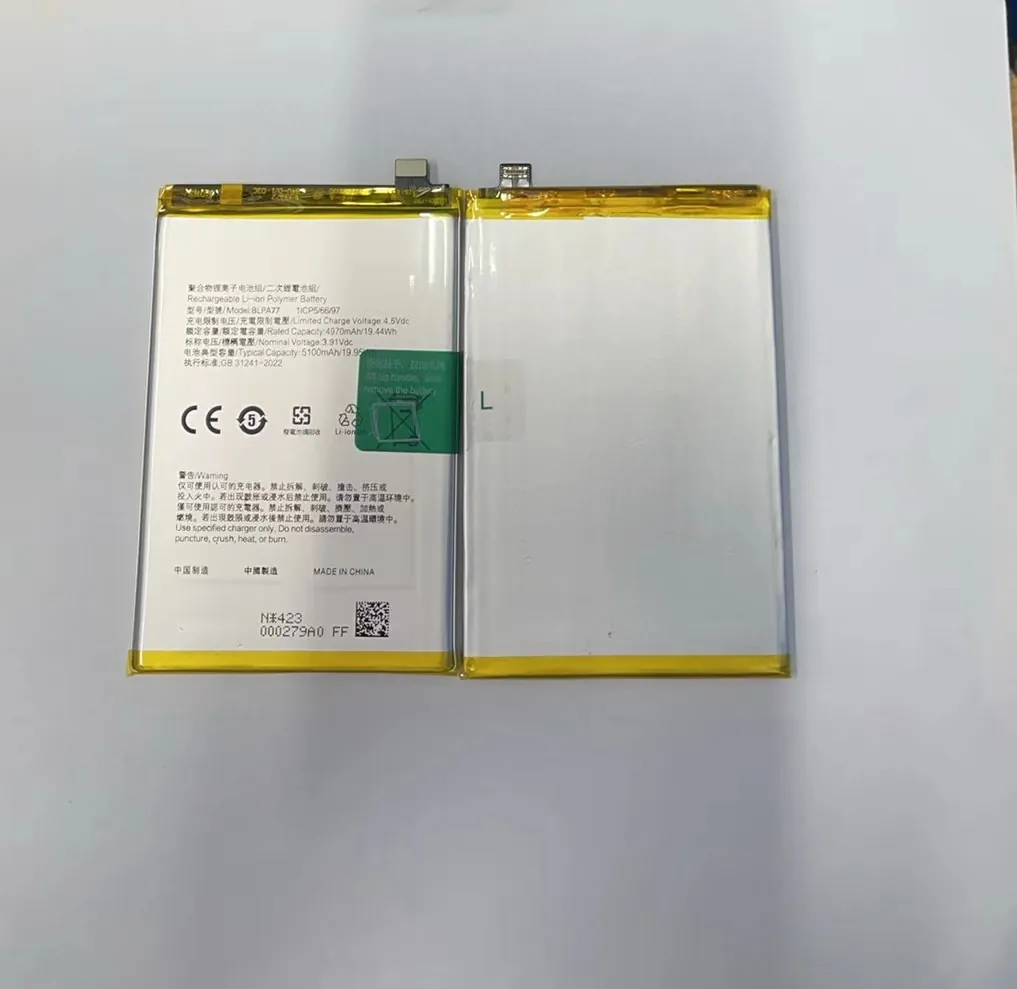
I know the stress when my phone battery drops fast and I cannot trust the device through the day.
You can slow fast battery drain by fixing system settings, removing bad apps, and testing the health of the battery, so the phone works longer again.
I want to show you the simple steps that I use when I fix phones for my customers, so you can keep reading and follow the same path.
What steps slow rapid battery drain?
I know the fear when the phone drops from 80% to 40% in one hour. This makes daily work hard and increases repair costs.
You can slow rapid battery drain by checking battery health, closing background apps, turning off radios that you do not need, and updating the system to remove bugs.
Why fast drain happens
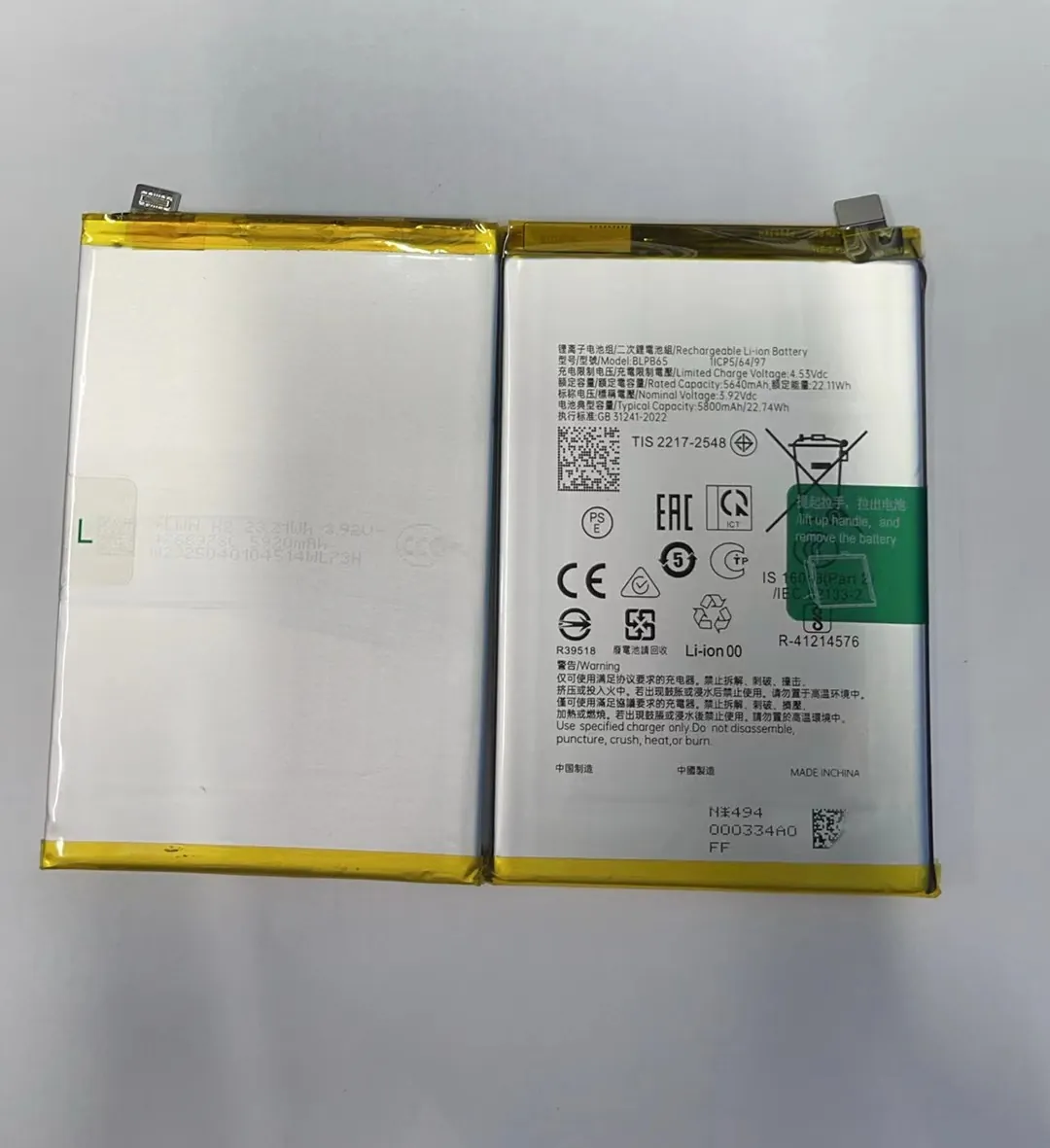
I see many users think the battery is “broken,” but most issues start from software or habits. A phone can drain fast because too many apps stay active. Bright screens take high power. Old batteries lose capacity after many cycles. Hot environments also push the phone to protect itself by using more power.
Key areas I test in real repairs
When I test a customer’s phone, I always check these points:
| Test Item | What I Look For | Why It Matters |
|---|---|---|
| Battery health | Cycle count and wear level | Old cells hold less charge |
| App usage | High background use | Some apps never sleep |
| Screen settings | Brightness and timeout | Screens take large power |
| Signal strength | Weak signals | Phone boosts antenna power |
| System updates | Old software | Bugs can trigger drain |
How I solve it during real repair work
I start with the simplest checks because I want fast feedback. I reduce screen brightness to a level that feels okay for indoor use. I switch the refresh rate to a lower mode if the phone supports this feature. I stop unused apps and remove apps that the customer does not trust.
I always check if the phone gets hot. Heat shows heavy processes. I guide the customer to remove their case for a short test and check if the heat drops. Heat can kill batteries faster, so I take it seriously. I restart the device, because many phones clear temporary issues with a fresh start.
I test the battery health with the built-in tool if the phone is an iPhone or a newer Android device. If the battery health drops too low, I explain to the customer why replacement is a better long-term choice.
Simple habits that help
I use simple habits when I travel, and they work for users too. I close GPS when I do not need it. I switch WiFi off when I stay far from any known network. I remove widgets that refresh too often. These simple habits slow battery drain and make the phone more stable.
How can settings reduce power loss?
I see many users skip the settings menu because it looks complex. This creates hidden power waste that stays for months.
You can reduce power loss by changing screen options, limiting background refresh, using battery saver mode, and controlling radios like Bluetooth, GPS, and 5G when you do not need them.
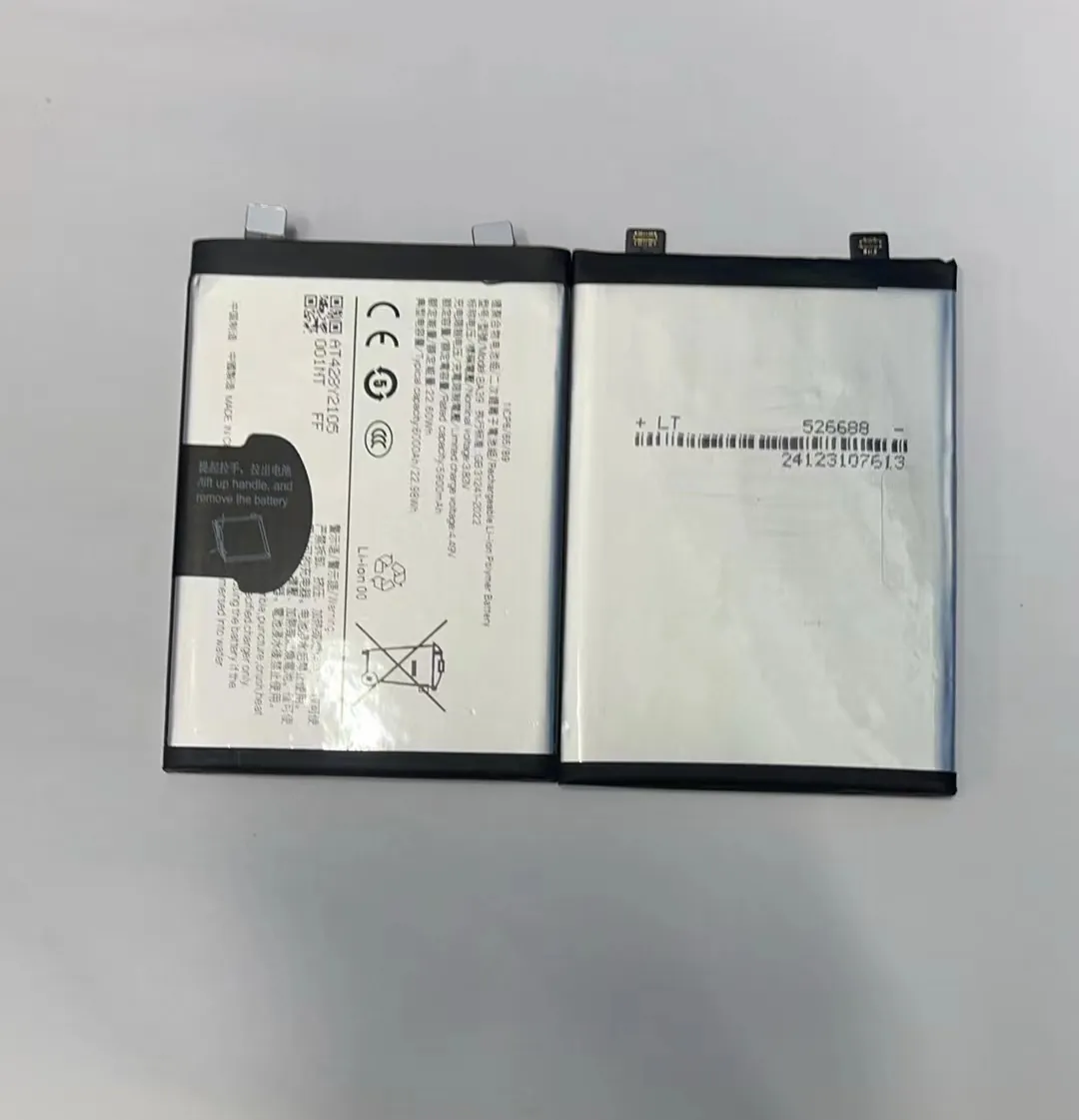
I check the big power features first
I do not start with small tricks. I always fix the big power leaks first. These settings make the largest change:
| Setting | What I Change | Power Impact |
|---|---|---|
| Screen brightness | Set to lower level | Very high |
| Refresh rate | Change to 60Hz | High |
| Background data | Limit for heavy apps | Medium |
| Location access | Set to “While using” | High |
| Battery saver | Turn on during daily tasks | Medium |
Screen and display controls
The screen uses more power than any other part of the phone. I guide users to turn off auto-brightness if it pushes brightness too high. I set a shorter screen timeout. I turn off always-on display if the phone drops too fast at night.
I explain to customers that 120Hz screens feel nice but drain power fast. When the customer needs more battery life than smooth scrolling, I set the refresh rate lower. This gives instant results.
Background activity
Many apps refresh content even when you do not open them. I check social apps first because they use data all day. I limit their background rights. I also remove their battery exemption in Android settings. This makes them sleep when not needed.
Radios and network settings
Phones waste power when they search for a signal. I switch the phone to 4G if 5G is unstable in the area. I turn off Bluetooth if the user does not use wireless devices. I check if WiFi scanning stays on because this often runs even when WiFi is off.
Battery saver modes
I use battery saver when I travel because it slows background work and keeps the phone cool. Many users fear this mode because they expect slow performance. But most modern phones work fine under battery saver. This mode can add many extra hours.
Why do rogue apps drain energy?
I see many phones drain fast because one or two apps behave badly. These apps take CPU time, run nonstop, or connect to the internet often. This problem stays hidden until I test usage stats.
Rogue apps drain energy because they stay active in the background, refresh data too often, or cause system load due to bad coding or hidden tracking.
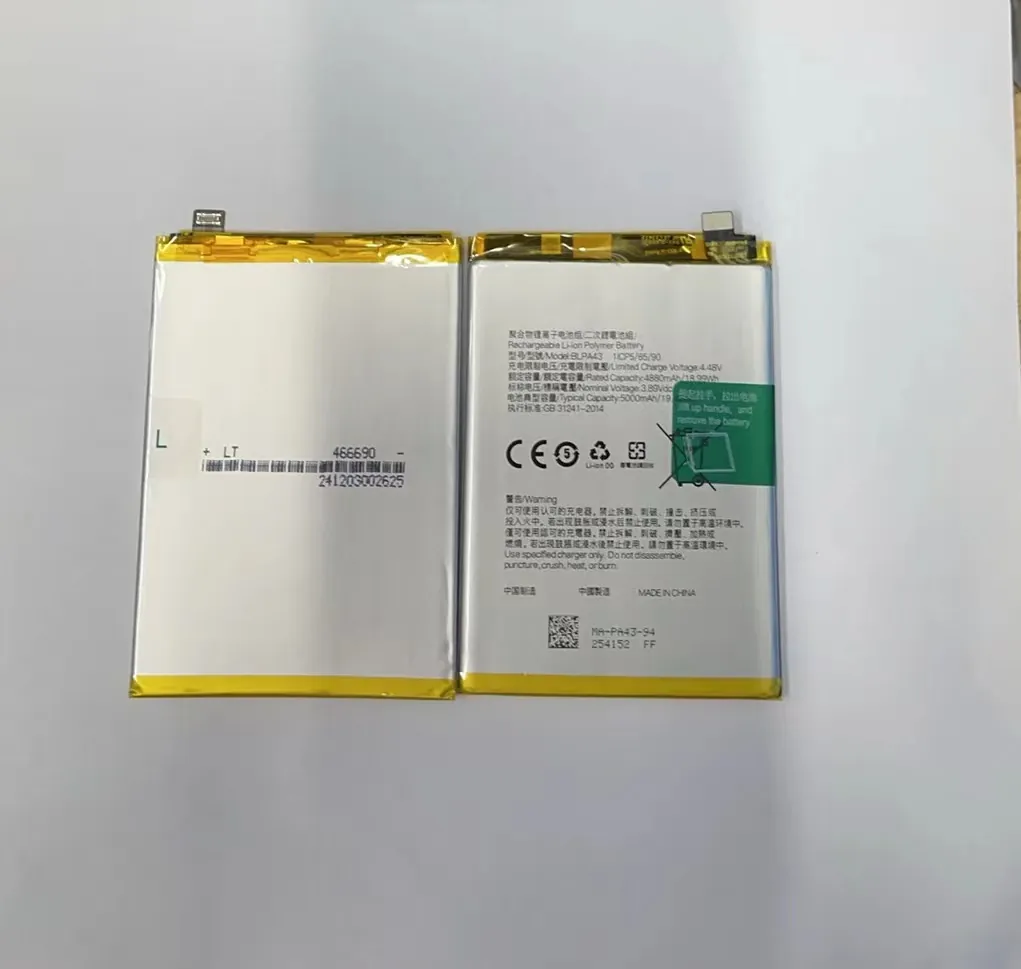
How I find these apps during repair jobs
I open the battery usage chart. I check which apps take the top spots. A normal pattern shows the screen on top, then system apps, then daily apps. A bad pattern shows a single app taking huge power even when not in use. Some apps take more than the screen. That is a clear sign.
Common types of rogue apps
I see the same types again and again:
- Free video players with ads
- Social apps that refresh too often
- Games that keep GPU warm
- Fake “cleaner” apps
- Hidden malware
- Apps that track location too often
These apps do not follow sleep rules. They wake the CPU, send requests, and keep the phone warm.
How I remove or control them
I always start with updates. Many apps fix bugs in new versions. If the app still drains power, I limit background rights. If the user does not need the app, I remove it. When the app is required for work, I show the user how to force close it after each task.
I also guide customers to use built-in tools instead of unknown third-party tools. For example, Android already has a cleaning tool, so the user does not need a random cleaner app.
Education for long-term use
I tell customers to watch battery usage once a week. This habit stops big problems early. I also show them how to read the chart. When they learn how to check this, they feel more in control.
Which fixes restore normal usage?
When the battery drain stays too fast, I use a step-by-step repair path. This method helps me find the real cause.
You can restore normal usage by checking battery health, updating software, removing heavy apps, resetting settings, and replacing the battery if the cell is old or damaged.
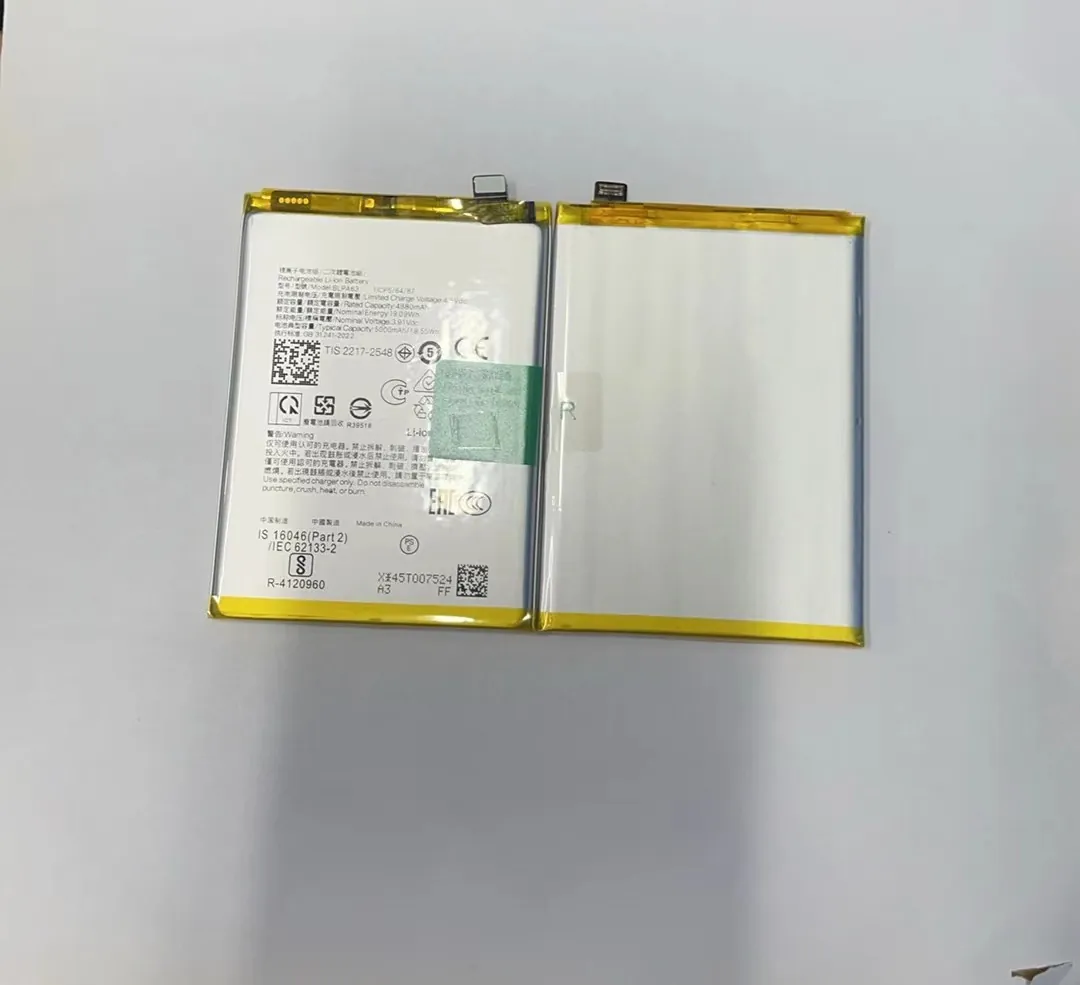
My step-by-step repair flow
I use a simple order because it saves time:
- Restart the phone.
- Check battery usage chart.
- Change power settings.
- Update apps and system.
- Test phone temperature.
- Run safe mode test.
- Test battery health.
- Decide if battery replacement is needed.
Each step gives me information. Restarting clears temporary problems. The battery chart points to the cause. Safe mode shows if third-party apps create the problem.
When replacement becomes the best fix
I replace many batteries each year. New batteries solve deep drain problems in old devices. A battery with high wear cannot hold charge for long, even if you fix all settings. I tell customers that battery replacement is normal after long use. Phones last longer with a fresh cell.
How a reset helps
Sometimes background settings break. This happens after years of updates. I reset system settings without erasing data. This clears network rules, permissions, and power profiles. This simple fix often restores normal usage.
My tests before returning the phone
I always run a two-hour standby test. I want the phone to stay cool. I want the battery to drop slowly. I also test light use, like browsing and messages. If the phone works well, I tell the customer the repair is successful.
Conclusion
Fast battery drain has clear causes and simple fixes. When you check settings, control apps, and test battery health, the phone becomes stable again. These steps help you keep the device ready through the day.
