
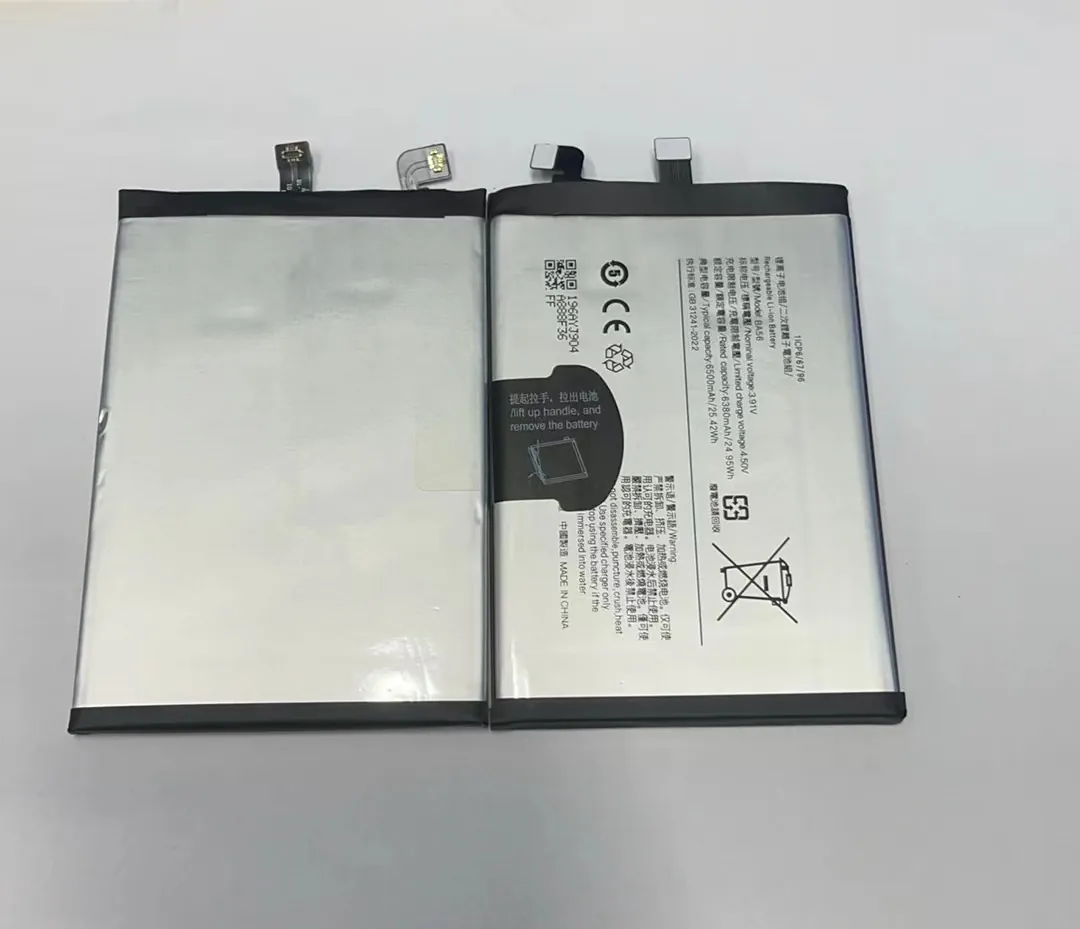
I see many people struggle with slow charging because they use the phone in the wrong way. I want to show the simple steps that fix this.
You can boost charge a mobile phone battery by using fast-charging power bricks, clean ports, good cables, low-power settings, and special charging modes that keep the phone cool. These steps raise speed without hurting battery health.
I want to share the ideas that work for me in daily work with phone batteries. I hope these simple methods help you get faster charging and better results.
What steps speed up charging?
I know the pain when a phone charges so slow that you feel stuck. I see this problem often when customers tell me they need a fast way to power up their phones before work.
The best steps to speed up charging include using a high-watt charger, turning off background apps, keeping the battery cool, cleaning the port, and reducing screen use during charging. These steps help the phone take in power with less resistance.
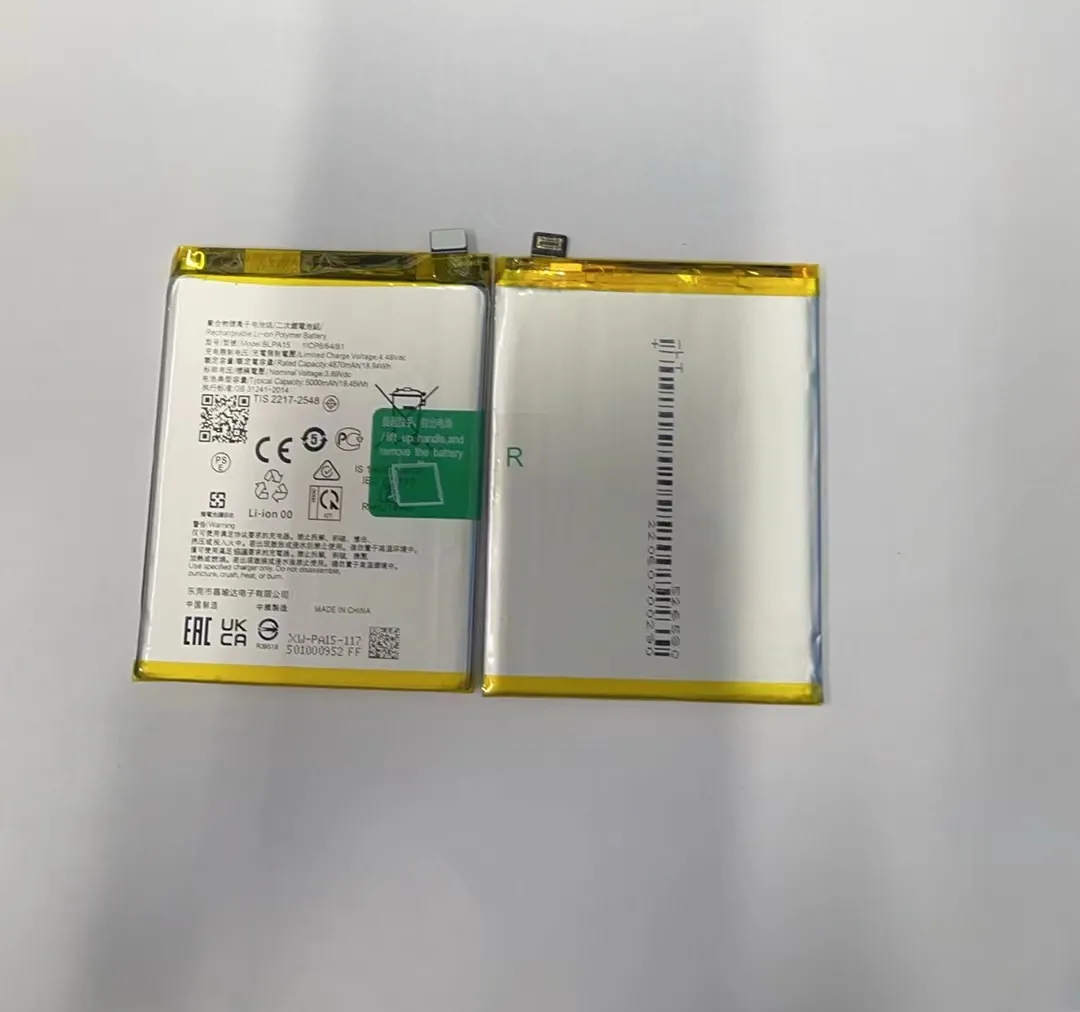
Why these steps work
When I test phone batteries, I see that simple habits make a big difference. The charging system inside a phone follows power rules that depend on heat, wattage, and internal resistance. If any part of the system struggles, the speed drops a lot.
Below is a deeper look at the steps:
1. Use a proper high-watt adapter
A phone can only charge fast when the adapter gives enough power. Many people use old chargers that output 5W or 10W. A modern phone may support 20W, 30W, or even 65W.
When I run tests in my workshop, I often find that just switching to the right adapter boosts speed by more than 50%.
2. Keep the phone cool
Heat slows down charging. When the phone gets too warm, the system limits current. I see this limit happen a lot when customers charge the phone under a pillow or inside a car on a hot day.
A cool surface helps keep fast charging stable.
3. Disable battery-heavy apps
Apps that stay active in the background pull power while the phone tries to charge. This makes the phone split energy between running tasks and filling the battery.
A simple restart or closing apps can boost speed in seconds.
4. Clean the charging port
Dust, lint, and oil build up inside the port. This creates poor contact with the cable pins. When I clean ports during repairs, charging speed jumps back to normal. Many people do not know this simple fix.
5. Reduce screen brightness
A bright screen draws a lot of power. If the phone uses power faster than the charger supplies, the battery fills slowly. Keeping the screen off or dim helps a lot.
Table: Fast-charging steps and reasons
| Step | Why it works |
|---|---|
| Use high-watt adapter | Gives enough power for fast modes |
| Keep phone cool | Stops the system from limiting current |
| Close apps | Frees all power for charging |
| Clean port | Improves contact for stable flow |
| Lower brightness | Cuts battery drain |
I use these steps every day when testing batteries, and they always improve charge speed. These ideas are simple and safe, and they help you get more power in less time.
How do settings reduce charge time?
Many people forget that small settings inside the phone affect charging more than they expect. I notice this when customers ask why two phones with the same charger have very different speeds.
Settings reduce charge time by cutting power use during charging. Turning on airplane mode, enabling power-saving, lowering brightness, and stopping sync let the battery store power without heavy drains. These settings help the phone charge much faster.

Why settings matter
When I test batteries, I see power flow in real time. The phone keeps drawing energy for radios, apps, and sensors even while charging. This means charging is slower because the battery gains less net power.
Changing a few settings fixes this problem fast.
1. Airplane mode
Airplane mode turns off mobile data, Wi-Fi, and Bluetooth. These radios use a lot of energy because they search for signals. Once you turn them off, the phone stops draining power.
I see customers get at least 15–30% faster charging with airplane mode.
2. Power-saving mode
Power-saving mode limits background activity. It slows CPU usage and stops apps from running heavy tasks. This keeps the phone cool and stable.
A cool phone always charges faster because it avoids power restrictions.
3. Turn off always-on display
Many phones keep showing time or icons on the screen. This looks nice but uses energy. Turning this off gives the battery more room to fill.
4. Stop auto sync
Apps like mail, cloud drives, and social apps always check for updates. This work drains power and heats the phone.
Stopping sync during charging is one of the easiest ways to reduce charge time.
5. Remove live wallpapers
Live wallpapers use graphics power. A simple still image helps lower power draw and keeps the battery cooler.
Table: Settings and their impact on charging time
| Setting | Impact |
|---|---|
| Airplane mode | Cuts radio drain |
| Power-saving mode | Reduces CPU load |
| Disable always-on | Saves display power |
| Stop sync | Cuts background work |
| Remove live wallpaper | Lowers GPU use |
I use these settings myself when I need a fast top-up before a busy day. These small tricks work every time.
Why do cables affect speed?
I often see customers blame the battery or adapter when the real problem is the cable. Cables look simple, but they control how much power reaches the phone.
Cables affect speed because low-quality cables have thin wires, weak shielding, and poor connectors that limit current flow. A strong, certified cable supports higher wattage and stable voltage, so the battery charges much faster.
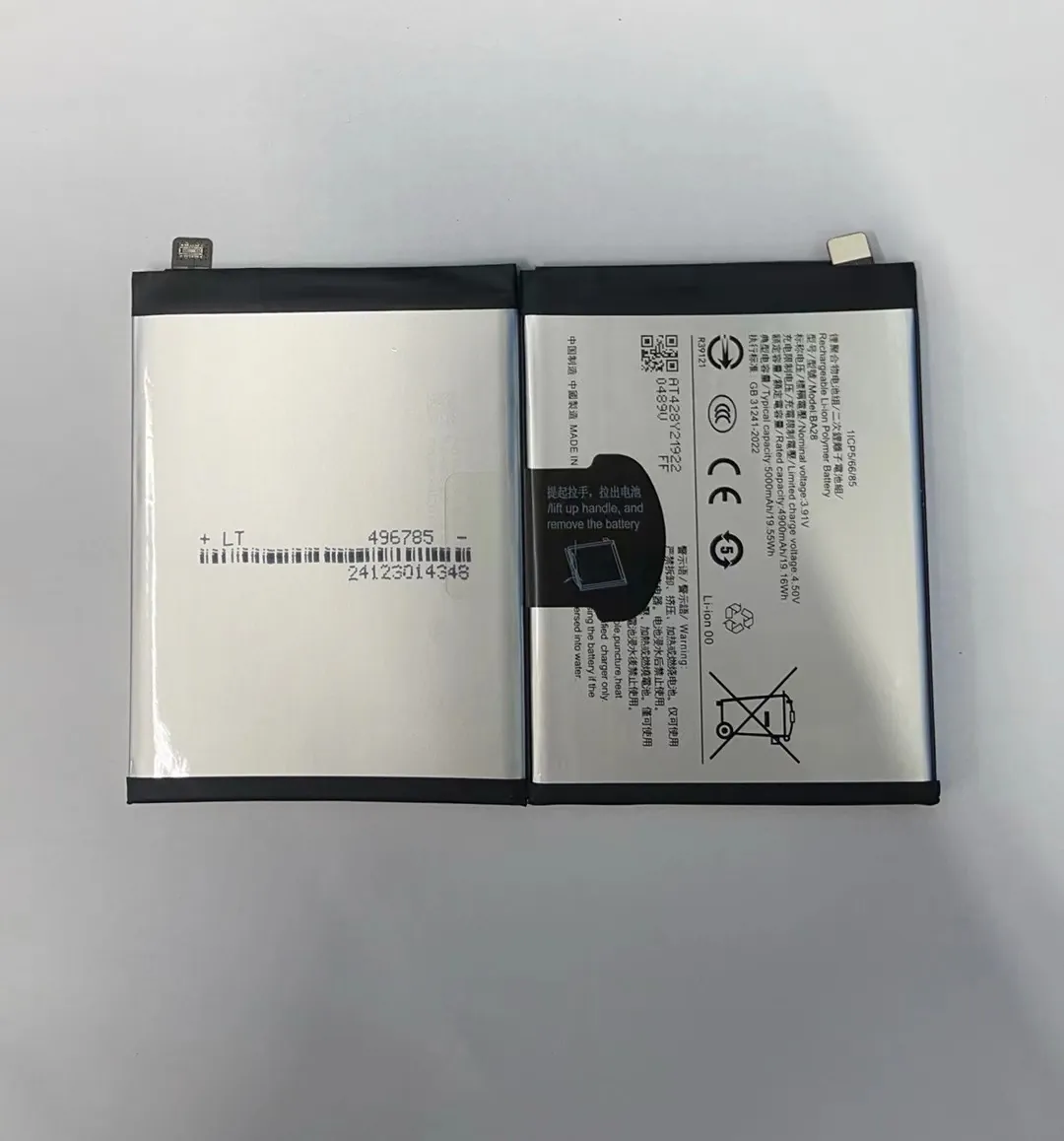
How cables make a difference
In my daily work with battery parts, I test many cables. I see a big range of quality. Some cables drop power so much that fast charging stops completely.
1. Wire thickness
Good cables use thicker copper wires. Thin wires resist power flow. When resistance rises, the cable heats up and drops voltage. The phone then slows charging to protect itself.
2. Connector quality
Loose connectors slip inside the port. This causes unstable power or even charging interruptions.
When I test a cable with bent or dirty pins, charging speed drops right away.
3. Supported protocols
Modern phones use fast-charging rules like PD, QC, or PPS. Not every cable supports these.
A cable that cannot carry high-watt power will force the phone to charge at a slow default mode.
4. Cable length
Long cables make charging slower because longer distance increases resistance. I always use cables under one meter when I test fast-charging batteries.
5. Certified cables
Certified cables meet safety and performance standards. Cheap cables skip these checks.
I always keep a few certified cables in my workshop because they give stable, safe power.
Table: Cable factors and results
| Cable factor | Result on charging |
|---|---|
| Thick copper wires | Faster, stable flow |
| Good connectors | Less heat and drop |
| PD/QC support | Enables fast modes |
| Short length | Less resistance |
| Certification | Safer watts |
I see cable problems so often that I always tell people to check cables first before changing the battery or charger.
Which modes optimize fast charging?
Many phones now offer special charging modes that help power flow faster and safer. These modes work with both hardware and software to give the best results.
Fast-charging modes optimize speed by raising watt limits, tuning voltage, controlling heat, and balancing battery protection. These modes let the phone pull more power safely and finish charging sooner.
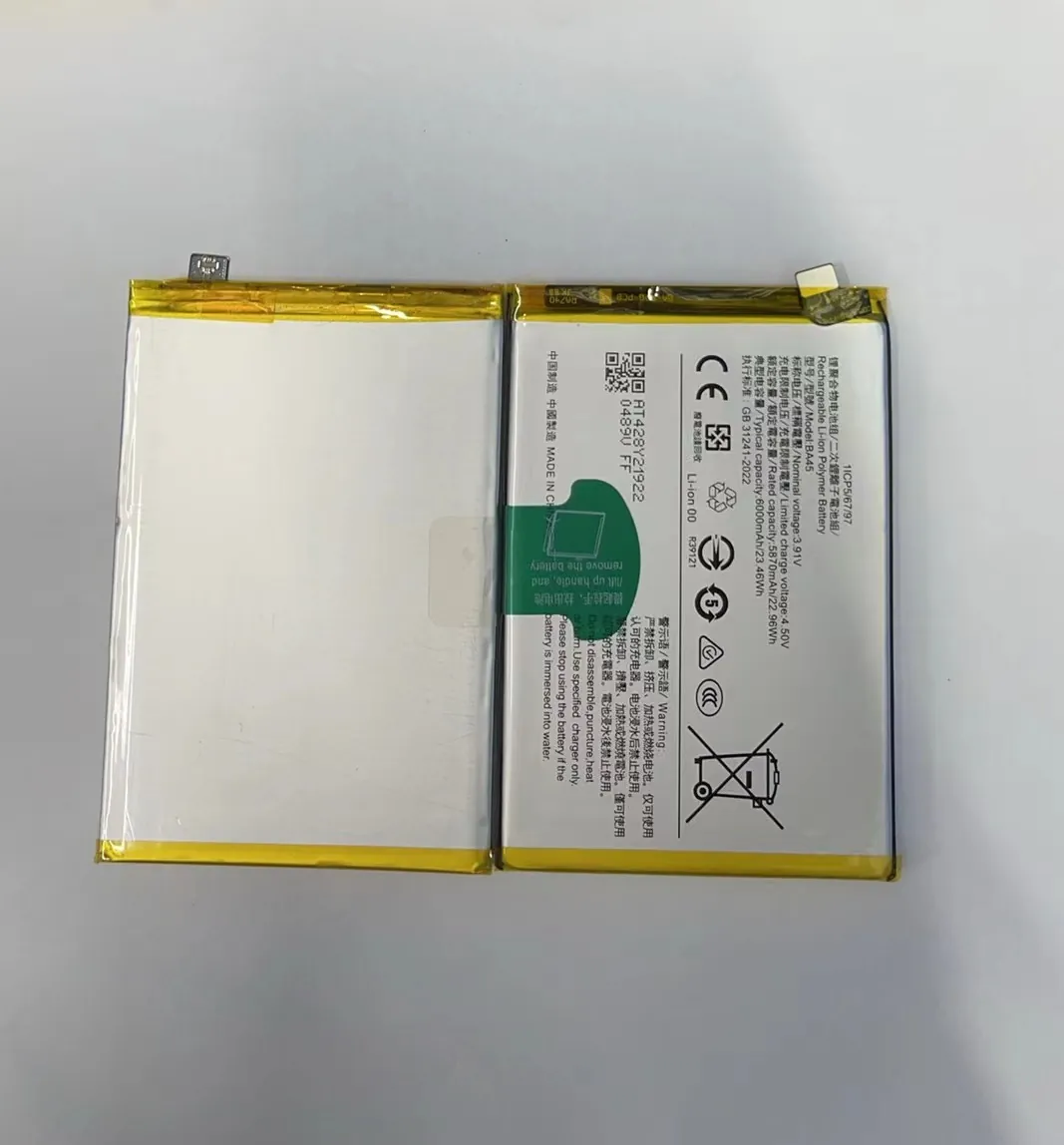
How fast-charging modes work
I test many phones with different charging systems. I see that each brand uses a mix of hardware and software rules. The phone looks at heat, battery health, and charger type. Then it chooses the best power level.
1. High-watt turbo modes
Some phones support over 30W or even 100W. These modes push power at the start of charging.
This gives a big jump from 0% to 50% very fast. But the phone only allows this when the temperature is low and the cable is strong.
2. Smart temperature control
Fast modes use sensors to check heat. If heat rises, the phone reduces power automatically.
This keeps the battery safe and prevents swelling or long-term damage.
3. Adaptive charge control
Many phones slow the speed after 80%. This protects the battery and stops pressure on the cells.
I often explain to customers that the last 20% is slow by design and not a problem.
4. USB-C PD and PPS modes
Power Delivery (PD) and Programmable Power Supply (PPS) adjust voltage in small steps.
This helps the phone get stable power without jumps or heat spikes.
I use PD chargers in my tests because they work with many brands.
5. Battery bypass modes
Some gaming phones let the power go straight to the system instead of the battery.
This keeps heat low and charges more safely.
6. Eco fast charge modes
Some phones offer a balanced fast mode. It charges faster than normal but keeps heat under control.
This mode is good for people who want speed without heavy stress on the battery.
H3: Example performance of charging modes
| Mode type | Speed | Heat level | Best use |
|---|---|---|---|
| Turbo | Very fast | High | Quick top-ups |
| PD/PPS | Fast | Medium | Daily use |
| Eco fast | Moderate fast | Low | Battery care |
| Bypass | Stable | Very low | Gaming |
I use fast-charging modes every day when I test batteries. I see that the right mode gives the best mix of speed and safety. You can choose the mode that suits your needs and your phone's health.
Conclusion
Fast charging works best when the charger, cable, settings, and phone mode all match. Simple steps like good cables, clean ports, low-power settings, and the right fast-charging mode help you charge faster without risk.
