
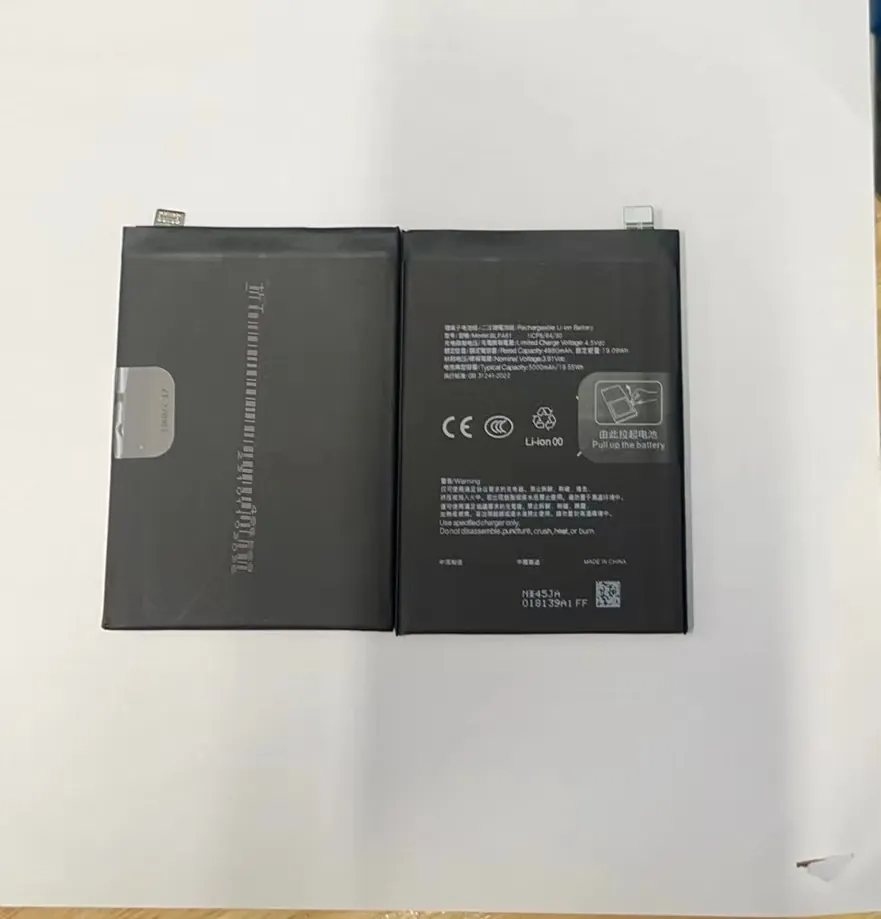
Most mobile phone users face the same frustration: the battery drains too fast. This problem feels even worse when you're outside without a charger.
To make your mobile phone battery last longer, you need to change a few daily habits and adjust some phone settings. These small changes can make a big difference.
If you keep reading, you’ll learn the simple tweaks that help avoid frequent charging and extend your battery’s health over time.
What habits reduce power drain?
Most people don’t realize how their everyday phone habits are silently draining their battery. You might think you're using it normally, but a few bad habits can cause fast battery loss.
Reducing power drain starts with changing small daily habits like closing unused apps, avoiding overcharging, and keeping your phone out of extreme temperatures.

Some users keep apps running all day, forget to close them, and leave their phones charging overnight. These behaviors slowly wear down the battery’s ability to hold charge. Even something simple like checking your phone too often or leaving Bluetooth on when it's not in use drains power without you noticing.
Key Habits to Change
Here are a few good habits that help:
- Use airplane mode when you don’t need a connection.
- Turn off Wi-Fi, GPS, and Bluetooth when not needed.
- Avoid using your phone while charging.
- Don’t let your battery drop to 0% or charge to 100% every time.
These small changes reduce the number of full charge cycles your battery goes through. The fewer cycles, the longer the battery stays strong.
Habit Comparison Table
| Habit | Power Drain Impact | Recommendation |
|---|---|---|
| Leaving apps open | High | Close unused apps |
| Overnight charging | High | Unplug at 80-90% |
| Max screen brightness | Very High | Use auto-brightness |
| Checking phone often | Medium | Use do-not-disturb |
| Leaving GPS on | High | Turn off when idle |
By following these suggestions, many users notice they don’t have to charge their phones as often, and over months, the battery remains stronger compared to those with careless habits.
Why adjust brightness levels?
Your screen might be your favorite part of your phone, but it’s also the one draining most power. High brightness gives a clear view but uses more battery than you’d expect.
Reducing brightness or using automatic brightness settings cuts battery use significantly because the screen is one of the most power-hungry components.
Many people never change their screen brightness. They leave it on high all the time, even indoors or at night. This drains the battery fast, especially on OLED or AMOLED displays.
How Brightness Impacts Battery
Here’s a breakdown of how brightness affects power usage:
- High brightness: Constant 100% brightness can use up to 30% more battery per hour compared to lower settings.
- Auto-brightness: Adjusts the screen based on your environment. It lowers power use without needing manual changes.
- Dark mode: For phones with OLED displays, dark mode uses less power since black pixels consume less energy.
Brightness Settings Table
| Brightness Mode | Battery Usage | User Control | Best For |
|---|---|---|---|
| 100% Manual | High | Full | Outdoor, bright conditions |
| 50-70% Manual | Medium | Full | General use |
| Auto-Brightness | Low | Partial | Indoor, changing light |
| Dark Mode (OLED) | Very Low | Optional | Night, reading, saving power |
Try switching to auto-brightness during the day and dark mode in the evening. You'll get a noticeable boost in battery life without affecting your experience.
Which settings boost battery life?
Modern phones have many features. While they improve performance, many run in the background, quietly using your battery.
You can boost battery life by turning off unused features like location tracking, vibration feedback, and background app refresh.
You don’t need every feature active all the time. If you only use GPS when driving or vibration alerts when in meetings, keep them off the rest of the time. Each one adds to power drain.
Key Settings to Change
Here are the most common power-hungry features:
- Location services: Only use while the app is open.
- Background app refresh: Turn it off for apps you don’t use often.
- Vibration: Use sound alerts instead of constant buzzing.
- Push notifications: Disable for non-essential apps.
- Animations and visual effects: Reduce or disable in accessibility settings.
Recommended Settings for Battery Saving
| Setting | Default Behavior | Battery-Saving Option |
|---|---|---|
| Location Services | Always On | Use "Only While Using App" |
| Background App Refresh | On for All Apps | Off or Selective |
| Vibration Feedback | On for All Alerts | Off or Only for Calls |
| Push Notifications | On for Every App | Off for Social/Promo Apps |
| Visual Effects | Full Animation Speed | Reduce Motion / Simple Display |
By adjusting these settings, your phone spends less energy running things you’re not actively using. This means longer battery life and a smoother experience.
How do background apps affect usage?
Some apps never truly close. They keep running even after you swipe them away. These background apps are among the top reasons why batteries die faster.
Background apps consume data, location, and processing power—leading to battery drain even when you're not using the phone.

You might think closing an app removes it completely. But many apps still refresh in the background, send push notifications, or track your location. Social media, maps, weather, and messaging apps are often the biggest culprits.
Identifying Problem Apps
Here’s how to find out which apps use the most battery:
- Go to Settings > Battery.
- Check the list of apps and their battery usage percentage.
- Look for high-usage apps even when not in use.
Apps like Facebook, TikTok, and Google Maps often appear at the top. Disabling their background refresh or limiting their permissions can help.
Tips to Control Background Usage
- Use battery saver mode when you’re not actively using your phone.
- Restrict background data for non-essential apps.
- Uninstall apps you haven’t used in the past month.
- Turn off auto-sync for email and cloud services if not needed.
These simple steps keep apps from using resources without your permission.
Conclusion
Making your mobile phone battery last longer doesn’t need special tools. Just change a few habits, adjust your settings, and watch the results. A longer battery life starts with simple daily choices.
