
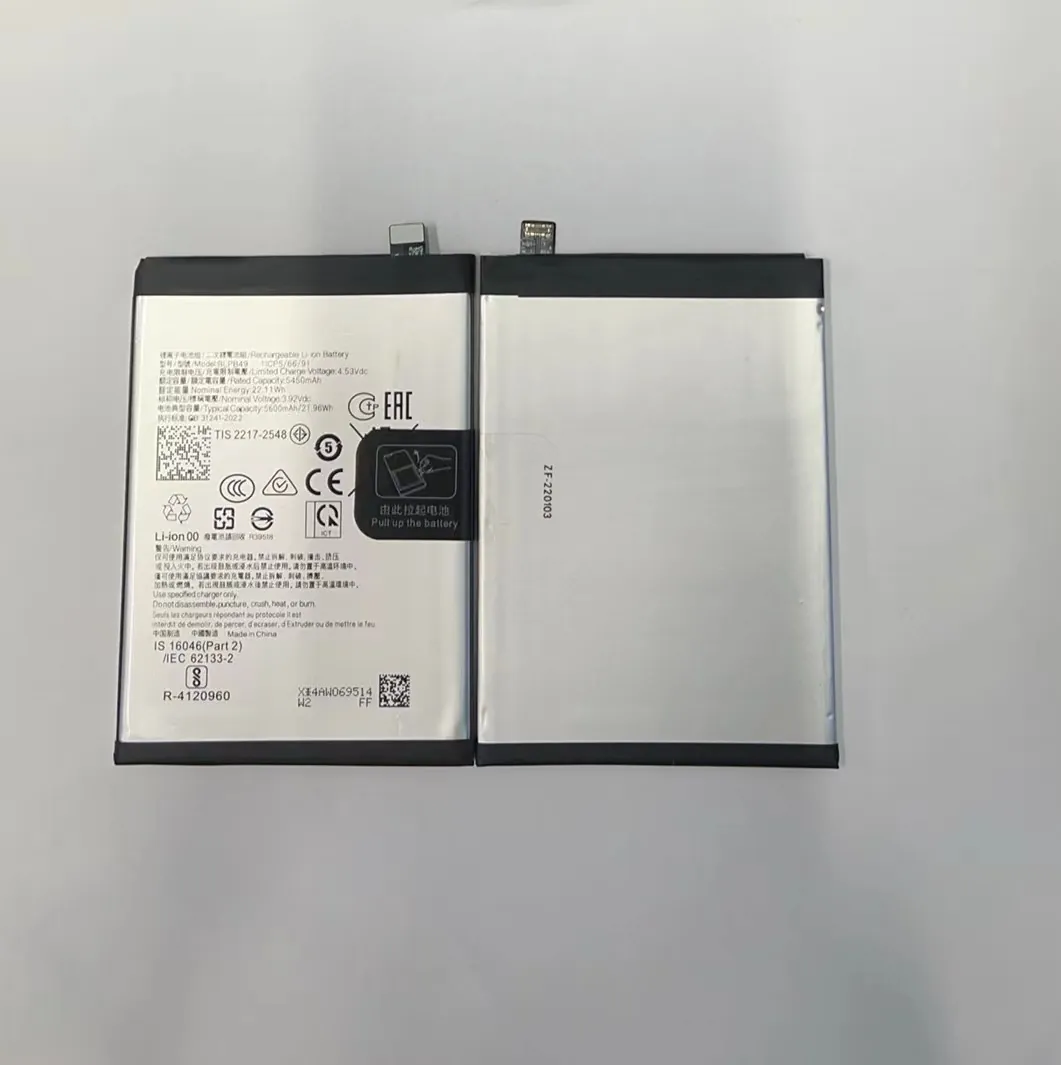
Battery dies fast? That’s stressful. One moment it’s 80%, next moment it’s gone. If your phone can’t last a day, it’s time to fix that.
You can extend a phone’s battery life with simple habits like reducing screen brightness, closing background apps, turning off unused features, and charging smartly.
Battery problems don’t always mean a bad battery. Often, it’s the way the phone is used. Let’s look at how to make your battery last longer and work smarter.
What are the best practices to extend battery life?
Heavy screen use, background sync, and poor signal are silent killers. But just a few tweaks can make big changes.
Turn off features when not in use, reduce screen brightness, and activate power-saving mode to slow down battery drain.

Easy habits that work
Many users ignore power settings. They leave brightness at full all day. They never close apps. These habits waste power every hour.
Smart battery-saving steps:
- Lower screen brightness manually or use auto-brightness.
- Set screen timeout to 30 seconds or 1 minute.
- Turn off GPS, Bluetooth, or Wi-Fi when not using.
- Enable power saving mode in settings.
- Avoid live wallpapers or animated lock screens.
- Use dark mode if your phone has an OLED display.
Daily routine tips
| Time of Day | What You Can Do |
|---|---|
| Morning commute | Use airplane mode if signal is weak |
| Office hours | Connect to stable Wi-Fi |
| Lunch break | Close unused apps and turn on saver |
| Evening | Charge between 20%-80% if possible |
| Sleep time | Use airplane mode or do-not-disturb |
These actions protect the battery and improve screen-on time.
Why it works
Most of the battery goes into powering the display and radio chips. These include Wi-Fi, 4G/5G, and GPS. When those are active, they demand constant power. Turning them off when not needed reduces power use fast.
Power-saving mode also limits CPU speed and reduces background activity, helping the battery last longer during critical times.
How do background apps affect battery performance?
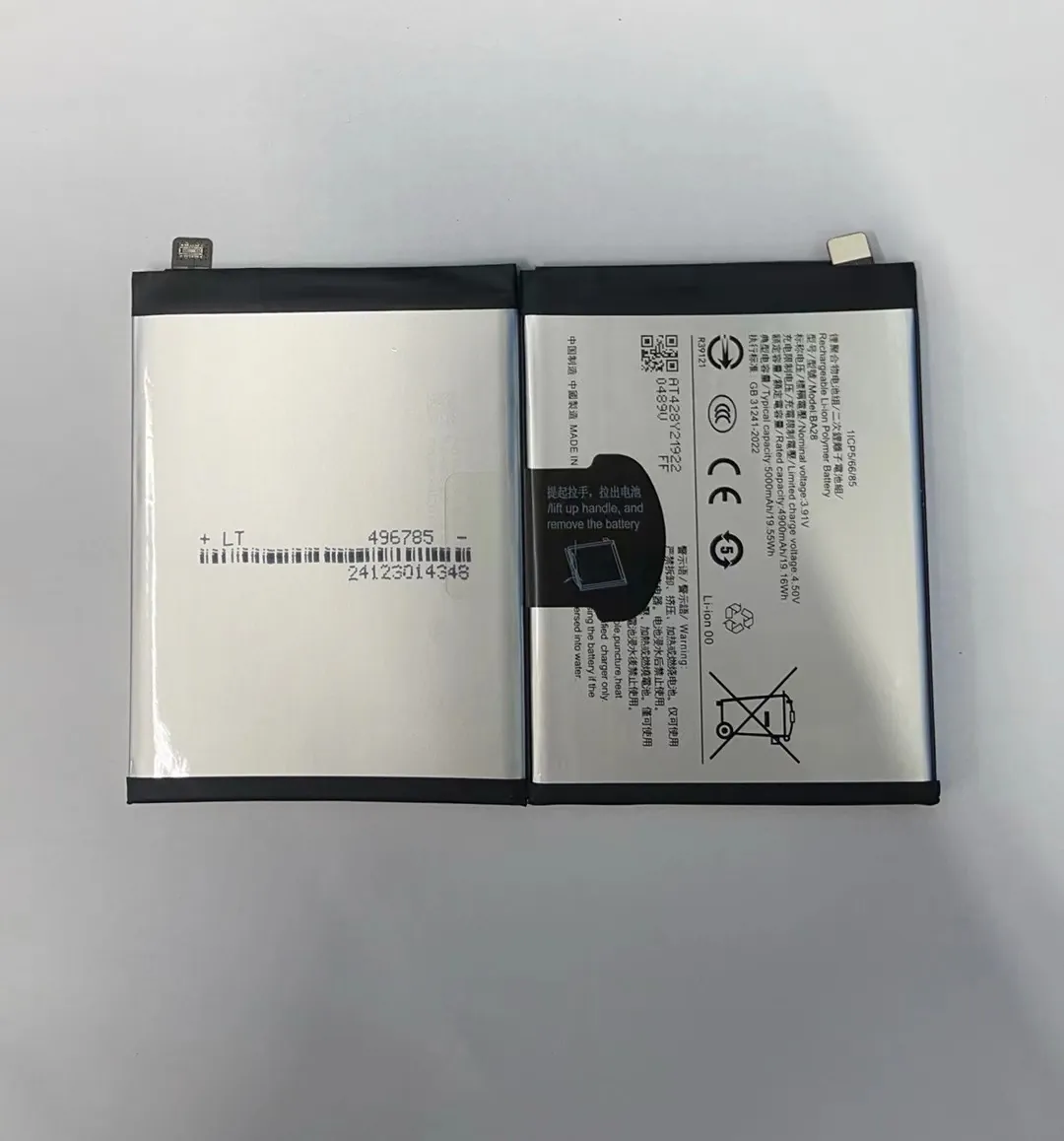
You close an app, but it’s not really closed. Many apps keep working in the background and drain your battery quietly.
Background apps wake up hardware, use network and keep the phone active. This reduces standby time and drains your battery.
What background apps really do
Most people don’t realize this, but apps like Facebook, Instagram, email, or even weather apps constantly refresh data. They check for updates, load ads, or track your location.
Main types of background activities:
- Social media fetches new posts
- Mail apps check for new messages
- Cloud services sync files or photos
- News apps refresh headlines
- Navigation apps check GPS location
How to stop this drain
Go into phone settings and do the following:
- Disable background data usage for specific apps
- Turn off auto-sync for non-essential apps
- Deny GPS access for apps that don’t need it
- Use “Battery optimization” settings to restrict apps
| Setting | How it Helps |
|---|---|
| Background Data off | Stops auto-updates |
| Battery Optimization | Limits CPU/network in background |
| Location off for apps | Saves GPS power use |
| App Sleep (on some phones) | Forces unused apps to stay inactive |
By doing this, standby time can increase by 30% or more. The phone will last longer overnight or during low-usage periods.
Is battery calibration necessary for longer battery life?
Some people say you must fully drain then fully charge your phone. Others say that’s a myth. Which one is right?
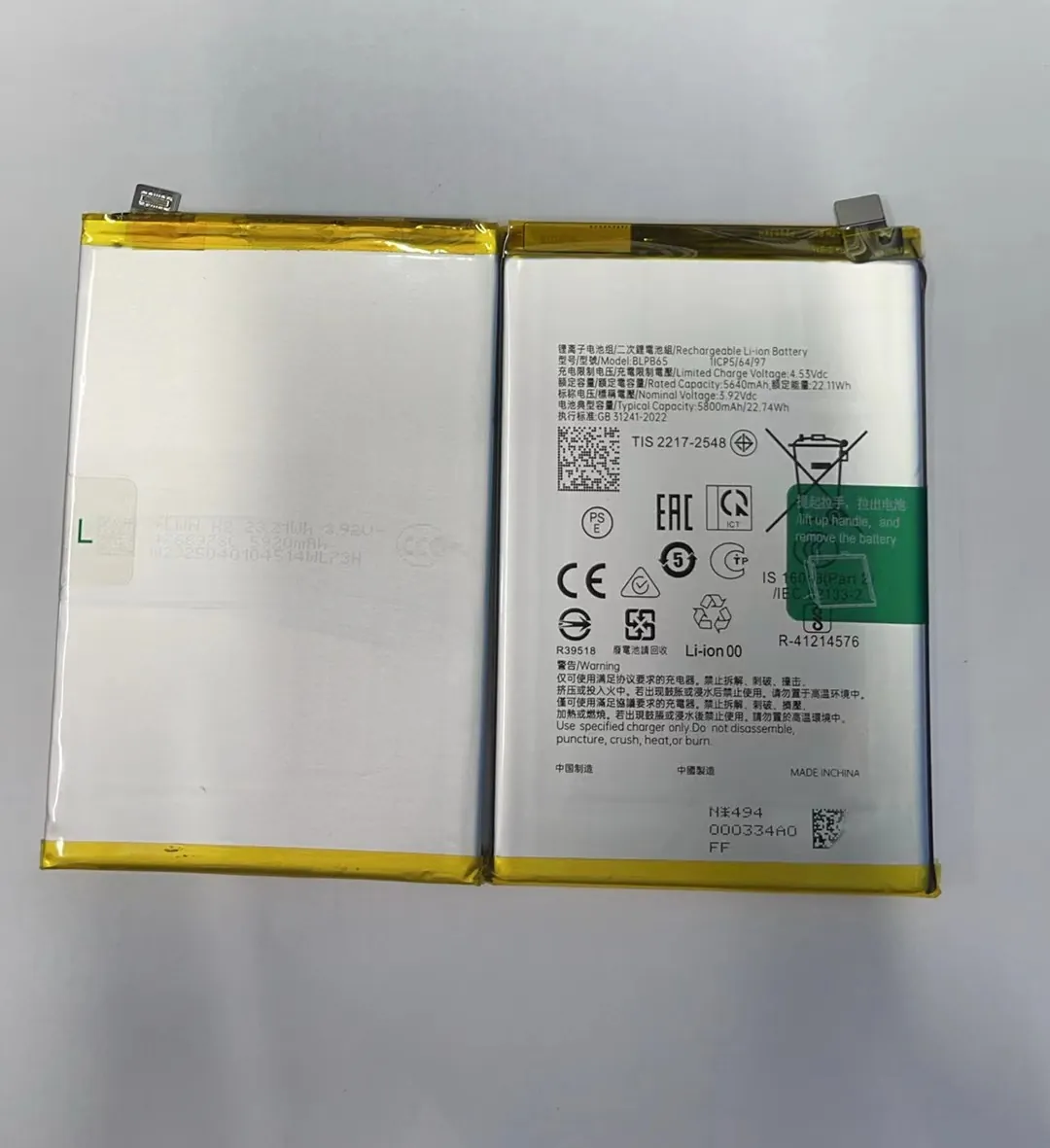
Battery calibration can help the phone display battery percentage more accurately, but it doesn’t directly improve battery health.
What calibration actually does
Lithium-ion batteries don’t need regular full charge/discharge cycles. But sometimes the phone software “forgets” how full the battery is. This is when calibration helps.
For example, your phone jumps from 50% to 20% in 5 minutes — this might mean calibration is off.
Steps to calibrate:
- Use your phone until it shuts down at 0%.
- Leave it off for 30 minutes.
- Charge it to 100% in one go, without interruption.
- Leave it plugged in for an extra 30 minutes.
- Unplug and restart.
When to calibrate?
- If battery percentage behaves oddly
- If the phone shuts down before reaching 0%
- Only once every 2–3 months if needed
What NOT to do
Avoid deep discharges daily. Lithium batteries don’t like going to 0% too often. It shortens battery life.
| Myth vs Fact | Reality |
|---|---|
| Full discharge improves health | False — it can stress the battery |
| Calibration increases capacity | False — it only fixes display accuracy |
| Calibration is needed monthly | False — rarely needed |
Calibration can help in rare cases, but good daily habits do more to keep a battery healthy.
Can software updates improve battery efficiency?
Yes, updates can help. But they can also hurt. It depends on what’s inside the update.
Software updates often improve battery life by fixing bugs and optimizing background tasks, though some updates may add battery-hungry features.

How updates help
- Fix bugs that prevent deep sleep (when phone is idle)
- Improve how apps sync or load data
- Enhance battery saver features
- Make better use of hardware with optimized code
For example, Android and iOS both introduced “adaptive battery” in updates. This learns user habits and limits background use of unused apps.
When updates hurt
Sometimes new features are added that use more power. For example:
- Always-on display
- 120Hz screen refresh
- Background AI suggestions
- More notifications or widgets
What to do after updates
- Check if new battery settings are available
- Turn off newly added features you don’t use
- Update apps as well — they may include power optimizations
- Monitor battery usage screen for 2–3 days
| After Update Checklist | Benefit |
|---|---|
| Review new features | Find what drains battery |
| Disable high-power features | Reduce unnecessary usage |
| Reboot once after update | Refresh system processes |
| Clear app cache if battery drops | Fix bad app behavior |
Software updates can fix hidden bugs that silently drain power. But check everything that’s new, not just trust the update blindly.
Conclusion
Long battery life doesn’t need special tools — just smart use. Control screen brightness, block background tasks, charge smartly, and update wisely. Do these right, and your phone battery will serve you longer, every day.
