
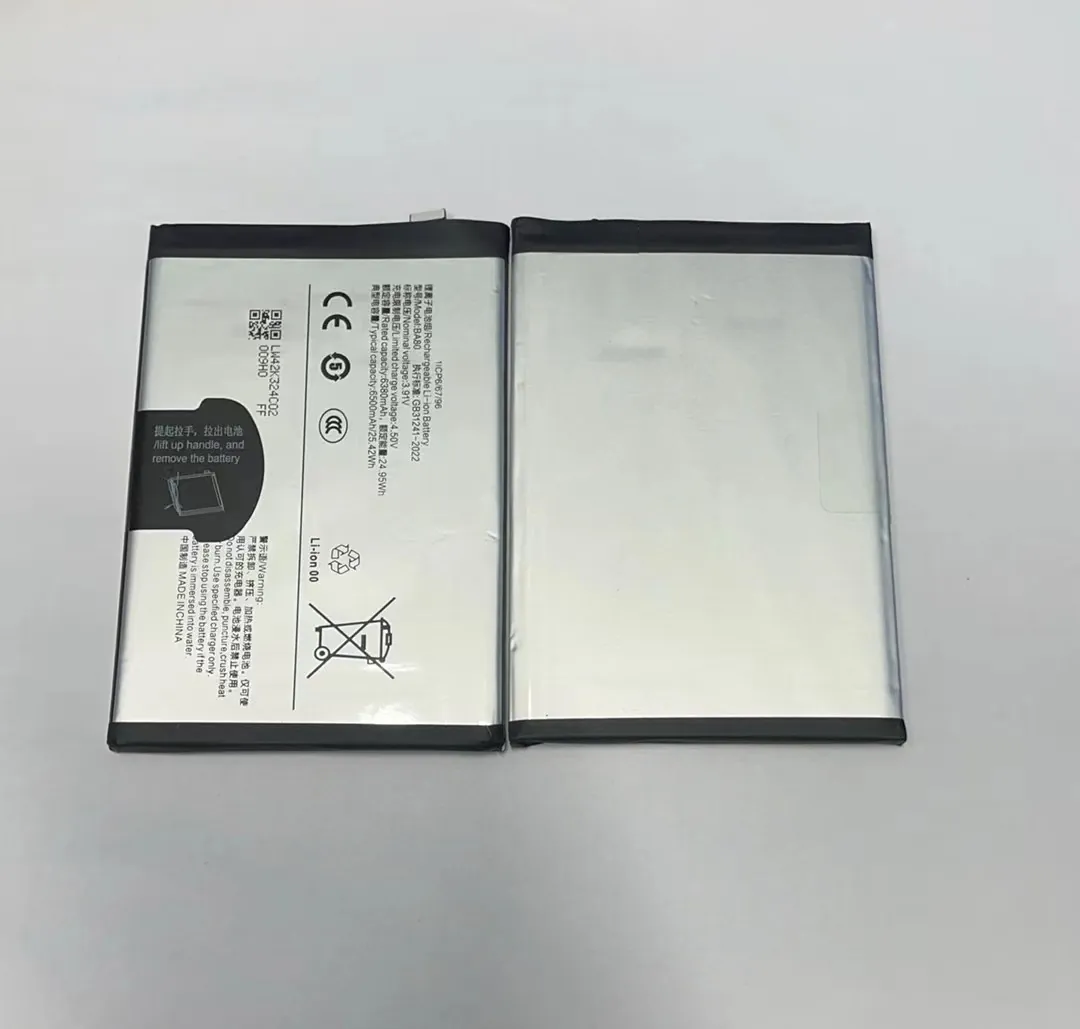
Most people think their smartphone battery is fixed in what it can do. That’s not true. Many hidden settings and tools can unlock better performance and longer battery life.
You can activate hidden battery power in your phone by using secret codes, developer options, and even root-level tools. Each method offers deeper control over battery behavior.
These tricks can make a real difference, especially for people who want their phones to last longer during a busy day. Below, I’ll go over each method and explain how they work.
What secret codes unlock battery features?
Many users never discover what their phone can really do. That's because phone makers hide advanced settings behind secret dialer codes. These codes are mostly used by engineers or service technicians.
You can unlock hidden battery menus or usage stats by dialing specific codes like *#*#4636#*#* on Android. These show advanced battery information.
What happens when you use secret battery codes?
On most Android phones, dialing *#*#4636#*#* opens a menu called "Testing." This menu gives access to several sections, like:
- Phone information
- Usage statistics
- Battery information
In the "Battery information" tab, you can see:
- Battery health (good, weak, etc.)
- Battery level in percentage
- Voltage
- Temperature
- Charging status
These numbers tell you if the battery is working well or starting to fail. Some devices also have manufacturer-specific codes that show extra data or let you run hardware tests. But these codes may not work on all models or Android versions.
Table: Common Android Secret Battery Codes
| Code | Function | Notes |
|---|---|---|
*#*#4636#*#* |
Battery & usage stats | Works on most Android phones |
*#0228# |
Battery status | Mostly for Samsung |
*#*#232339#*#* |
Wireless test mode | Shows battery usage during Wi-Fi |
*#*#2846579#*#* |
Engineering mode | Often used in Huawei devices |
Some users also find "engineering mode" useful, but these menus can change device settings that affect the system. So they should be used carefully.
Can developer options improve battery performance?
When the battery starts draining fast, most people blame the apps. But it’s often the system settings that waste energy in the background. Developer options offer ways to fix this.
Yes, enabling developer options lets you tweak background process limits, animation speeds, and sleep modes — all of which can reduce battery drain.
How to use developer settings for better battery life?
To unlock Developer Options, go to:
Settings > About Phone > Tap "Build Number" seven times.
This unlocks a hidden menu called "Developer Options" under system settings. Some settings that help save battery include:
1. Limit background processes
You can restrict how many apps run in the background:
- No background processes
- At most 1, 2, 3, or 4 background processes
This reduces how much energy is spent on idle apps.
2. Turn off animations
Animations make apps look smooth, but they use power. Set all these to 0.5x or off:
- Window animation scale
- Transition animation scale
- Animator duration scale
3. Force GPU rendering (optional)
This makes the graphics smoother but uses more power. Only enable this if the UI is lagging.
4. Stay awake
Turn this off to make the phone sleep when idle. It saves power during charging.
Table: Useful Developer Settings for Battery
| Setting | What It Does | Battery Impact |
|---|---|---|
| Background process limit | Stops idle apps from running | Saves power |
| Disable animations | Removes visual effects | Saves power |
| Force GPU rendering | Uses GPU instead of CPU for UI | Mixed (may drain more) |
| Stay awake | Screen stays on while charging | Wastes battery if on |
By adjusting these developer settings, phones with older batteries or heavy usage can last longer without needing to be recharged often.
How do power-saving modes work internally?
Power-saving mode feels like a magic switch. Tap once, and suddenly your battery lasts hours longer. But what is really happening under the hood?
Power-saving modes reduce CPU usage, limit background tasks, disable syncs, and dim the screen to make your battery last longer.

What changes when you enable battery saver?
Phones today come with built-in battery saving modes. On Android, it’s often called "Battery Saver." On iPhones, it's called "Low Power Mode."
When turned on, these modes make several changes:
On Android:
- Turns off location services
- Stops background data for most apps
- Slows down processor speed
- Limits app refresh
- Switches display to dark mode (on some phones)
On iPhone:
- Reduces screen brightness
- Disables automatic downloads and mail fetch
- Turns off visual effects
- Slows CPU and GPU performance
All of this works together to stretch your battery for several more hours. It’s helpful when you’re traveling or your battery is already low.
How it affects daily use
You might notice slower performance or delays in getting app notifications. This is normal. The goal is to save energy, not give full speed.
These modes are smart and dynamic. Some phones even have extreme power-saving modes. These only allow basic apps like calling or texting to run.
So while they reduce performance, they’re a great way to stay online when you're low on battery.
Some users want total control over battery settings. But they quickly hit limits with standard settings. That’s where root access comes in.
No, root access is not required for basic hidden features, but it unlocks advanced tools that can deeply control and monitor battery behavior.
What battery tools need root access?
Rooting a phone means getting full control of the Android system. It gives access to system files and hidden settings that normal users can’t change.
With root, you can:
- Use apps like Greenify to hibernate apps
- Install Battery Calibration tools
- Access system logs for battery usage
- Underclock the CPU to reduce power draw
Root also allows the use of custom ROMs. These sometimes have special battery-saving kernels and tools built into the system.
However, root has risks:
- It voids the phone’s warranty
- May cause security issues
- Can brick the phone if done wrong
So while root gives deeper control, it’s not for everyone.
Apps that need root vs. don’t need root
| App Name | Root Required | What It Does |
|---|---|---|
| Greenify | Yes (optional) | Hibernates apps to save battery |
| GSam Battery Monitor | No | Shows battery usage details |
| Battery Calibration | Yes | Resets battery stats after full charge |
| AccuBattery | No | Measures real battery capacity |
In most cases, non-root tools give enough data to improve battery life. But for maximum control, rooted devices offer more options.
Conclusion
Phones hide powerful battery tools in secret codes, developer options, and system modes. Using these can unlock extra hours of usage. Whether you're a casual user or tech expert, knowing these tools can keep your phone running longer.
