
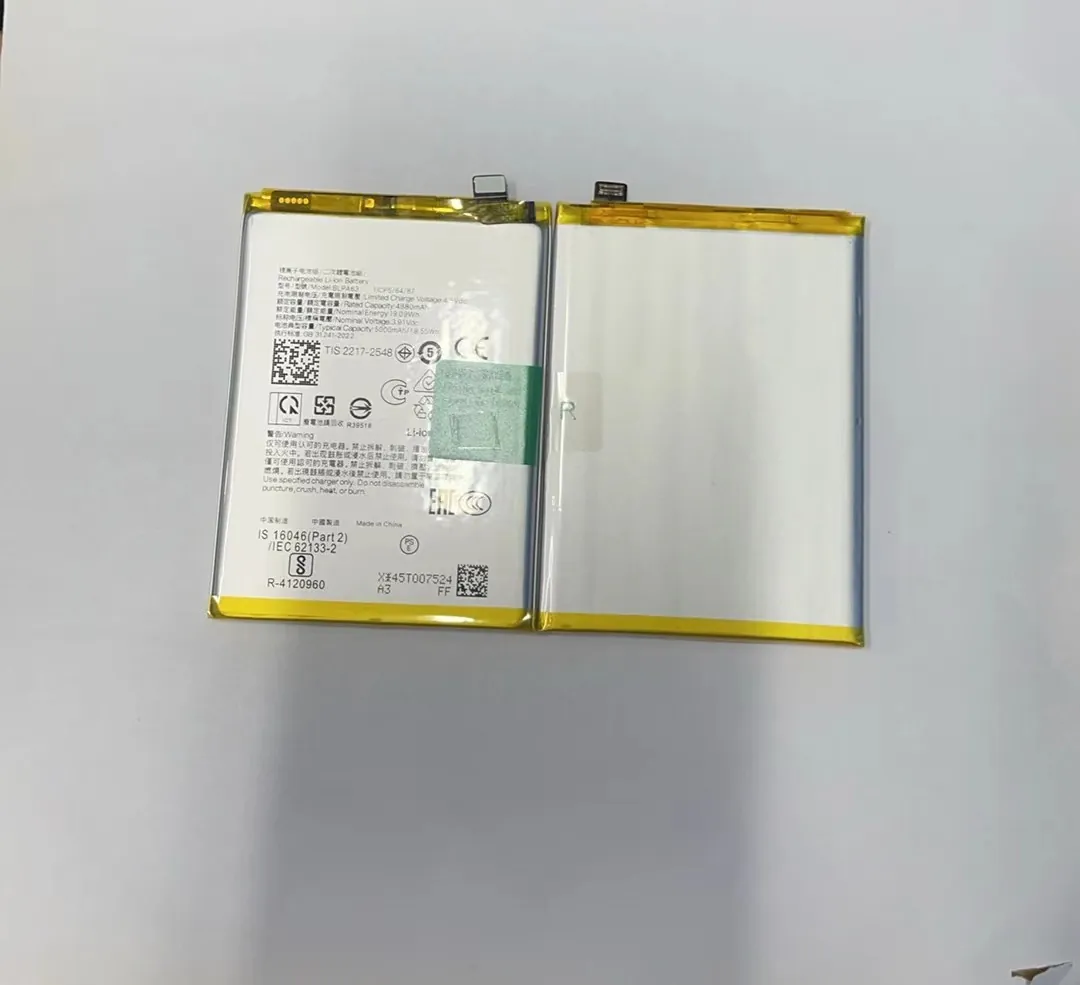
I notice many users feel lost when their phone drains fast, because they do not know where to check battery health.
You can check battery health by opening the built-in settings that show battery capacity, charge cycles, and performance limits. Many phones place this data under Battery, Device Care, or About Phone menus. Look for terms like Battery Health, Maximum Capacity, or Performance Status.
I want to guide you through each step in a simple way, so you can understand what the numbers mean and what to test next.
What settings show health data?
I see many people struggle to locate the correct settings page, so they feel confused or think their phone has no clear battery info.
Most phones show battery health inside the Battery settings page. You can find it under Battery Health, Maximum Capacity, or Device Care. iPhone places it under Settings > Battery > Battery Health. Android brands place it in different spots, such as Device Care or Battery Usage.

How different phones show battery data
In this part, I go deeper and show how different systems display battery health. I want readers to understand why menus look different, so they do not worry when they cannot find the same labels on their phones.
Many people use iPhone, so I start with that. iPhone gives the clearest health data because it shows Maximum Capacity in simple numbers. This value shows how much charge the battery can hold compared to a brand-new one. When this value drops below 80%, the device might slow down. Apple also shows Peak Performance Capability. This value tells users if the phone can handle high load without shutting down. I think this helps because many users misunderstand slow performance as a software problem. In many cases, it is the battery.
Android phones are different because each brand uses its own menu. Samsung uses Device Care. Xiaomi uses Battery & Performance. OnePlus uses Battery. Some brands show a built-in “Battery Health” value, but some do not. I find this makes users confused. Many people think their phone is broken when they cannot find the health number. The truth is simple. Some brands hide battery health data because they do not want users to misinterpret numbers. Some brands only show battery usage time, not capacity.
Here is a simple table that helps you understand where to look:
| Brand / System | Menu Path | What You See |
|---|---|---|
| iPhone | Settings > Battery > Battery Health | Maximum Capacity, Peak Performance |
| Samsung | Settings > Device Care > Battery | Usage info, sometimes protection features |
| Xiaomi | Settings > Battery & Performance | Usage time, power stats |
| OnePlus | Settings > Battery | Screen time, usage, sometimes health |
| Google Pixel | Settings > Battery > Battery Health | Basic health value |
Why settings differ
Android phones use many different battery suppliers. Each brand uses different software rules. I explain this because it helps users understand why numbers vary. One phone may show health at 95% while another with the same age shows nothing. The hardware may be fine in both cases.
In my daily work, I test many batteries. I feel that built-in settings are useful for quick checks, but they are not the full story. They give a simple view that helps users judge battery behavior. But these values depend on software calculations. So we must learn how apps read battery stats in the next part.
How do apps read battery stats?
Some users think apps use magic to read battery health. When the numbers are wrong, they do not know whom to trust.
Apps read battery health by pulling data from system files that record charge cycles, temperature logs, and charging patterns. These values come from the phone’s battery management system (BMS), not from the app itself. Apps only display what the system allows.

How battery management systems work
I explain this because many people ask why two apps show different results. The battery management system sits inside every phone. It records information such as:
- charge cycles
- voltage
- temperature
- charging speed
- wear level
Android gives developers partial access to this data. So apps can read some values and estimate others. iPhone locks most data, so apps can only estimate based on usage, making results less accurate.
When an app shows battery health, the number often comes from charge cycle count and voltage behavior. But this reading is not perfect. I think this is important because many users trust third-party apps more than system settings. In reality, system settings are usually more accurate on iPhone. On Android, accuracy depends on the brand.
Why apps show different numbers
I see many users test their phone with three or four apps. They often panic when the numbers do not match. But these apps use different formulas. One app may look at charge cycles. One app may look at voltage drop. One app may guess based on estimated capacity. So results vary.
Here is a simple table that shows what different apps depend on:
| App Type | Data Source | Accuracy Level |
|---|---|---|
| System built-in | Internal BMS full access | High |
| Third-party Android app | Partial BMS access | Medium |
| Third-party iPhone app | No direct health access | Low |
| PC software with cable | Reads BMS logs directly | High |
Why system data is still more reliable
Based on my testing experience, I believe system data is more stable. The system reads from the battery chip. The chip stores real cycle count. Apps try to read values indirectly. So I always use system info for first checks. Then I confirm with hardware tools when needed. This helps avoid wrong decisions and unnecessary battery replacements.
Now that you know how apps read the data, the next question becomes clear: why does battery health drop at all?
Why health values decrease?
Many users feel worried when their battery health drops even though they charge carefully. They think something is wrong with the phone.
Battery health decreases because lithium-ion cells lose capacity with every charge cycle, heat exposure, fast charging, and high workload. All batteries wear out over time. Even careful use cannot stop natural aging.

What causes battery aging
I want to explain this in simple terms so you understand what is normal and what is not. A lithium-ion battery has a chemical structure that breaks down over time. Each time you charge the battery, the internal materials change a little. Heat also makes the damage worse.
Here are the most common reasons:
- high temperature
- fast charging
- heavy gaming
- many charge cycles
- deep discharge below 20%
- charging to 100% every time
Natural loss vs abnormal loss
Some people think losing 5% of battery health in one year is bad. Others think losing 15% in one year is normal. I want to make this clear.
Most phones lose:
- 2% to 5% in the first three months
- 5% to 10% in the first year
- 15% to 25% in two years
If your numbers fall inside this range, it is normal. If the number drops fast, like 10% in one month, then you may have heat issues or a damaged cell.
Things that speed up battery wear
1. Heat
Heat is the number one reason for fast aging. When the phone feels hot during charging, the battery loses capacity faster.
2. Fast charging
Fast charging raises heat. Many users love it because it saves time, but it also speeds up degradation.
3. High-load apps
Games, camera use, background apps all push the battery harder. The battery drains fast, so you charge more often.
I record these patterns often when customers send me failing batteries. When I test them, they usually show higher internal resistance. This means the battery cannot deliver power smoothly. It explains why health values decrease over time.
Next, we look at the tests that confirm if the battery is still good or needs replacement.
Which tests confirm condition?
Many people want to know a clear method to confirm if their battery is still healthy. They want a simple answer that removes doubt.
You can confirm battery condition by checking charge cycles, running a full discharge-to-charge test, checking voltage stability, and using hardware tools that read internal resistance. These tests show if the battery still works well or needs replacement.

Common diagnostic tests
I show these tests because users want a clear checklist they can follow.
1. Full discharge and full charge test
This test checks how long the phone lasts from 100% to 10%. It also checks if charging behaves normally. If the battery drains too fast or jumps between percentages, the cell is unstable.
2. Cycle count test
Cycle count shows how many full charge cycles the battery has completed. Many phones aim for 500 cycles before dropping to 80% capacity. If your cycle count is high, the battery is likely aging.
3. Voltage stability test
I often do this test in my own work. A stable battery keeps a smooth voltage drop. A weak battery drops voltage fast when under load. This causes shutdowns or fast drain.
4. Internal resistance test
This is one of the best tests. A hardware meter reads the battery’s internal resistance (IR). Higher resistance means the battery has degraded. A good battery has low IR. A bad one has high IR. Many repair shops use this tool. It gives clear results.
How repair shops test batteries
Most shops use these steps:
- Read BMS data with software
- Measure internal resistance
- Test capacity with a battery analyzer
- Compare readings to standard values
This is why shops can tell if you need a new battery. They use tools that give more precise readings than apps.
When to replace the battery
You should replace the battery when:
- Maximum Capacity falls below 80%
- The phone shuts down at high load
- Battery percentage jumps up or down
- The phone heats too often
- Internal resistance is too high
In my experience, replacing the battery early helps extend the life of the phone. Many users wait too long. When the battery is weak, it puts extra load on the system. This leads to poor performance and sometimes damage to the power circuit.
Conclusion
Battery health checks help you understand your phone’s real condition. When you know where to find the numbers and how to test them, you can decide the right time for replacement without stress.
