

Many of us charge our phones multiple times a day and still run out of battery. Why does that happen?
To conserve mobile phone battery, you need to adjust your usage habits, tweak settings, manage background apps, and use tools to monitor battery health.
Battery issues are not always about bad hardware. Often, it’s how we use our phones that drains the power faster than needed. Let me walk you through what works.
What habits extend battery life?
Many people think battery life depends only on the phone model or battery size. But daily habits play a huge role.
Simple habits like not letting your phone overheat, avoiding full discharges, and using Wi-Fi instead of mobile data can significantly extend battery lifespan.

When I started in the phone parts business, I used to think battery wear was mostly about battery quality. But I quickly learned from repair technicians and customers that usage patterns matter just as much. Here are a few important habits:
1. Don’t charge to 100% every time
Keeping the battery between 20% and 80% helps reduce long-term wear. Lithium-ion batteries don’t like being full or empty for too long.
2. Avoid using your phone while charging
This creates extra heat. Heat is one of the main reasons batteries degrade. I’ve seen phones become nearly unusable in under a year due to overheating.
3. Use Wi-Fi instead of mobile data
Wi-Fi consumes less power. If you’re in an area with weak signal, your phone will work harder to connect, draining more power.
4. Turn on airplane mode when the signal is weak
Your phone tries to maintain a connection. That constant searching uses up battery. During flights or in elevators, airplane mode helps conserve power.
5. Keep your screen off when not needed
It sounds obvious, but many people leave their screens on during calls or meetings. The screen is one of the top battery drainers.
Here’s a quick table summarizing battery-friendly habits:
| Habit | Battery Impact |
|---|---|
| Charging only to 80% | + Battery lifespan |
| Using Wi-Fi over mobile data | - Power consumption |
| Avoiding phone heat | + Performance |
| Screen off when not in use | + Battery savings |
| Enabling airplane mode | + During no signal |
How do settings reduce drain?
Most phones come with default settings that aren’t battery-friendly. But you can change that.
Changing a few simple settings—like brightness, refresh rate, and location access—can cut battery drain by 30% or more.

When I test batteries for customers, I often reset phones to factory settings. And right away, I notice that changing a few settings can double battery time. Let me explain which settings matter most.
Screen Brightness
Turn on auto-brightness or keep brightness at 30-40%. Bright screens use more power. AMOLED displays especially drain battery when showing bright images.
Refresh Rate
Some phones allow 90Hz or 120Hz refresh rate. It looks smooth, but drains battery fast. If you don’t need it, switch back to 60Hz.
Location Services
Many apps access your location even when they don’t need to. Disable “always-on” GPS for apps that don’t require it. Use “while using the app” instead.
Background App Refresh
This setting lets apps update in the background. It’s useful but unnecessary for most apps. Disable it for non-essential apps.
Vibration and Haptics
Turning off unnecessary vibration also helps. For example, keyboard feedback or touch vibration isn’t always needed.
Here’s a table to show how these settings impact battery:
| Setting | Recommended Change | Battery Effect |
|---|---|---|
| Brightness | Auto or 30%–40% | + Longer usage |
| Refresh Rate | Reduce to 60Hz | + Energy efficiency |
| Location Services | "While Using the App" only | + Reduced drain |
| Background App Refresh | Off for non-essentials | + Battery savings |
| Vibration | Off for system sounds | + Slight improvement |
These are quick fixes. They cost nothing and can be applied by anyone in minutes.
Why background apps matter?
It’s easy to forget what apps are doing in the background. But they can quietly consume power all day.
Background apps keep running even when you’re not using them. Closing or limiting them can greatly improve battery life.
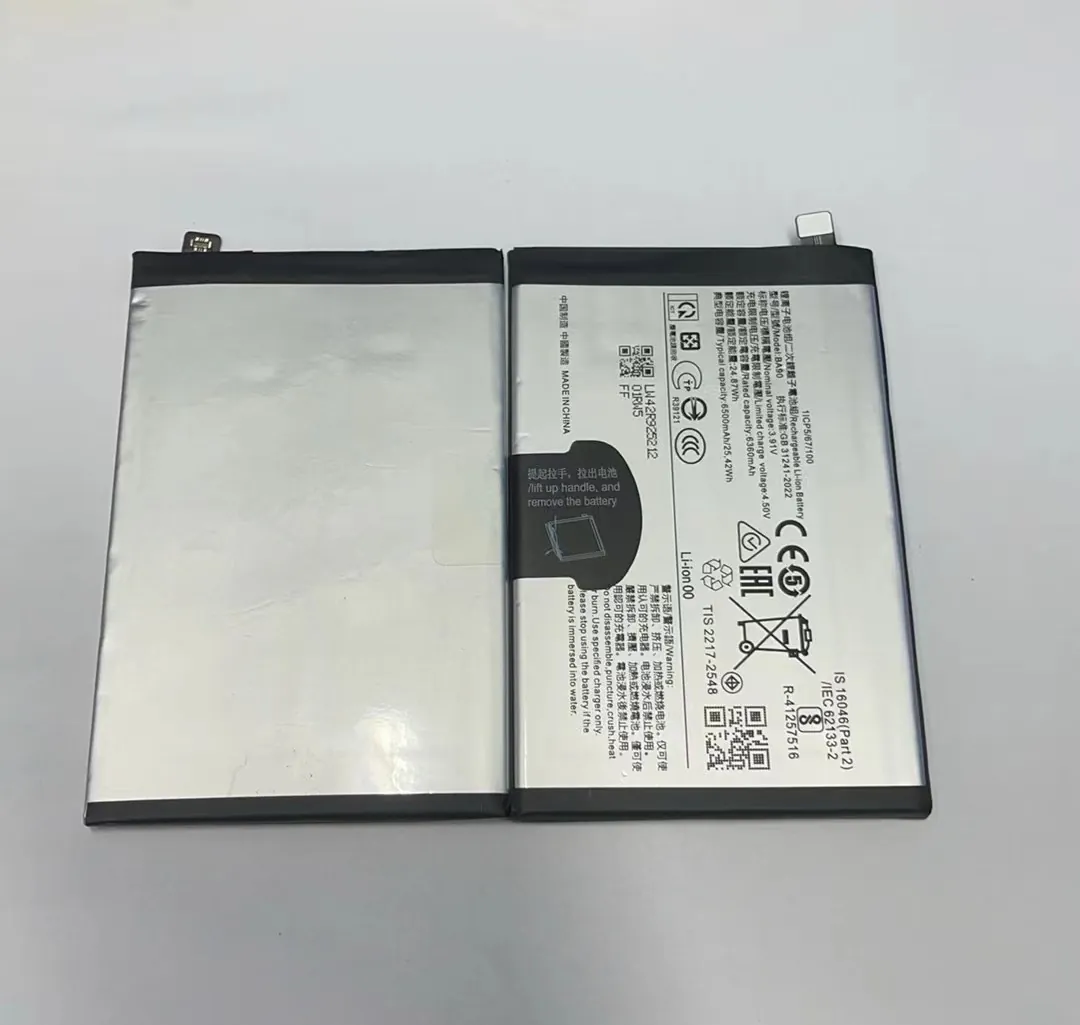
In my day-to-day work, I always test new replacement batteries before shipping. Sometimes, customers report low battery performance even with brand-new batteries. When I ask them to check background apps, they often find apps like Facebook, TikTok, and location-based services running all the time.
What are background apps?
These are apps that continue working even when you’re not using them. They may:
- Sync data
- Send notifications
- Track location
- Refresh content
Common battery-draining background apps
- Social media: Facebook, Instagram, TikTok
- Navigation: Google Maps, Waze
- Shopping apps: Amazon, eBay
- Messaging: WhatsApp, Telegram (if auto-download is on)
How to control them
Go to your phone’s settings > Battery > Background activity. Disable background activity for apps you don’t use often.
On Android: Use “Battery Optimization” to restrict app activity.
On iPhone: Use “Background App Refresh” to control which apps can work in the background.
Pro tip:
Apps with widgets or constant notifications drain more battery. Remove widgets and limit notifications where possible.
When background apps are under control, the battery lasts longer, even without new hardware.
Which tools monitor usage?
Knowing how your battery is used helps you take action. Luckily, there are tools for that.
Battery usage tools show which apps and services consume the most power, helping you adjust and extend battery life.

I often recommend customers check their battery stats before they blame the battery. Most of the time, it’s not the battery. It’s the usage pattern. Here are tools I personally use and recommend:
1. Built-in battery stats
Most smartphones offer battery usage stats. You can find:
- Which apps use most power
- Screen-on vs screen-off time
- Last full charge details
On Android: Go to Settings > Battery > Battery usage
On iPhone: Settings > Battery
These charts give a clear picture of power usage over the past 24 hours or 10 days.
2. Third-party apps
If you want deeper insights, you can use these tools:
| App Name | Platform | Features |
|---|---|---|
| AccuBattery | Android | Battery health, charging speed, estimates |
| GSam Battery Monitor | Android | App-wise usage, CPU stats |
| CoconutBattery | iOS/Mac | Battery wear level, charge cycles |
| Battery Life | iOS | Health status, power consumption graph |
These tools help spot battery-hogging apps or behaviors. You’ll know whether the issue is hardware or user behavior.
3. Usage tips from tools
Once you know which app is draining power, you can:
- Uninstall it
- Replace it with a lighter version
- Limit its background access
- Update the app to a better version
Battery tools don’t just show data—they help you make better choices.
Conclusion
Small daily habits, smart settings, background control, and monitoring tools together make a big difference in battery life. Saving your phone's battery doesn’t require technical skills—just better awareness.
