
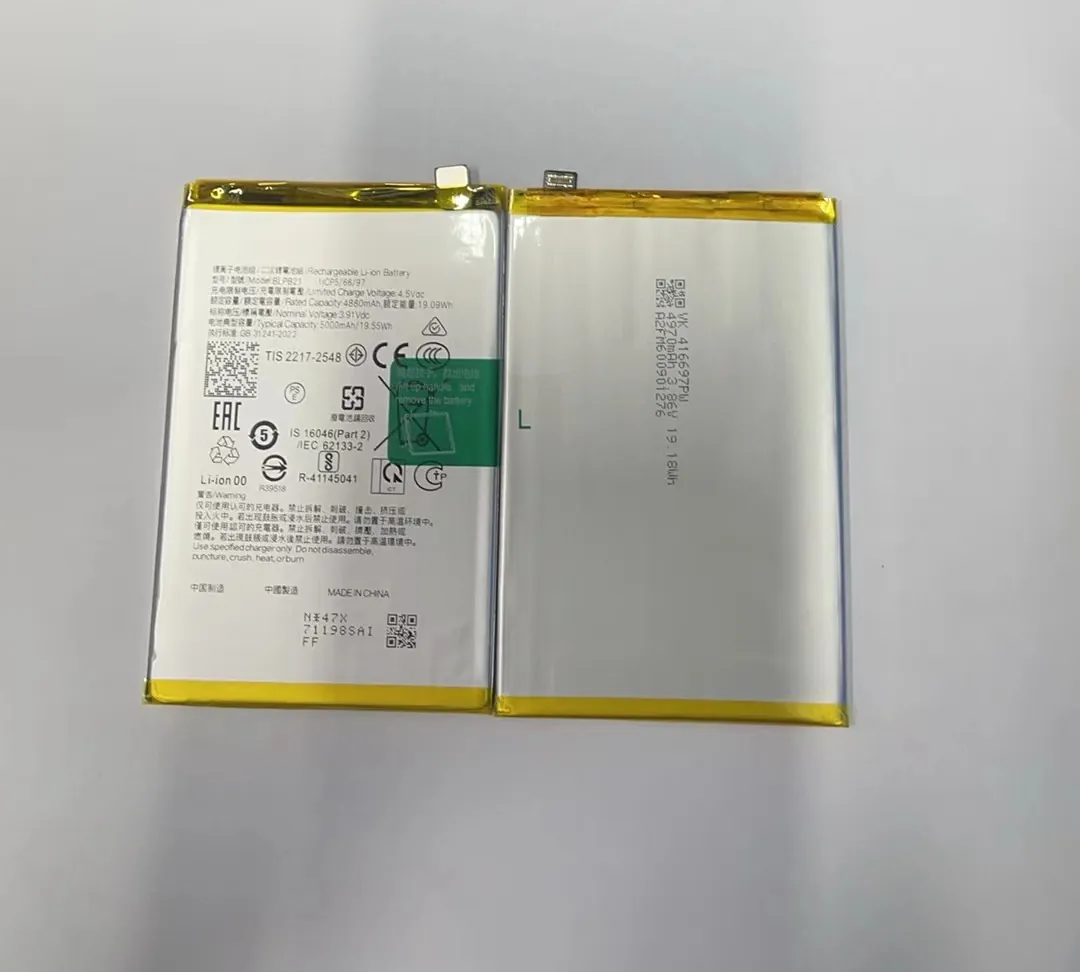
We’ve all been there—frustrated with our phones dying too soon or battery life dropping faster than expected.
To extend mobile phone battery life, avoid full charges and discharges, adjust key settings, monitor app behavior, and use battery health tools wisely.
Many small habits shorten your phone's battery lifespan without you noticing. Let's break down the exact steps that actually make a difference.
Why is partial charging better for longevity?
Most of us think charging to 100% is always a good thing—but that might be what’s slowly killing your battery.
Partial charging keeps your battery in a lower stress zone, helping it last longer by avoiding high voltage levels and heat.

Charging lithium-ion batteries all the way to 100% or letting them drop to 0% too often speeds up battery wear. That’s because batteries feel “stressed” at high or very low voltages. Think of 20% to 80% as a comfortable zone.
What science says about charging cycles
Each phone battery has a limited number of charge cycles. One full cycle = going from 100% to 0%. But if you only use 60% to 80% of your battery daily, it takes longer to complete a full cycle. That helps extend the lifespan.
| Charge Level | Battery Stress | Recommended? |
|---|---|---|
| 0-20% | High | No |
| 20-80% | Low | Yes |
| 80-100% | Medium-High | Occasionally |
So if you charge your phone overnight every day and let it reach 100% while you sleep, the battery may stay at high voltage for hours. This builds up heat and stress.
What's the best daily charging routine?
- Start charging around 30%.
- Unplug around 80%.
- Avoid overnight charging without smart plug or charge limit feature.
- Use original or certified cables and adapters to reduce overheating.
These small changes help your battery stay healthier, longer.
How do app permissions affect battery usage?
Ever wonder why your battery drains even when you're not using your phone? The answer might be hiding in your app permissions.
Apps that access location, background data, or sensors use battery power even when you're not using them directly.
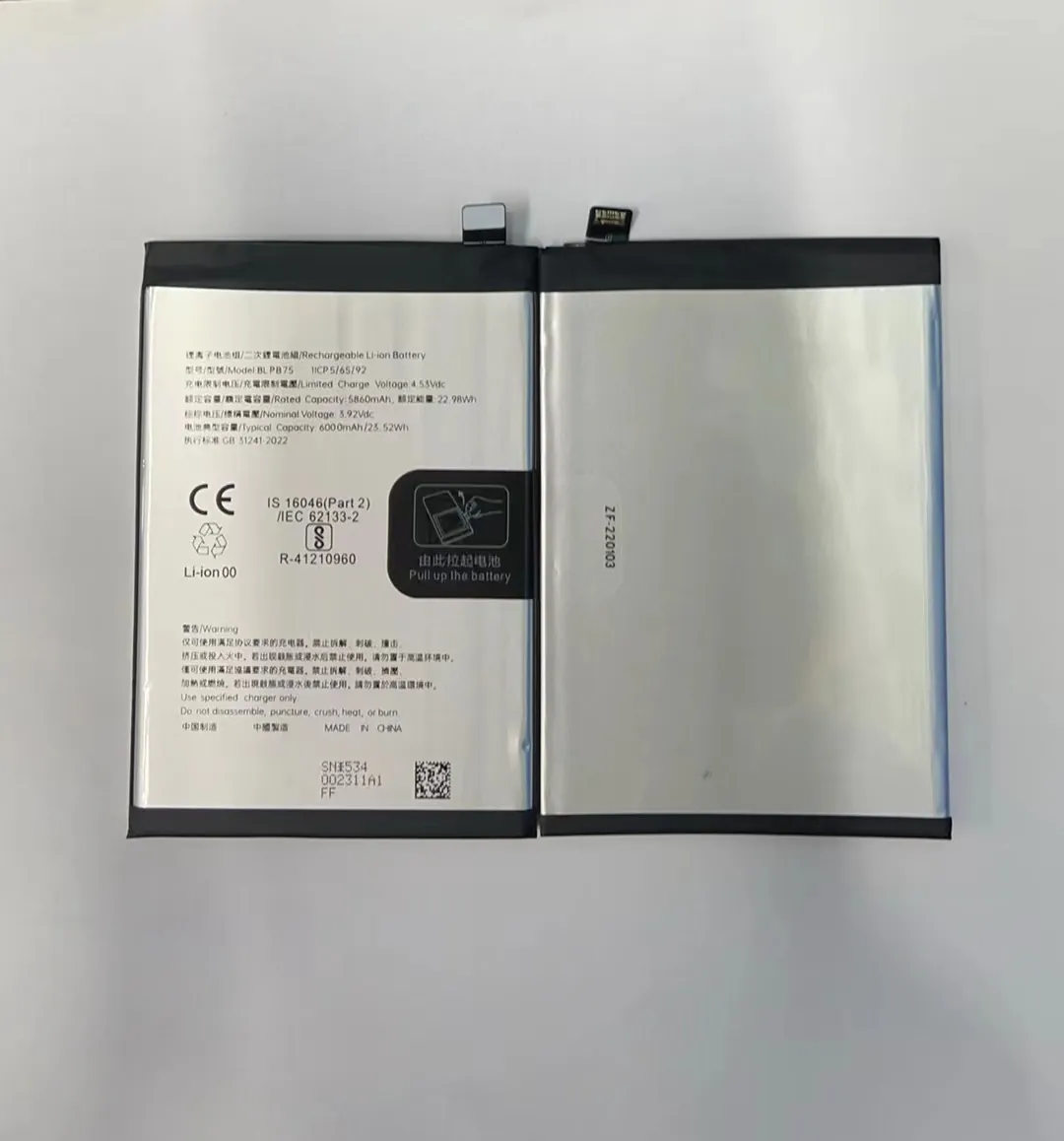
When an app has permission to run in the background, it can keep checking for updates, using GPS, or syncing data. This causes small but constant battery drain.
Permissions that matter most
Some app permissions consume more battery than others:
| Permission | Battery Impact | Notes |
|---|---|---|
| Location | High | Uses GPS frequently |
| Background data | High | Constant internet activity |
| Camera/mic | Medium | Used during idle sometimes |
| Notifications | Low-Medium | Keeps app partially active |
Apps like social media, maps, or weather updates often use these permissions. Even if you close the app, it still runs in the background unless you restrict it.
What you can do
- Go to Settings > Battery > App usage.
- Identify top draining apps.
- Revoke background access for apps you don’t need running all the time.
- Limit location to “only while using the app”.
- Disable auto-sync for apps you check manually.
Changing these settings can stop silent battery drain and make your charge last much longer every day.
Can battery health apps really help?
We’ve all seen battery optimizer apps claiming to make your phone last longer. But are they actually helping or just giving you pop-ups?
Battery health apps can provide useful data, but they don’t directly improve your battery life. Choose tools that show real usage patterns and avoid “magic boosters.”
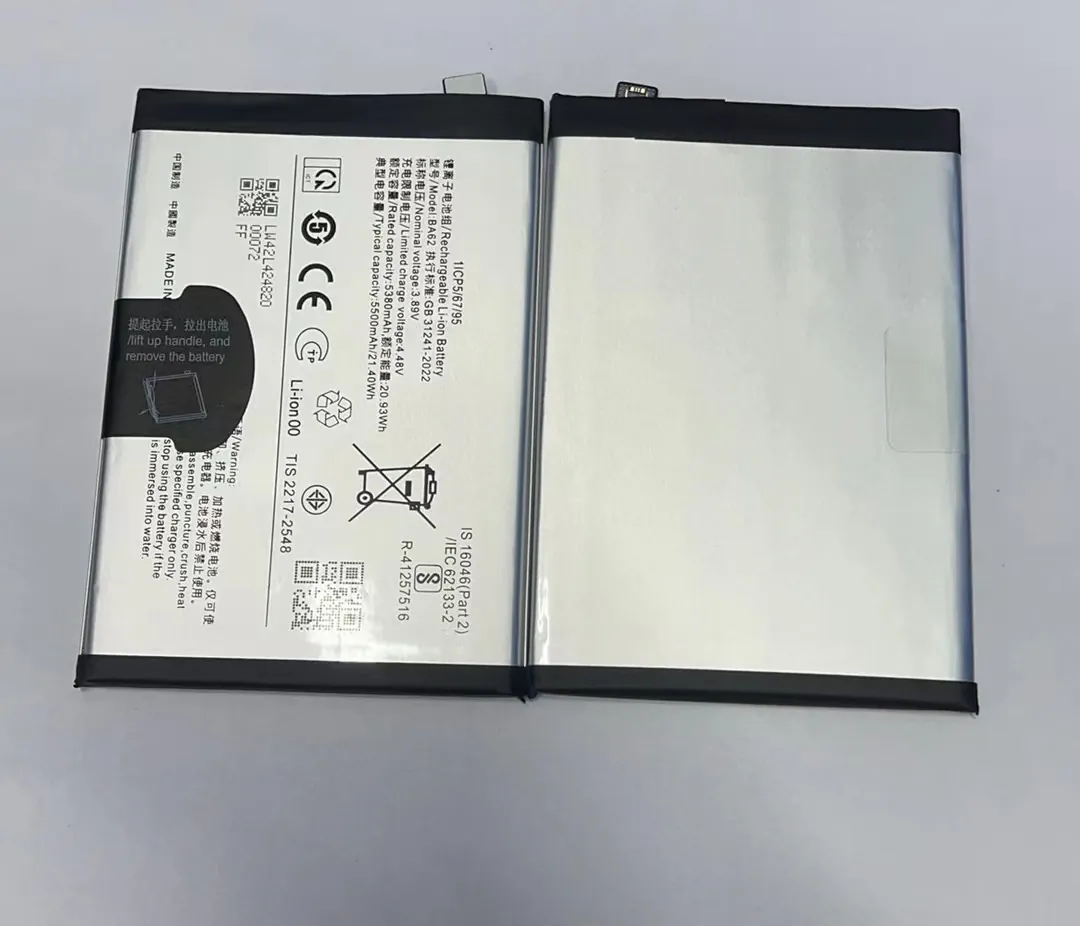
Good vs. bad battery apps
The good ones show you:
- Battery temperature
- Charging cycles
- Capacity (mAh)
- App usage over time
They help you change your habits. The bad ones just close background apps (which the phone already does on its own), show ads, or promise “50% more life” without explanation.
| Feature | Useful? | Why |
|---|---|---|
| Real-time temperature | Yes | Helps prevent overheating |
| Charge history | Yes | Shows charging patterns |
| Junk file cleaner | No | Often unnecessary |
| Auto-boost or optimizer | No | Temporary & ad-heavy |
Best practices for using battery health apps
- Use them to track—not fix—battery health.
- Avoid apps that run all the time in the background (they use more battery).
- Check your battery’s designed capacity vs. current capacity. If it's under 80%, consider replacement.
- Only download from trusted developers or app stores.
Knowing your battery’s condition helps you decide if you need a new battery or just better charging habits.
What phone settings reduce long-term battery wear?
You don’t always need new hardware—sometimes the biggest difference comes from a few software tweaks.
Lowering screen brightness, turning off unnecessary features, and using battery saver mode all reduce heat and battery cycles, helping your phone last longer.
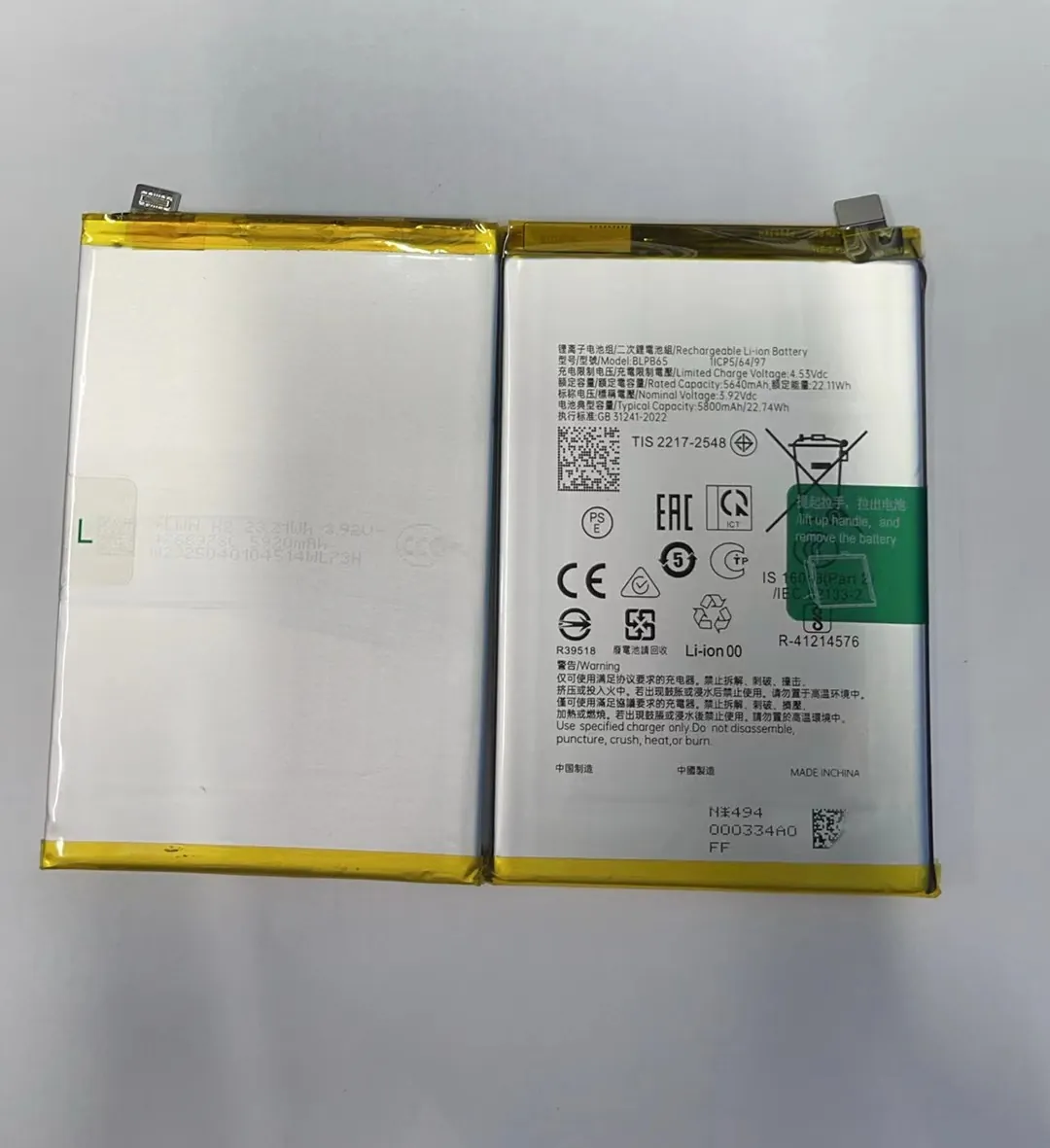
Most battery wear happens due to heat and power-hungry tasks. These can be reduced with smarter settings.
Settings that help extend battery life
1. Screen settings
The display is one of the most power-hungry parts.
- Lower brightness manually.
- Use dark mode (especially for OLED screens).
- Shorten screen timeout to 15-30 seconds.
2. Connectivity
Turn off what you don’t use:
- Bluetooth
- Location
- Wi-Fi (when not needed)
- NFC
Each of these, when left on, keeps scanning or connecting, causing micro drains.
3. Background apps
Go to Settings > Battery > Background usage. Restrict apps that are active when idle.
4. Battery saver mode
Enable this when you're not using the phone heavily. It limits CPU usage, background activity, and animations.
5. Temperature control
Avoid using the phone while charging or leaving it under sunlight. High temperatures degrade batteries fast.
| Setting | Action | Impact on Battery |
|---|---|---|
| Brightness | Lower manually | High |
| Background apps | Restrict usage | High |
| Location Services | Turn off if not needed | Medium |
| Battery Saver Mode | Keep on when idle | High |
| Wi-Fi/Bluetooth | Turn off when unused | Medium |
By setting up your phone once, you reduce the need for frequent full charges. That means fewer cycles and longer battery lifespan.
Conclusion
Small changes like partial charging, managing permissions, smart use of settings, and checking battery health can make a big difference. Extend your phone’s battery life with simple habits—not gimmicks.
