
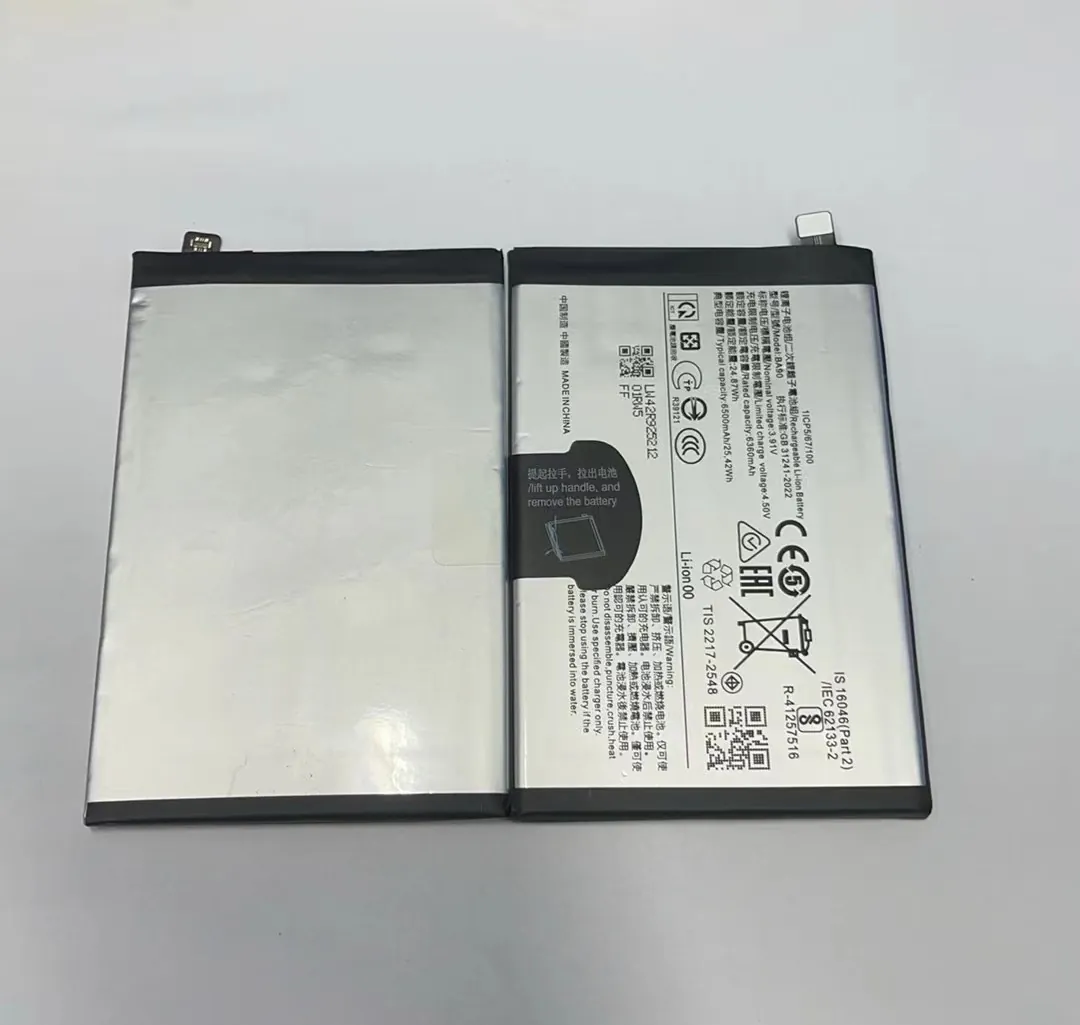
I’ve been frustrated when my mobile phone battery drains too fast right in the middle of the day. The problem: I need it to last. The solution: smart habits and settings to protect my battery for longer.
I can extend my phone’s internal battery life by changing settings, managing screen brightness, controlling app usage, and using battery saver mode wisely.
Let’s go deeper so you can keep your phone going strong—read on.
What settings can help reduce battery drain?
I opened the settings menu and found many options that quietly affect battery life. Yes, changing settings can reduce drain significantly.
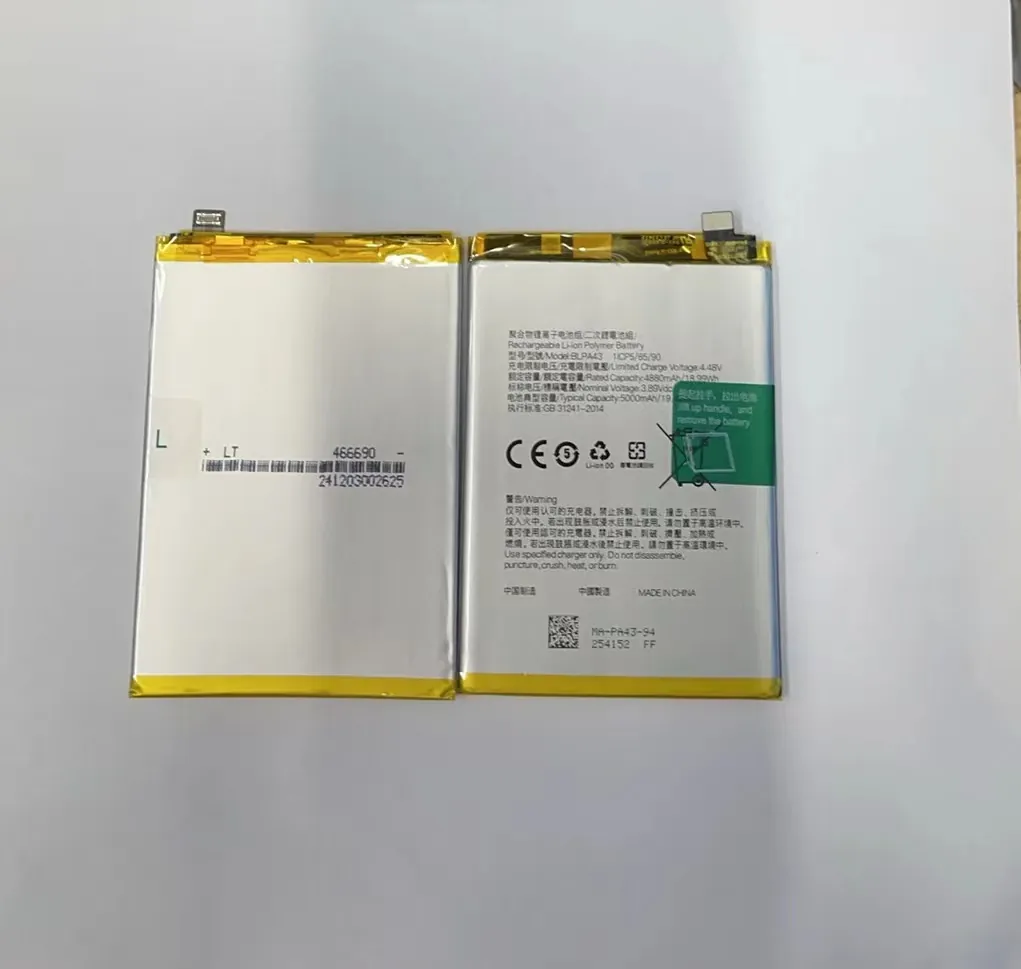
Our phones are full of features that keep working even when we don’t see them. Those background services, location tracking, push notifications, and radios (like WiFi, Bluetooth, cellular) all consume energy. Turning off or limiting features such as background app activity, location, and always-on display can yield noticeable improvement.
Key setting categories
| Setting | What it does | My key tip |
|---|---|---|
| Background app refresh | Apps update even when not in use | Disable for non-essential apps |
| Location services | Tracks GPS for apps | Set to “While in use” |
| Connectivity | WiFi, mobile data, Bluetooth use power | Turn off when not needed |
| Screen timeout | Keeps screen on | Set to 30 seconds or less |
| Software updates | Improves system efficiency | Keep phone updated |
When settings allow apps and services to run all the time, the battery drains quickly. For example, if WiFi keeps searching for a network, it uses more power. If location is always active, the GPS chip works constantly. That drains power and shortens long-term battery life.
Here’s what I do:
- Check battery usage in settings weekly
- Disable background refresh for apps I rarely use
- Use WiFi instead of mobile data when possible
- Turn off Bluetooth when I don’t use it
- Enable dark mode to reduce screen power draw
- Set screen timeout to the lowest comfortable value
These settings help reduce drain without changing how I use the phone. Over time, they protect the internal battery and make each charge last longer.
How does screen brightness affect battery longevity?
I used to keep my screen brightness high all day. It looked better, especially outside. But the battery drained fast. Yes — screen brightness has a major effect on battery longevity.

The display is one of the biggest power users on a phone. Brightness, time on, and visual effects all matter. Lowering brightness, using dark themes, and shortening screen timeout all help reduce power use.
Display factors that affect battery
| Factor | Impact on battery | What I do |
|---|---|---|
| High brightness | Big power drain | Use auto-brightness or lower manually |
| Screen-on time | More usage = more drain | Set screen timeout to 30 seconds |
| Always-on display | Constant power usage | Disable it completely |
| Dark mode (OLED screens) | Uses less energy | Enable in system and apps |
| High visual effects | More animation = more work | Use low animation settings |
Screens need power to light up pixels. The brighter the screen, the more power it uses. On phones with OLED screens, using dark colors saves even more battery because black pixels are basically off.
I use auto-brightness most of the time. Indoors, I reduce it manually. I also keep screen timeout short, and I disable always-on display unless I need it. These steps made my phone stay cooler and lose battery more slowly during the day.
This habit protects battery health long-term. A cooler phone is a happier phone — heat speeds up battery wear. Managing screen settings helps prevent that.
Why is app management important for battery health?
I often install apps and forget about them. But many keep working in the background. Yes — app management is critical for battery health.
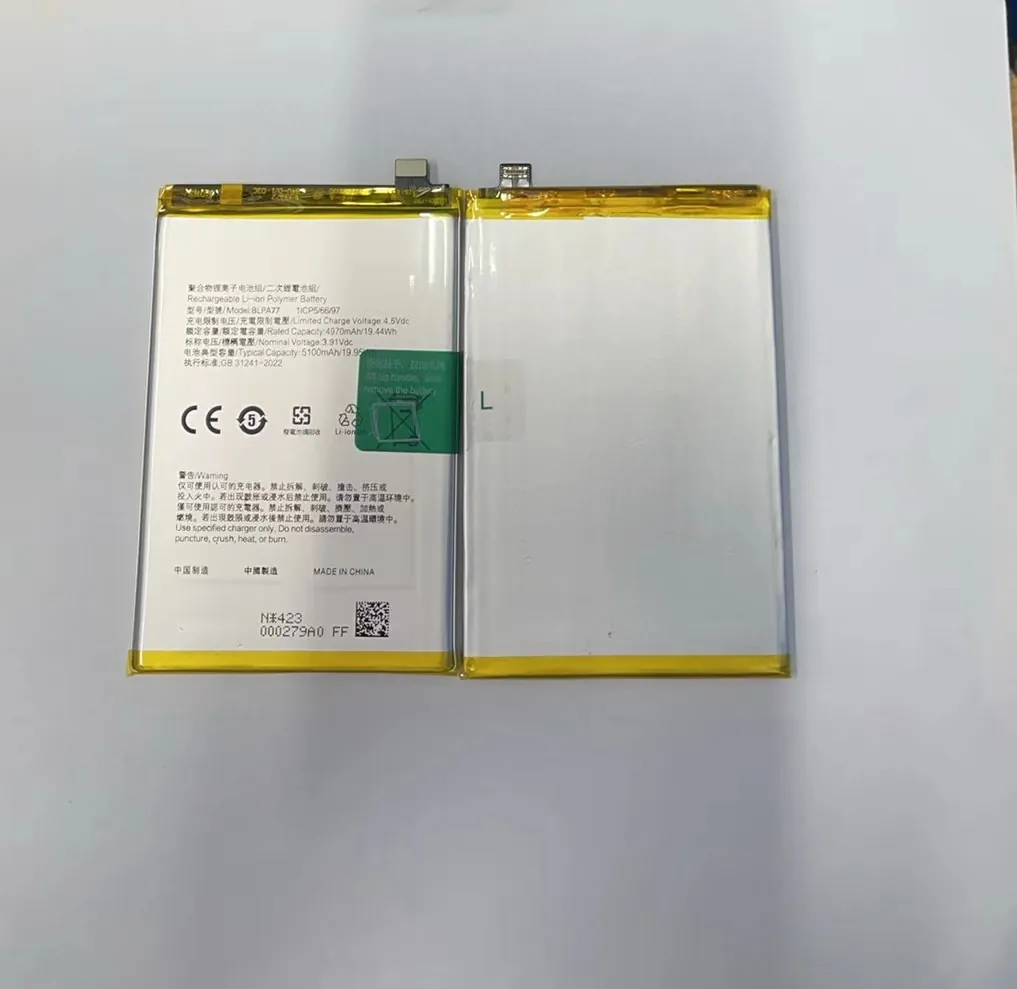
Apps are always doing something. Some update in the background. Others use location or send push alerts. All these tasks use battery, even when the screen is off.
To keep my battery healthy, I manage apps in these ways:
App management checklist
| Action | Why it matters | My approach |
|---|---|---|
| Check battery usage | Find which apps use the most power | Review once a week |
| Limit background activity | Stops constant syncing | Disable in settings |
| Manage permissions | Some apps ask for too much access | Limit to “While using” |
| Reduce notifications | Less screen wake-up time | Disable for non-important apps |
| Uninstall unused apps | Avoid background drain | Clean up monthly |
Not all apps are equal. Social media apps, news apps, and maps can use power all the time. I check the battery usage in settings and see which apps are always active.
If I don’t need an app updating all day, I turn off its background refresh. If it asks for location all the time, I switch it to “While using”. I also remove apps I haven’t used in a month.
Notifications are another hidden drain. They wake the phone, light the screen, and pull data. I turn them off for apps I don’t need alerts from.
This routine helps me find hidden drains and remove them. It also makes my phone run faster, with less clutter.
When should I enable battery saver mode?
I used to only turn on battery saver when my battery was already low. But now I know that using it earlier helps more. Yes — battery saver mode is most useful when used before the battery gets low.
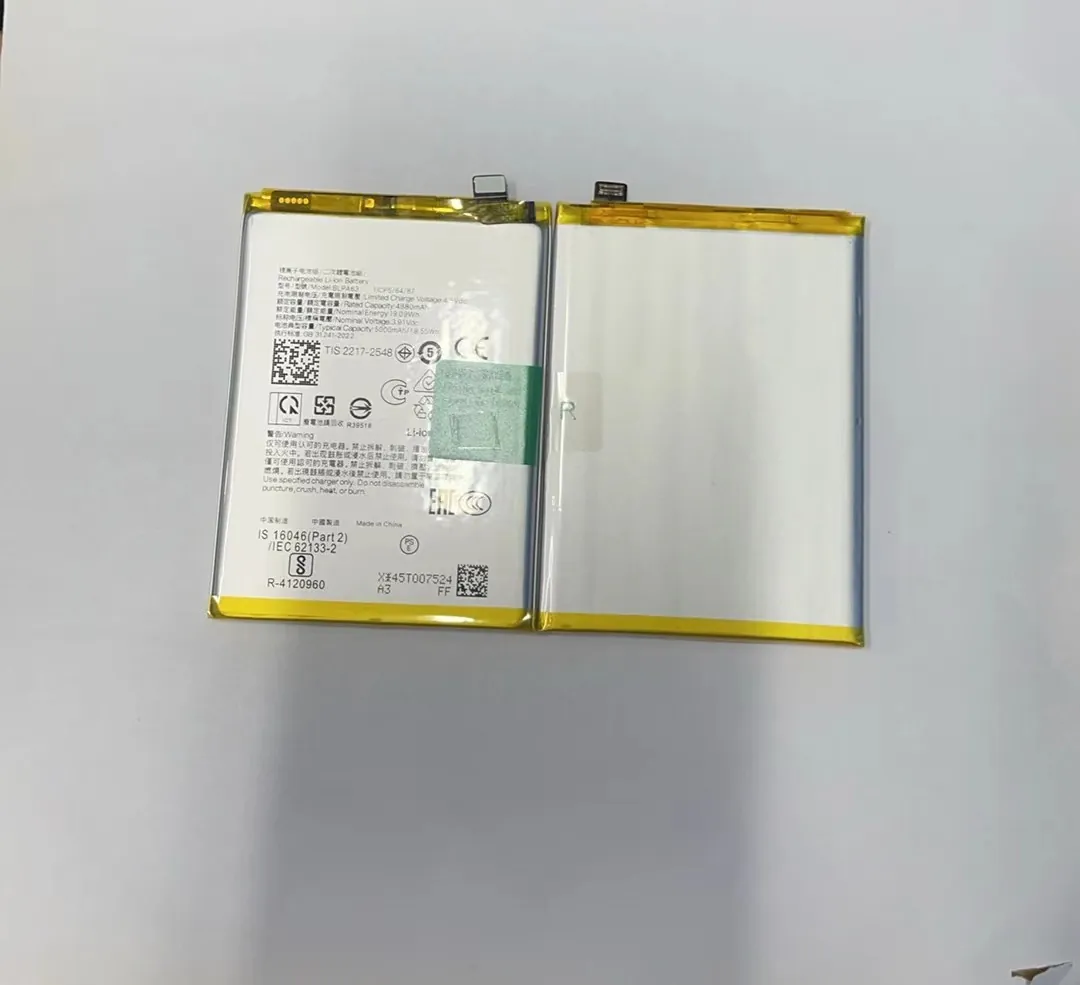
Battery saver mode does many helpful things:
- Stops background activity
- Reduces screen brightness
- Limits location services
- Slows down performance to reduce power use
- Turns off visual effects
I use battery saver mode when:
- I leave home with less than 60% battery
- I know I’ll be out all day without a charger
- I see the battery draining faster than usual
- The phone feels hot and I want to reduce stress
Battery saver usage guide
| Situation | What I do | Why it helps |
|---|---|---|
| All-day travel | Turn on saver early | Reduces early drain |
| Low battery warning | Enable saver mode | Extends remaining power |
| Hot phone | Use saver to cool it down | Reduces stress on battery |
| Overnight | Enable saver at night | Stops background drain |
Battery saver mode doesn’t just help for the day — it also protects the battery from overheating and wearing out. If the phone stays cool, the battery lasts longer.
I don’t use battery saver all the time because it can slow performance. But when needed, it helps a lot. I turn it off again when I can charge normally.
This is a simple tool that gives extra control when I really need the battery to last. Over time, using it well helps my phone stay healthy.
Conclusion
I extend my phone’s internal battery life by managing settings, lowering screen brightness, controlling apps, and using battery saver mode before power gets too low. With these small steps, I keep my phone running longer and protect its battery for the long run.
