
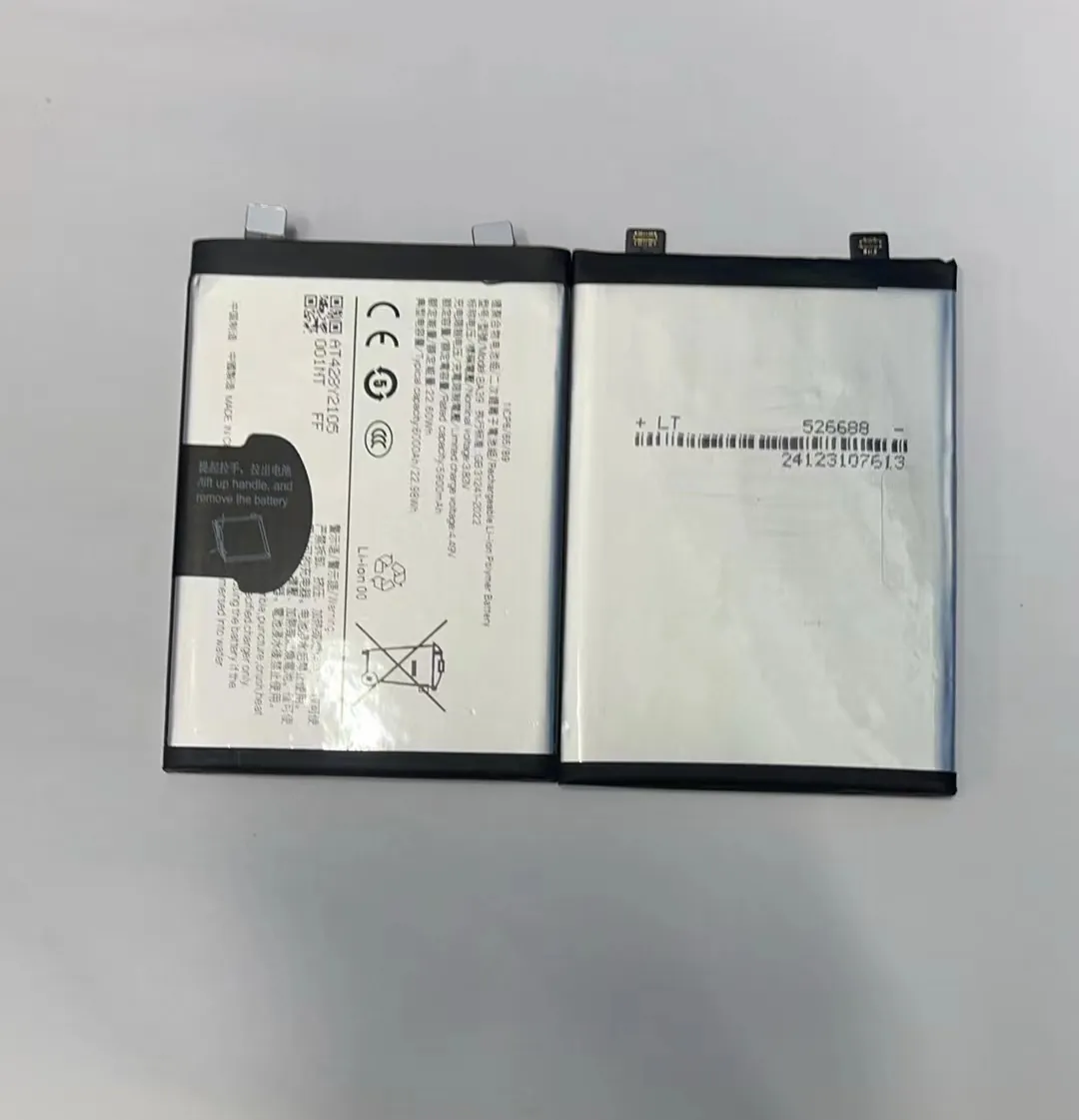
I know how frustrating it is when your phone dies before the day ends. You tap at battery icon and hope for more life.
If you follow simple habits like managing settings, apps, screen brightness, and key optimizations, you can greatly extend your phone’s battery life.
In this article I show how small changes can help your phone last longer. I guide you step by step so you can keep your battery alive all day.
What settings boost endurance?
I see many people ignore basic settings. That wastes battery quickly.
Turning off unused features and tweaking settings helps reduce battery drain a lot.
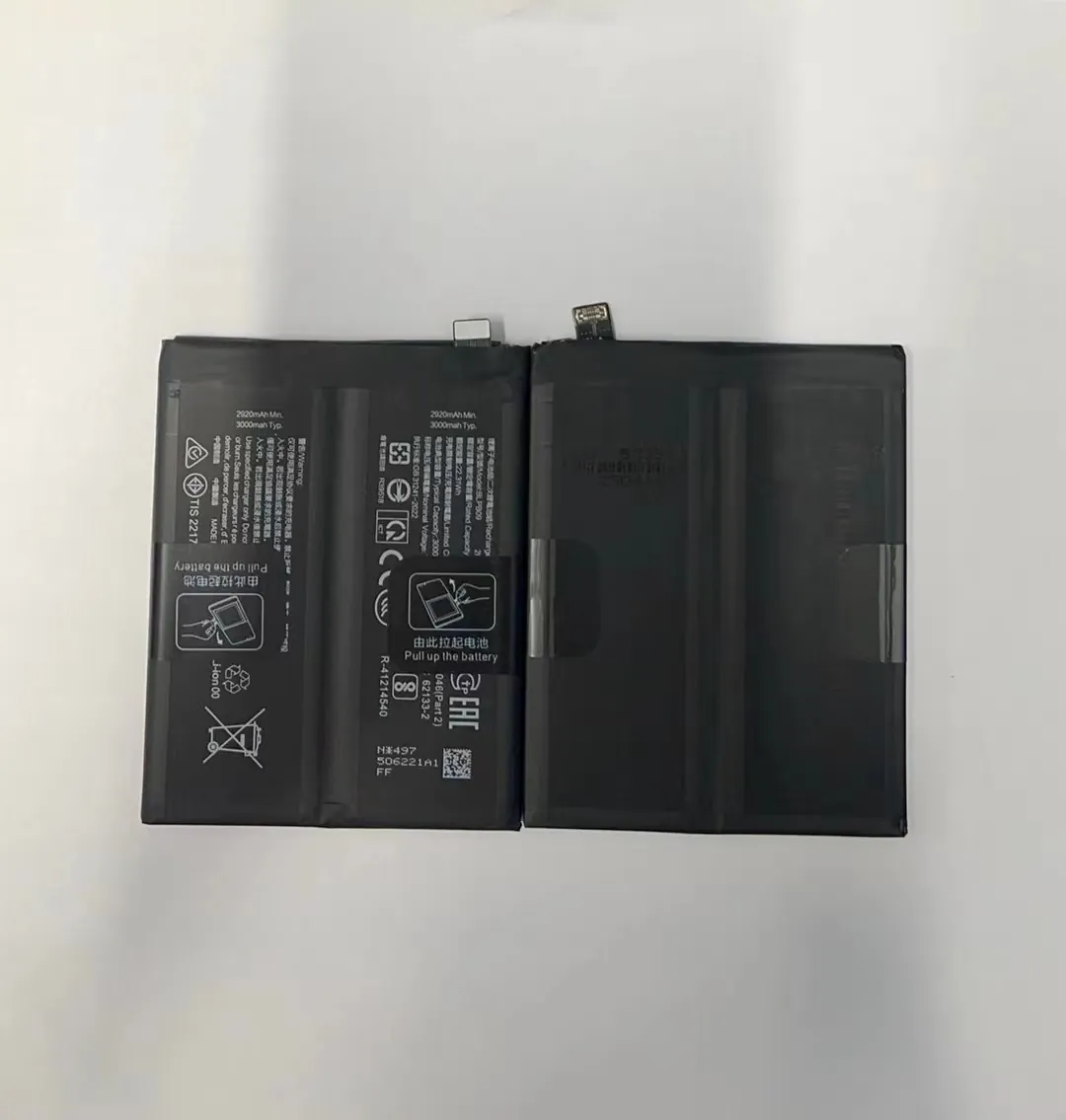
I want to walk you through common settings that drain battery. I also show how to turn them off or lower them.
Why settings matter
Your phone has many features that run in background. Some features use power even when you do not touch the phone. If you stop those, battery lasts much longer.
Key settings to check
| Feature | Why it uses battery |
|---|---|
| Wi‑Fi / Bluetooth when not in use | They scan networks or devices constantly |
| Location/GPS | Many apps ping location regularly |
| Background app refresh | Apps refresh data even when not open |
| Push notifications | They wake phone to show alerts |
| Auto‑sync (email, social apps) | Phone syncs data often and uses power |
I often turn off Wi‑Fi or Bluetooth when I don’t need them. I disable auto‑sync for apps that are not important. I allow background refresh only for a few apps I care about.
I also turn off GPS when I am not using maps or location services. Many apps ask for location but they rarely need it. I review those requests.
Turning off push notifications helps too. I let only critical apps use notifications. That way phone stays asleep longer.
I also use “Airplane mode” if I know I will not use call or data for a while. That stops radio chips draining battery.
Extra tips on settings
I often check display timeout. If screen stays on for many seconds without use, it wastes power. I set screen to turn off after short idle time (like 15–30 seconds).
I also use battery‑saving mode when phone battery is low. That limits some background tasks and reduces performance, but extends life till you charge.
With these simple setting changes, I often double the time my phone can last during heavy use.
How do apps affect battery drain?
Many apps run in background. They keep using CPU, memory, network. That drains battery even if you don’t open them.
Apps with heavy background activity or frequent updates often cause most of battery loss.
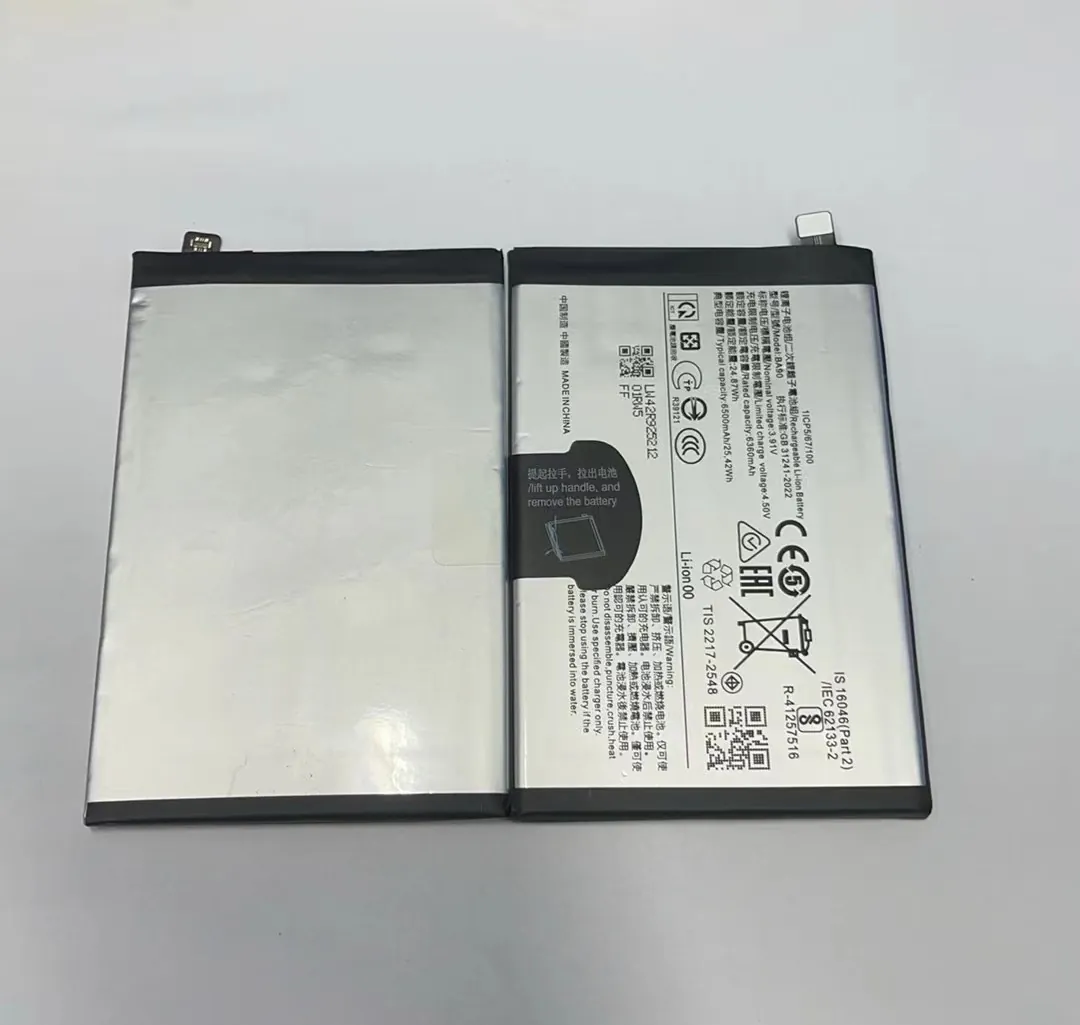
I will explain how apps drain battery. I will also tell how you can control them to save power.
Understanding background drain
Even if you close an app, it might still run tasks. It may refresh feed, check for updates, or maintain a connection. These tasks use CPU and network. That drains battery.
Apps with ads, social network apps, chat apps, email apps often do this. They run many tiny tasks often.
Some apps also keep your screen alive. For example games or video players. They use CPU and GPU heavily. That drains battery fast.
What to watch out for
I often look at battery usage stats in device settings. They show which apps use most power. I look for:
- Apps I rarely use but use power.
- Apps that use battery when screen is off.
- Apps that use network heavily.
If I find such an app, I uninstall or disable it. Or I restrict its background data.
How to limit app drain
I use these actions:
- Turn off background refresh or background data for many apps.
- Restrict some apps from auto‑start.
- Use “force stop” for apps I do not use often.
- Use lightweight or “lite” versions of apps if available.
Sometimes I replace power‑hungry apps with simpler alternatives. For example, I use basic mail app instead of heavy email clients. I choose a plain messaging app instead of a chat app with many features.
I also check for apps that wake up phone often. I disable their notifications or restrict them.
In short, I treat apps as power users. I control them. I let only important apps use power. I keep others off.
That way battery lasts longer, especially when I forget to charge.
Why adjust screen brightness levels?
The screen is one of the largest power users on a phone. High brightness or large screen‑on time drains battery fast.
Lowering screen brightness and reducing screen‑on time saves a lot of battery power.
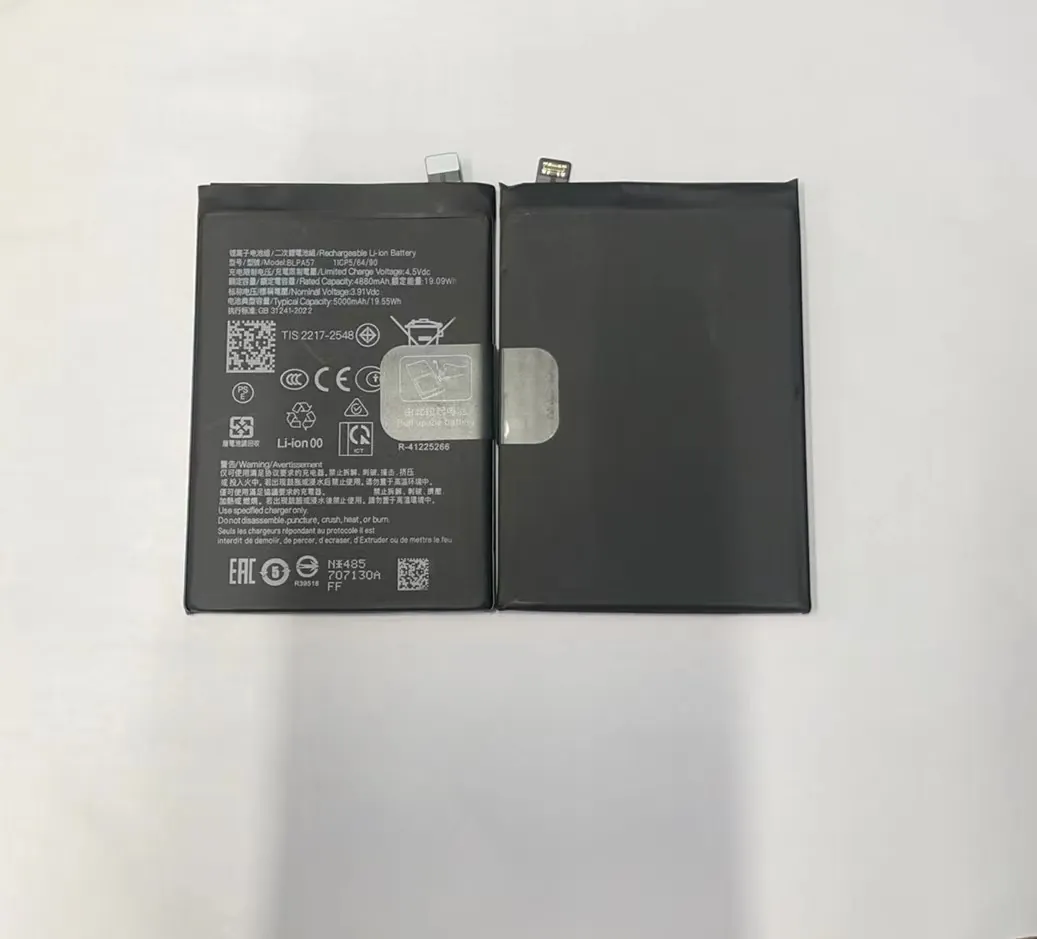
I will show how screen brightness and time affect battery. I also show how to set screen to save power.
Screen brightness and battery drain
Modern phone screens need a lot of power. The brighter the screen, the more power it uses. If screen stays on long, battery drops fast.
Even if you don’t use phone, a bright screen wastes energy.
That is why reducing brightness helps a lot.
How I adjust screen settings
I do these steps:
- I keep brightness low or medium. I avoid full brightness unless under strong sun.
- I enable automatic brightness (or adaptive brightness). Then phone adjusts brightness based on ambient light. It stays lower indoors.
- I shorten screen timeout. I set idle turn‑off to 15–30 seconds.
Sometimes I use dark mode (if phone supports it). Dark mode uses less energy, especially on OLED screens.
When screen matters the most
When I browse social media, watch videos, read articles, I try to use headphones and lock screen when not needed.
If I open many apps that show bright content, battery drains sooner. If I watch video a lot, screen drains battery fast.
So I pay attention. I turn screen off when I don’t need it. I avoid leaving phone idle but screen on.
With these simple habits, I often see battery lasting hours more.
Which optimizations save most power?
Some battery savings come from many small changes. Others come from bigger tweaks. I will show which save the most.
A mix of settings, app control, and brightness control provides the biggest battery saving.
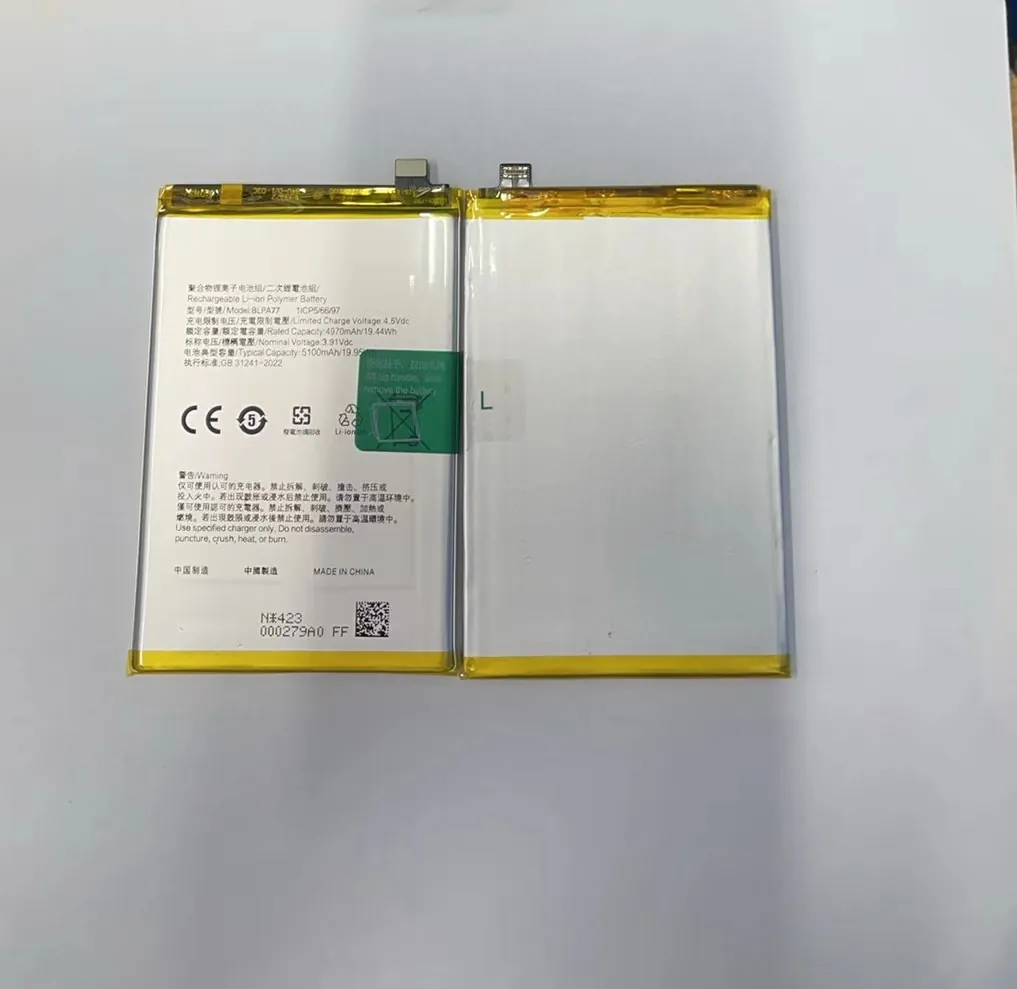
I will list optimizations that give big gains. Then I show which ones give small gains.
Major vs minor battery optimizations
Major optimizations
- Turn off unused radios (Wi‑Fi, Bluetooth, GPS) when not needed.
- Restrict or uninstall heavy background apps.
- Lower screen brightness and reduce screen‑on time.
- Use battery‑saving or power‑saving mode.
Minor or optional tweaks
- Disable push notifications for non‑essential apps.
- Use dark mode if available.
- Reduce auto‑sync frequency.
- Use “lite” versions of apps or web versions.
Quick power‑saving checklist
| Action | Power savings level |
|---|---|
| Disable GPS when not needed | High |
| Turn off Wi‑Fi / Bluetooth when idle | High |
| Limit heavy apps background refresh | High |
| Lower screen brightness | High |
| Short screen timeout | Medium |
| Use dark mode (OLED screen) | Medium |
| Use battery‑saving mode | Medium |
| Disable unneeded notifications | Low |
| Use lightweight apps | Low |
My real‑world experience
I tested many phones. On average, with all major optimizations, I saw battery last 30–50% longer in normal use. With heavy usage (games, video), I still got 20–30% more life.
I think the biggest win comes from stopping radios and limiting background apps. After that, brightness and screen‑on time help a lot.
Minor tweaks like disabling notifications or using lite apps help a bit. They add up when you combine them.
I also note that it matters how you charge. I try to avoid letting battery drop really low too often. I try to charge when battery dips near 20–30%. That helps battery health long term.
Conclusion
With a few simple habits — controlling settings, apps, screen brightness, and key optimizations — I can make my phone battery last much longer. Try these and you will see your phone live through a full day.
