

Many users are curious about removing the battery from their iPhones, whether for replacement, testing, or repair. But Apple phones are not built like older models with easy-access batteries.
To remove the battery from an Apple iPhone, you need special tools and follow careful steps to avoid damage or injury.
Battery removal can solve many problems, like swelling, poor battery life, or random shutdowns. Here's a step-by-step guide to safely handle the process.
Which Apple models have removable batteries?
People often assume all phones once had removable batteries. That’s true for many brands, but not for Apple. iPhones never had fully user-removable batteries like early Nokia or Samsung models.
No iPhone has a traditional removable battery, but you can remove and replace the battery in all models using tools and proper steps.
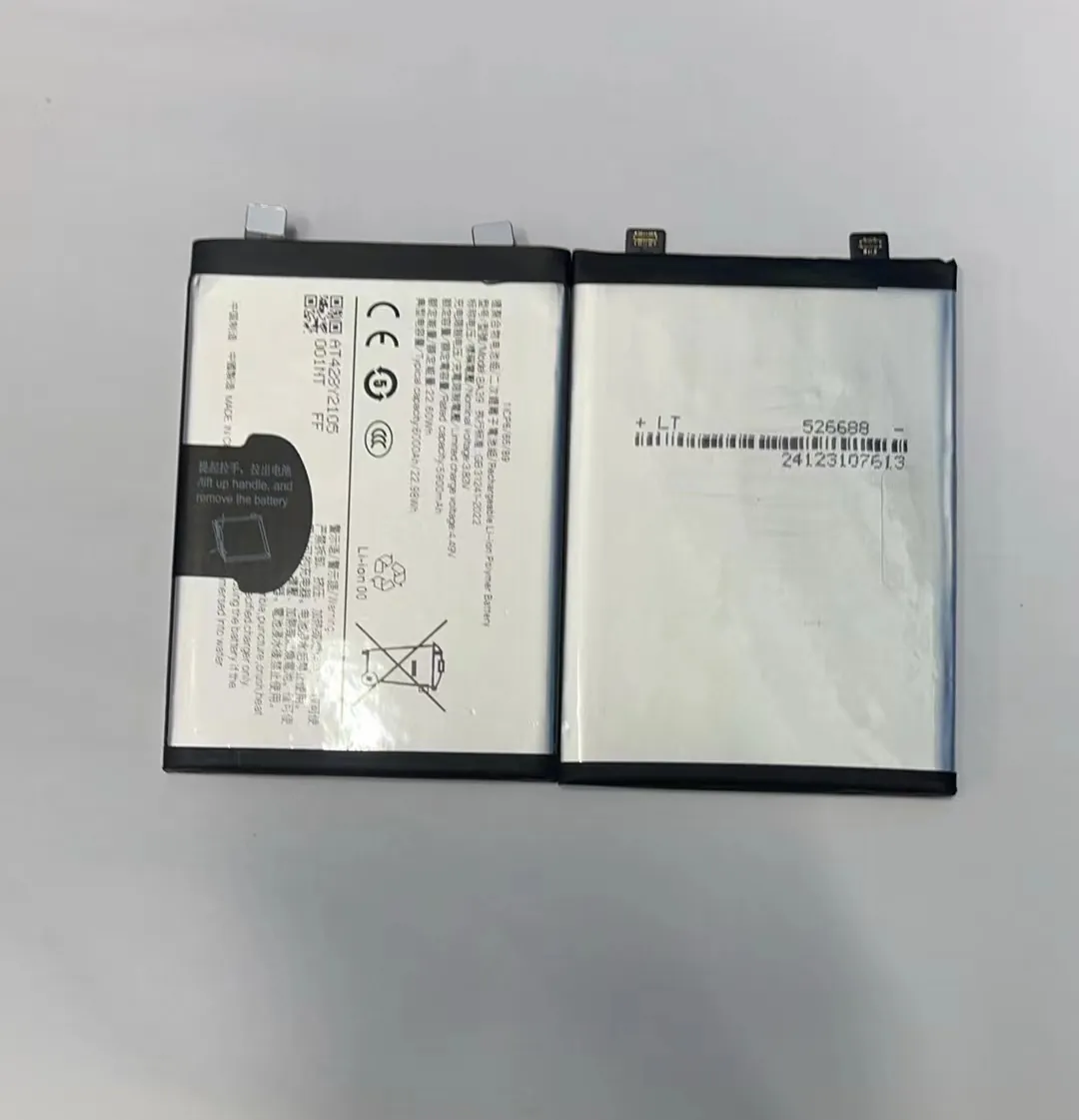
Even the first iPhone released in 2007 required special tools to remove the battery. Apple designs their phones with sealed cases, adhesive strips, and compact layouts. That means even older models like iPhone 4 or 5 don’t allow easy battery access.
Table: Battery Access in iPhone Models
| iPhone Model | Battery Removable by User? | Notes |
|---|---|---|
| iPhone 3G / 3GS | ❌ | Battery glued inside |
| iPhone 4 / 4s | ❌ | Battery held with screws and adhesive |
| iPhone 5 – 8 Plus | ❌ | Battery held with adhesive pull tabs |
| iPhone X – 15 Series | ❌ | Uses L-shaped battery with strong glue |
So, while no iPhone has a “pop-out” battery, they are all technically removable with the right procedure. Newer iPhones have more adhesive, but also better guides and tools available for safe removal.
What special tools do I need for iPhone battery removal?
Trying to open an iPhone with household tools can break the screen, damage the logic board, or puncture the battery. That’s dangerous.
To remove an iPhone battery, you need a pentalobe screwdriver, suction cup, plastic prying tool, spudger, tweezers, and heat source.
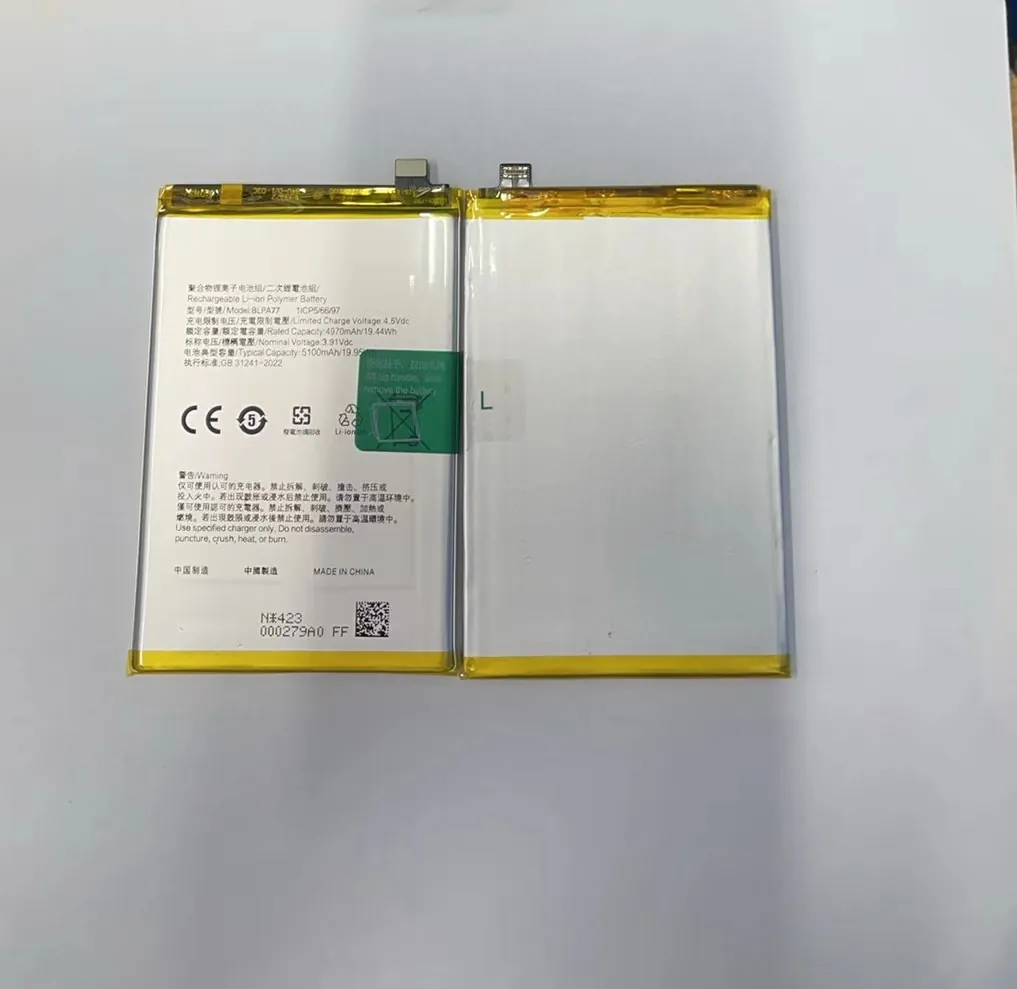
Here are the most important tools:
Essential Tools for iPhone Battery Removal
| Tool | Purpose |
|---|---|
| Pentalobe screwdriver | Open bottom screws on iPhone |
| Suction cup / screen lifter | Lift the screen safely without cracking it |
| Plastic prying tools | Prevent scratches or board damage |
| Spudger | Disconnect the battery and screen connectors |
| Tweezers | Handle screws or battery tabs |
| Heating pad or iOpener | Soften adhesive strips inside |
| Anti-static wristband | Protect logic board from static damage |
Some battery kits come with pre-cut adhesive, which makes reassembly easier. A heat gun or hot pad helps soften the strong adhesive Apple uses, especially in newer models like iPhone 12 and above.
Use non-metal tools around the battery to avoid short circuits or punctures.
Is battery removal safe without professional help?
Many iPhone users wonder if they should do it themselves or pay a repair technician. The answer depends on their tools, skills, and patience.
Battery removal is possible without professional help if you follow detailed instructions and use proper tools, but it comes with some risk.
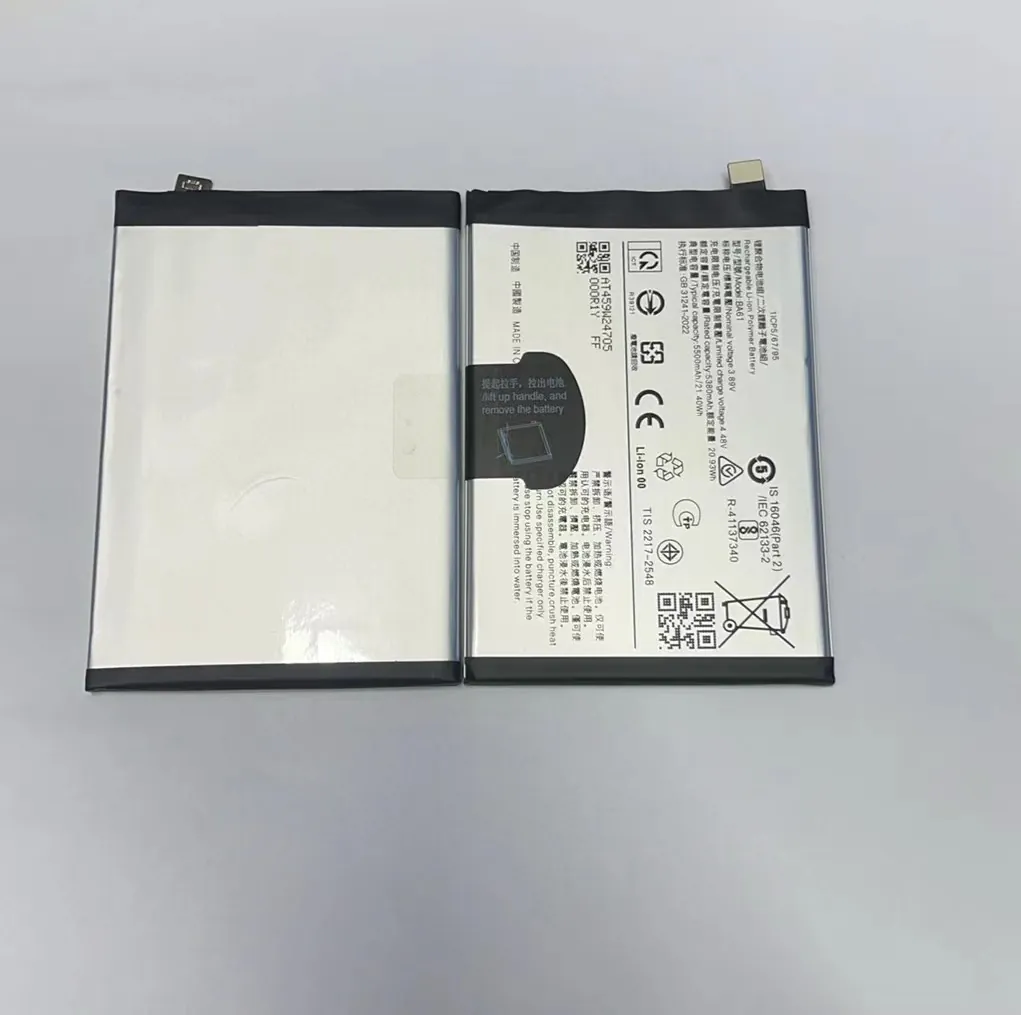
Removing the battery means opening the screen, which is fragile and expensive to replace. You also have to disconnect flex cables and manage small screws. If you’ve never done it before, it may take over an hour.
Pros and Cons of DIY Battery Removal
| Factor | DIY Battery Removal | Professional Help |
|---|---|---|
| Cost | Lower | Higher due to labor charges |
| Risk | Higher (screen or board damage) | Lower if done by skilled tech |
| Tools Needed | Many | Already available in repair shop |
| Time | Takes longer | Quicker, done in 30–60 minutes |
| Warranty | Might void Apple warranty | May keep warranty if authorized |
Some users remove the battery just to test another one, or to inspect swelling. If you see a swollen battery, don’t try to remove it yourself. Swollen batteries are sensitive and dangerous.
Make sure you’re working on a clean, static-free surface. Watch out for the Face ID or Touch ID cable when opening the screen. For iPhone X and newer, the battery is usually L-shaped and more difficult to remove.
How to test the phone after battery removal?
After removing the battery, it’s important to check if the phone and components still work. This avoids surprises when reassembling.
To test the phone after removing the battery, connect a known-good battery, test power button, screen, and charging, before sealing the phone back.
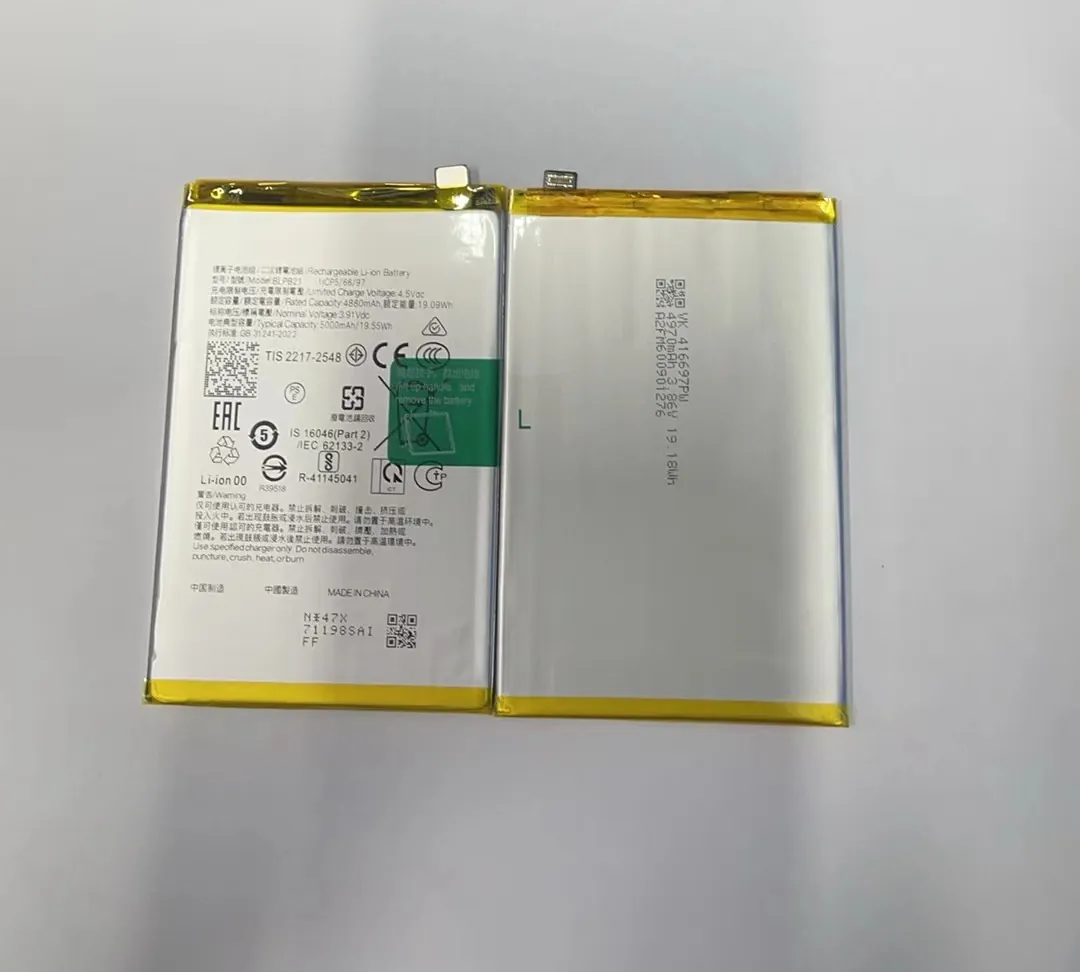
You can test iPhones with the screen still lifted, as long as the battery and screen are properly connected. Here’s a basic checklist:
iPhone Post-Battery-Removal Test Checklist
- Connect the new battery
- Reattach the display flex cables
- Press power button and check for Apple logo
- Plug in charger – check for charging icon
- Test screen touch and brightness
- Use flashlight, camera, and volume buttons
- Check if Face ID / Touch ID works
If the phone doesn’t power on, try charging for a few minutes. Some replacement batteries come with low charge. If still no power, check connector alignment and try a known-good battery.
Avoid sealing the phone until you confirm everything works. Once verified, apply new adhesive (if needed), press the screen back into place, and tighten the bottom screws.
If you plan to leave the phone open for testing, avoid bending cables or stressing the display connector. Always disconnect the battery before removing the screen again.
Conclusion
Removing an iPhone battery is not as simple as older phones, but it can be done with the right tools and careful hands. Follow each step slowly, test before closing, and stay safe while working with batteries.
