
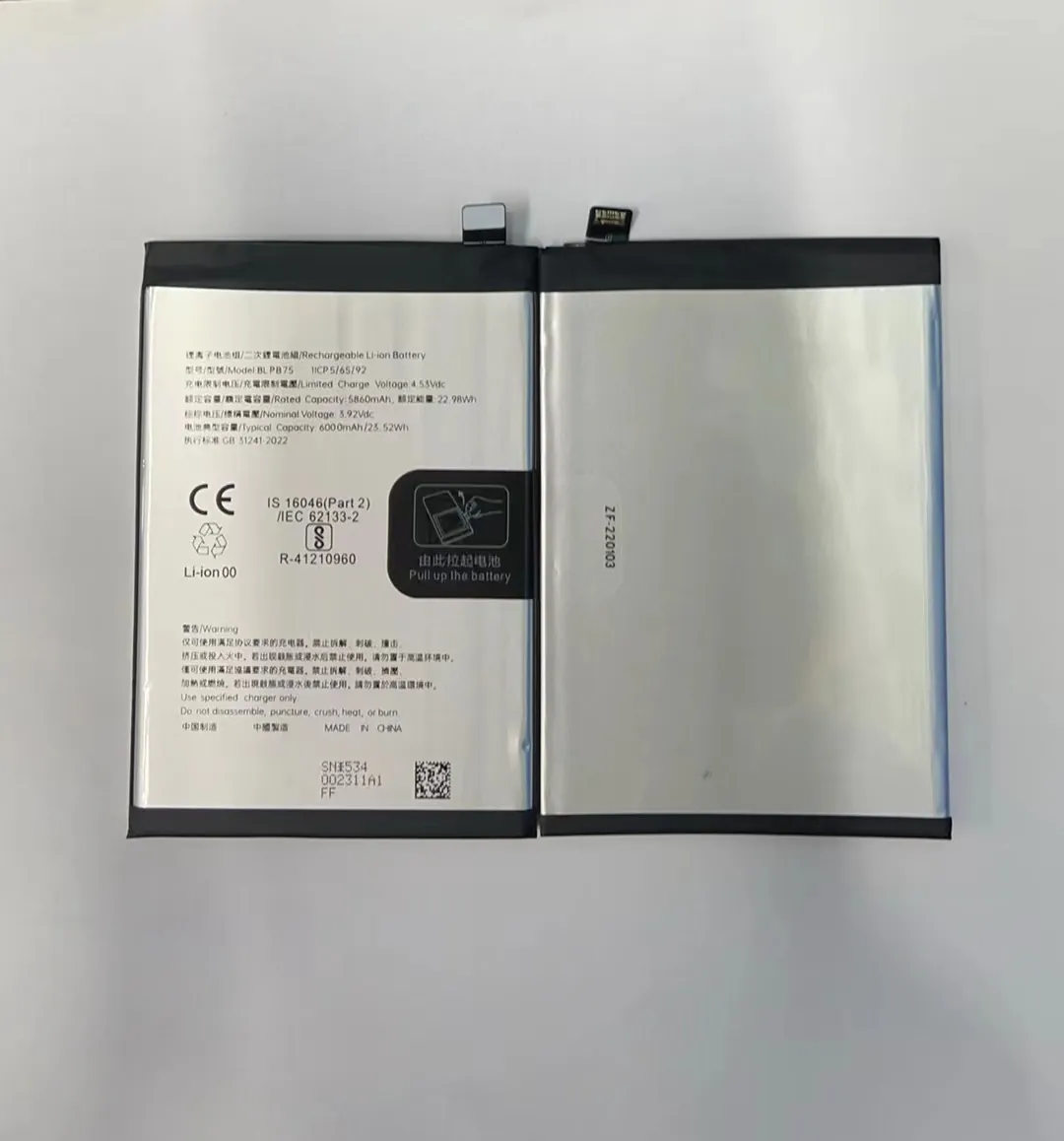
Most users feel frustrated when their phone battery drains too fast. It interrupts work, travel, and daily life — and replacing batteries often isn’t cheap.
To save mobile phone battery life, use fewer power-hungry apps, charge smartly, avoid overheating, and use features like dark mode.
Battery life isn’t just about the size of the battery. It’s about how we use the phone every day. Even small changes in habits can help a lot.
Why is battery calibration important?
Sometimes, your phone shuts off even when it shows 20% battery. Or the battery percentage jumps around. That’s a sign of poor calibration.
Battery calibration helps your phone show accurate battery levels and improves long-term performance by resetting battery status.
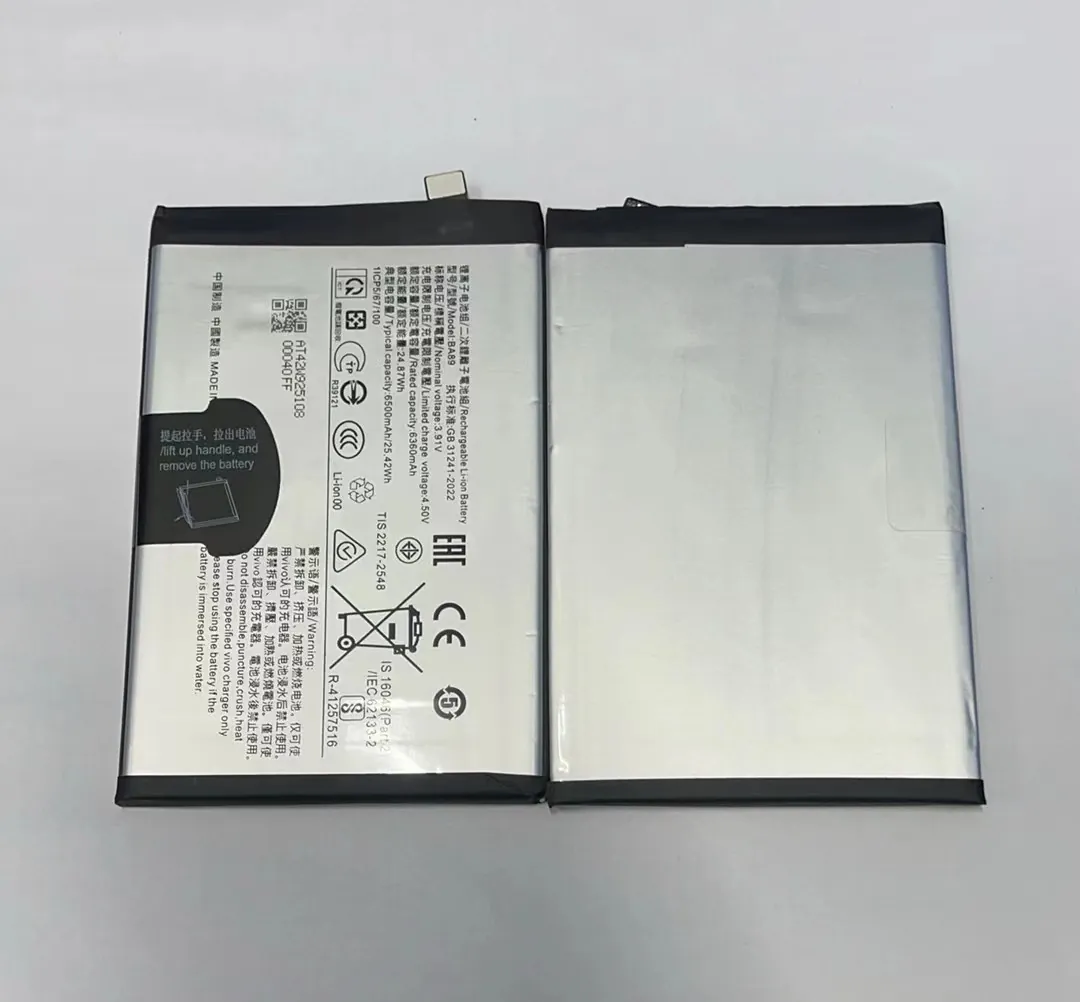
Phones use software to estimate battery life. But over time, that estimate becomes inaccurate. This happens when you charge too often, or always keep the battery full.
Here’s why calibration matters:
What Is Battery Calibration?
It means resetting your phone’s battery statistics so that the percentage reading is accurate. It doesn’t affect the actual battery capacity — just the software reading.
When Should You Calibrate?
- Your phone dies before 0%
- The percentage drops quickly
- You see inconsistent readings
Once every 1–2 months is enough. Don’t do it too often.
How to Calibrate Battery
- Use your phone until it turns off by itself.
- Charge it to 100% without turning it on.
- Leave it on the charger for another hour after full charge.
- Unplug and restart the phone.
This helps reset the battery meter.
Extra Tip
Avoid partial charges during calibration. Try to fully charge and discharge during the process.
What apps consume the most battery power?
Have you noticed your battery drops fast even when you’re not using the phone? Some apps keep running in the background and drain power without warning.
Social media, video streaming, navigation, and games are the biggest battery killers, especially when left running.

Let’s break down the apps that usually consume the most power:
Top Battery-Draining App Categories
| App Category | Examples | Why They Drain Battery |
|---|---|---|
| Social Media | Facebook, Instagram, TikTok | Run in background, use camera and GPS |
| Video Streaming | YouTube, Netflix | High screen brightness and data usage |
| Games | PUBG, Call of Duty Mobile | High graphics, constant CPU use |
| Navigation | Google Maps, Waze | Continuous GPS tracking |
| Messaging/Calls | WhatsApp, Messenger | Background syncing, notifications |
Background Activity
Apps like Facebook and TikTok auto-refresh content. Even when you’re not using them, they keep checking for updates.
Turn off background activity by going to:
- Android: Settings > Apps > Select App > Battery > Restrict background usage
- iPhone: Settings > General > Background App Refresh
Push Notifications
Every time an app sends you a notification, it wakes up your phone. Disable notifications for non-essential apps.
Battery Usage Check
Go to Settings > Battery to see which apps use the most power. Uninstall or limit the ones with high usage.
How often should you charge for best battery health?
A lot of people ask if they should wait until their phone hits 0% before charging. Or if it’s okay to charge multiple times a day.
For the best battery health, charge your phone when it drops to around 20–30%, and unplug it around 80–90%.
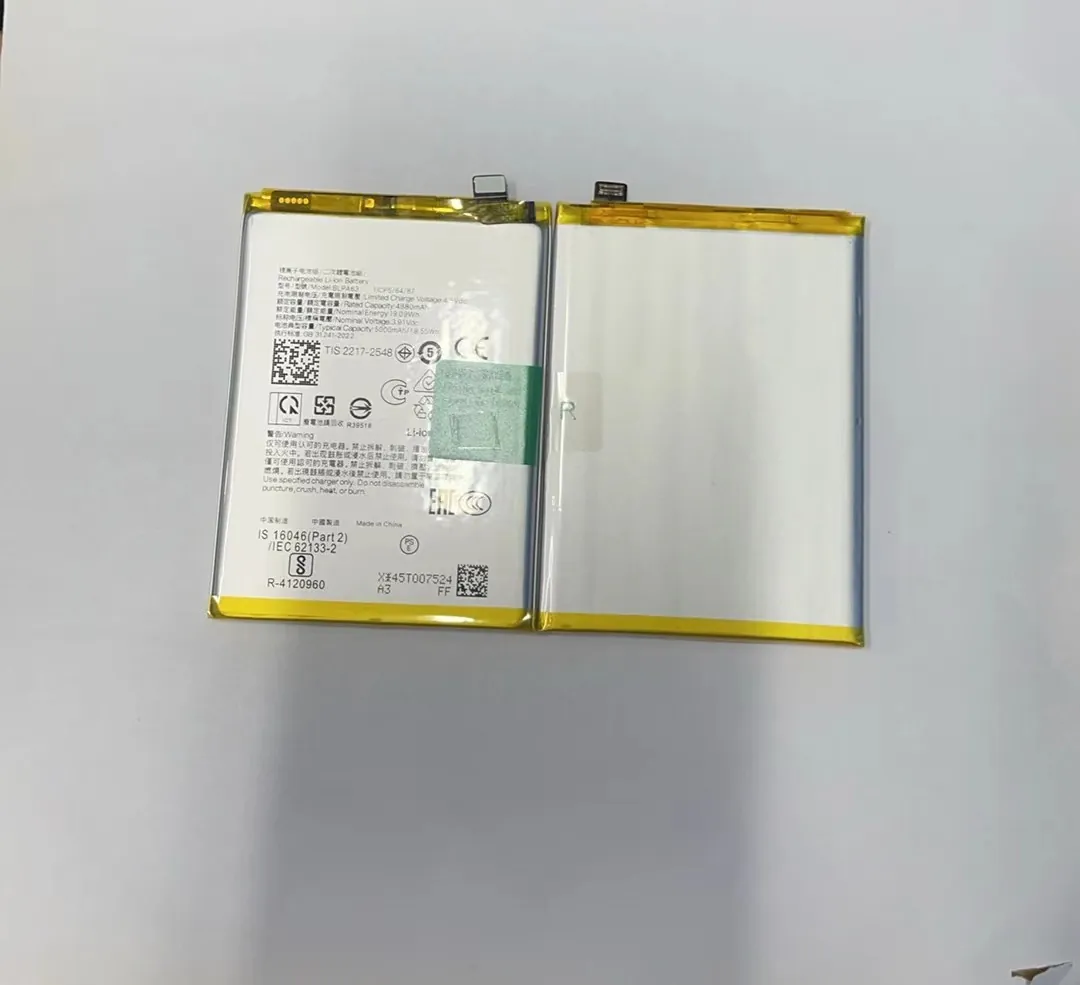
Here’s what helps your battery last longer:
Avoid 0% and 100% Often
Charging from 0% to 100% puts stress on the battery. Lithium-ion batteries prefer mid-level charge cycles.
Use the 20–80 Rule
This keeps the voltage levels balanced and reduces battery wear.
| Battery Level | Charging Advice |
|---|---|
| 0–20% | Avoid frequent deep discharge |
| 20–80% | Ideal range for regular charging |
| 80–100% | Okay occasionally, not always |
Short Charging Is Fine
It’s okay to top up your battery multiple times a day. Just avoid overheating. Don’t keep your phone on the charger all night unless it has charge optimization.
Avoid Fast Charging All the Time
Fast chargers are convenient, but they produce more heat. Use them only when you need a quick boost.
Don’t Use Phone While Charging
Using the phone while charging increases heat and slows down charging speed. This can affect battery lifespan over time.
Can dark mode improve battery efficiency?
Many phones now offer dark mode. It looks good, but does it actually help your battery?
Yes, dark mode saves battery on OLED screens by reducing the amount of power needed to light up pixels.
Not all screens are the same. Some display types use more power for bright colors, especially white. Here’s how dark mode makes a difference:
How OLED Screens Work
OLED and AMOLED screens light up each pixel individually. When showing black, the pixels turn off. This saves power.
LCD screens use a backlight for the whole screen, so dark mode has less effect there.
Battery Saving Example
| Screen Type | Power Use in Light Mode | Power Use in Dark Mode |
|---|---|---|
| OLED | High (all pixels lit) | Low (black pixels off) |
| LCD | Moderate (backlit always) | Slightly reduced |
Where Dark Mode Helps Most
- Browsing at night
- Reading apps (like eBooks or web articles)
- Messaging
- Using apps like Gmail, Chrome, Twitter
Bonus Tips
- Use black wallpapers
- Set system-wide dark mode
- Lower screen brightness
While dark mode won’t double your battery life, it helps reduce power use — especially for users who keep the screen on a lot.
Conclusion
To save mobile phone battery life, use dark mode, avoid full charge cycles, limit background apps, and calibrate your battery every few weeks. Smart habits make your battery last longer.
