

Battery problems are frustrating. You need answers fast when your phone dies early.
Testing a battery gives real data about health, capacity, and problems. You can find issues before the phone shuts down at 50% or gets hot.
Knowing how to test battery health will save time, frustration, and money.
What apps help monitor battery health?
Battery health apps give clear information about battery wear, cycles, and performance. They work on Android and iOS. These apps show live stats and past trends.
Apps help monitor battery health by showing capacity, voltage, temperature, and charge cycles to reveal if your battery is aging or faulty.

Apps are easy tools. They show battery details you cannot see in normal phone settings. You should choose apps that show real capacity and not just current charge level. Some apps also give notifications for abnormal behavior.
Best Features to Watch in Battery Apps
When you open a battery health app, watch these metrics:
- Battery capacity (mAh) – how much charge the battery can hold now.
- Design capacity vs actual capacity – how much the battery lost over time.
- Charge cycles – how many full charge/discharge cycles the battery had.
- Temperature – high heat speeds up battery wear.
- Voltage – unstable voltage can mean a bad battery.
These metrics tell you if the battery still works or needs replacement.
Popular Battery Health Apps for Android
| App Name | Key Features | Why Use It |
|---|---|---|
| AccuBattery | Measures real capacity, tracks cycles | Simple and accurate for Android |
| GSam Battery Monitor | Deep stats about usage and temperature | Great details for power users |
| Battery HD | Easy UI, basic battery info | Good if you want simple info |
These apps are widely used on Android phones. Many show a graph of battery drain over time.
Battery Health Apps on iPhone
Apple limits what apps can read on iPhone. Still, some tools give good info:
| App Name | Info Provided | Notes |
|---|---|---|
| coconutBattery | Shows capacity and charge data via Mac | Requires computer |
| Battery Life | Shows battery wear level | Simple and free |
iPhone has built‑in battery settings too. You can see battery health under Settings > Battery > Battery Health & Charging. This shows max capacity and peak performance capability.
How to Use These Apps
- Install the app from Google Play or App Store.
- Open it and give permissions it needs.
- Look at the main screen for battery capacity and cycles.
- Check temperature and voltage if available.
- Use the app daily for trends, not just once.
Why Apps Matter
Apps show trends over time. A single reading may not tell the full story. If your phone shows capacity dropping fast or cycles going high, you know the battery is aging.
Apps also help decide if you need a replacement battery or a repair. They can show if heat or voltage issues cause problems.
How to check battery capacity manually?
You can check battery capacity manually with built‑in tests and simple tools. This means using phone features and basic steps to see real battery health.
Manual checks help confirm app results by using true power data, load tests, and charging behavior to judge capacity and performance.
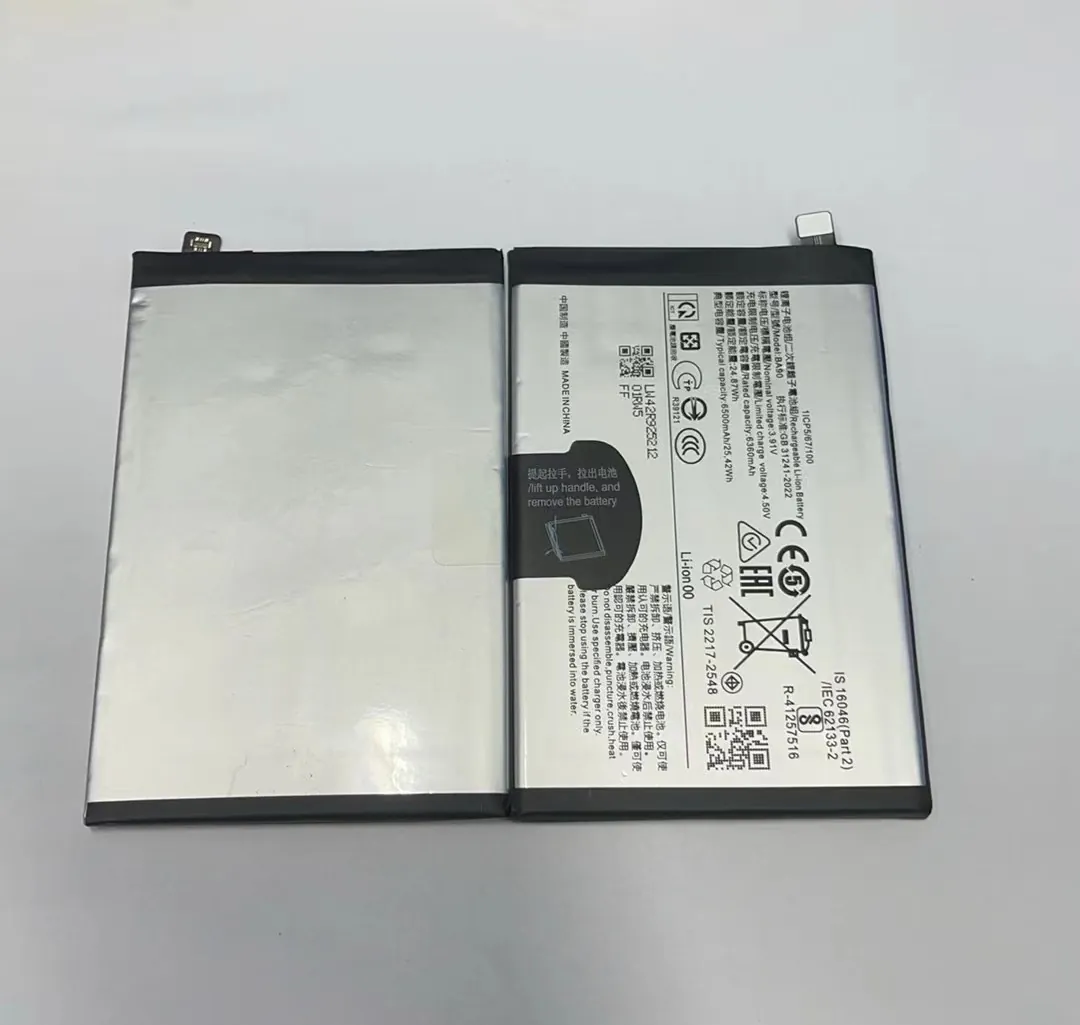
Manual tests do not need apps. You can use phone menus, safe mode, and even external equipment if available. The goal is to see how the battery behaves under a real load.
Check with Built‑In Settings
Most phones have basic battery info in settings. On Android:
- Open Settings
- Go to Battery
- Look for “Battery Usage”
- Check for any abnormal drains or items using too much power
On iPhone:
- Open Settings
- Go to Battery
- Tap Battery Health to see maximum capacity
These show if capacity drops significantly from design specs.
Manual Load Test
A load test means using the phone until a certain percentage to see how fast the battery drains. Use these steps:
- Charge the phone to 100%.
- Use it for normal tasks like browsing and video.
- Time how long it takes to drop to 20% or lower.
- Compare that to expected battery life.
Short battery life with normal usage suggests poor capacity.
External Tools for Manual Checks
If you have a USB multimeter or power meter, you can measure real battery charge and discharge:
- Connect the meter between phone and charger
- See real charge current (mA)
- Monitor if the battery accepts normal charge without spikes
This method requires hardware tools but gives direct data.
Manual Battery Health Checklist
Below is a simple list to check battery capacity without apps:
- Does the phone drop unexpectedly at high percentages?
- Does the battery drain fast during simple tasks?
- Does the phone heat up while charging?
- Does it take longer to charge than before?
- Does it shut off at 20% or above?
If the answer is yes to many items above, the capacity is likely lower than it should be.
Manual Test Limits
Manual checks are basic. They do not show exact mAh and cycles like apps. But they help confirm if battery issues are real. For exact data, you still use apps or professional tools.
Manual checks work if you do them repeatedly to see patterns over time.
Can diagnostics detect battery issues accurately?
Diagnostic tools can find battery problems. They range from built‑in tests to advanced service tools used by technicians.
Diagnostics can detect battery issues accurately when they measure capacity, cycles, temperature, and internal resistance. This data reveals aging and faults.
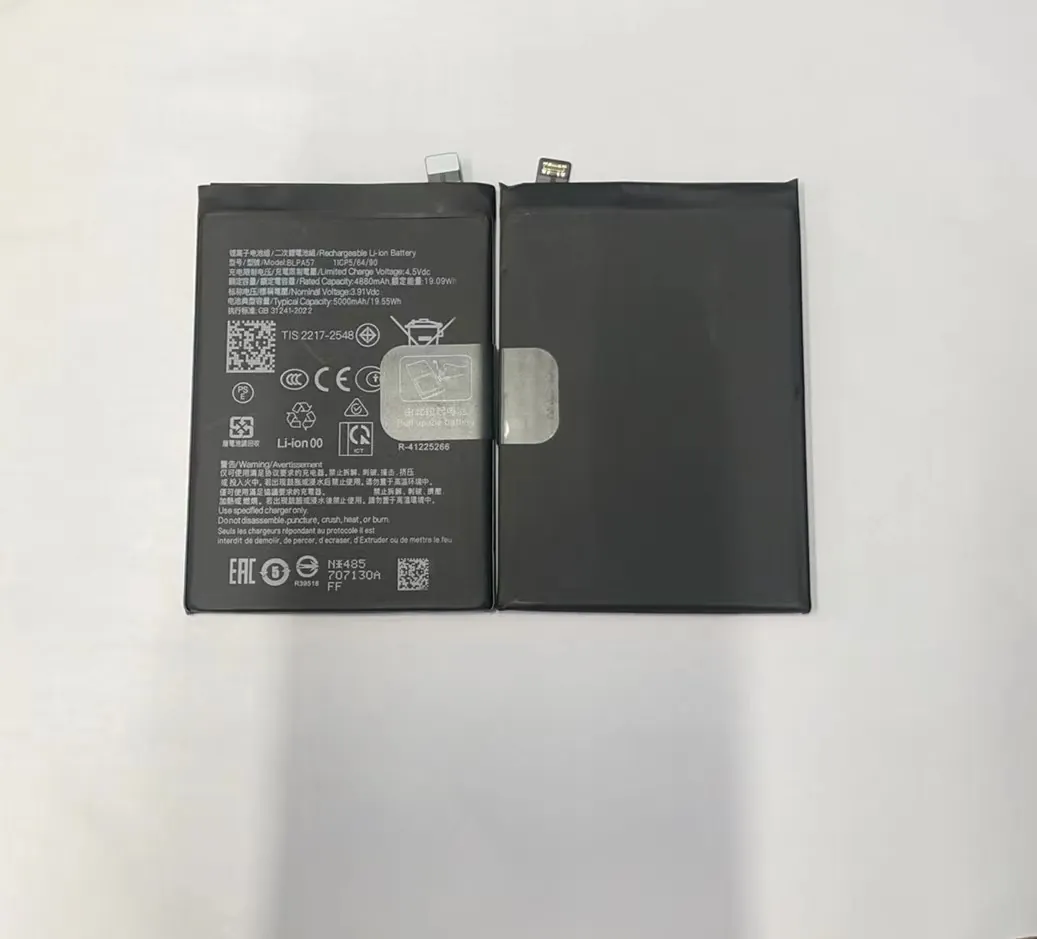
Diagnostics are more than apps. They use real phone data and sensors to test battery health. They can find cells that fail, rapid drain issues, and overheating.
Phone Built‑In Diagnostics
Many phones have hidden diagnostic menus:
- Android phones may use ##4636## or Service Menu codes to access battery info.
- iPhone diagnostics run automatically in the background and report battery health in settings.
These show battery condition and whether the phone reduced performance to prevent shutdowns.
Professional Diagnostic Tools
Technicians use tools like:
- Battery analyzers that show true capacity and internal resistance.
- Service software that reads raw data from battery controller chips.
- Thermal cameras to find heat spots during charge/discharge.
These tools give deeper insights than apps.
How Diagnostics See Internal Resistance
Internal resistance is key to battery health. Higher resistance means the battery cannot deliver power well, especially under load. Diagnostics measure:
- Voltage drop under load
- How voltage recovers after discharge
- Heat generated inside battery
These patterns show if the battery has weak cells.
Accuracy and Limits
Diagnostics are accurate when done correctly. But results can vary due to:
- Software limitations
- Battery age
- Temperature changes
- Hardware sensor drift
Still, pack tests provide good evidence of a failing battery.
When to Use Diagnostics
Use diagnostics when:
- Apps and manual tests show inconsistent results
- The phone still dies unexpectedly
- You see temperature spikes
- The phone slows down under battery load
Diagnostics help decide if the battery is bad or another component causes issues.
Diagnostic Report Example
Here is a simple table showing diagnostic metrics and what they mean:
| Metric | Normal Range | Problem Indicator |
|---|---|---|
| Capacity | 80–100% of design | Less than 80% |
| Internal resistance | Low | High or fluctuating |
| Temperature | 20–40°C | Over 45°C |
| Voltage | Stable | Drops quickly under load |
This table helps read diagnostics quickly.
Diagnostics vs Apps
Diagnostics use phone’s internal sensors. Apps use permissions and estimates. So diagnostics are usually more accurate.
Apps are easy for everyday users. Diagnostics are best for deep issues or technical fixes.
What signs show a battery needs testing?
Certain signs tell you to test your battery. These signs point to possible issues before they get worse.
Battery issues show through unexpected shutdowns, fast drains, swelling, heat, slow charging, and lost capacity. Each sign means testing is needed to confirm battery health.
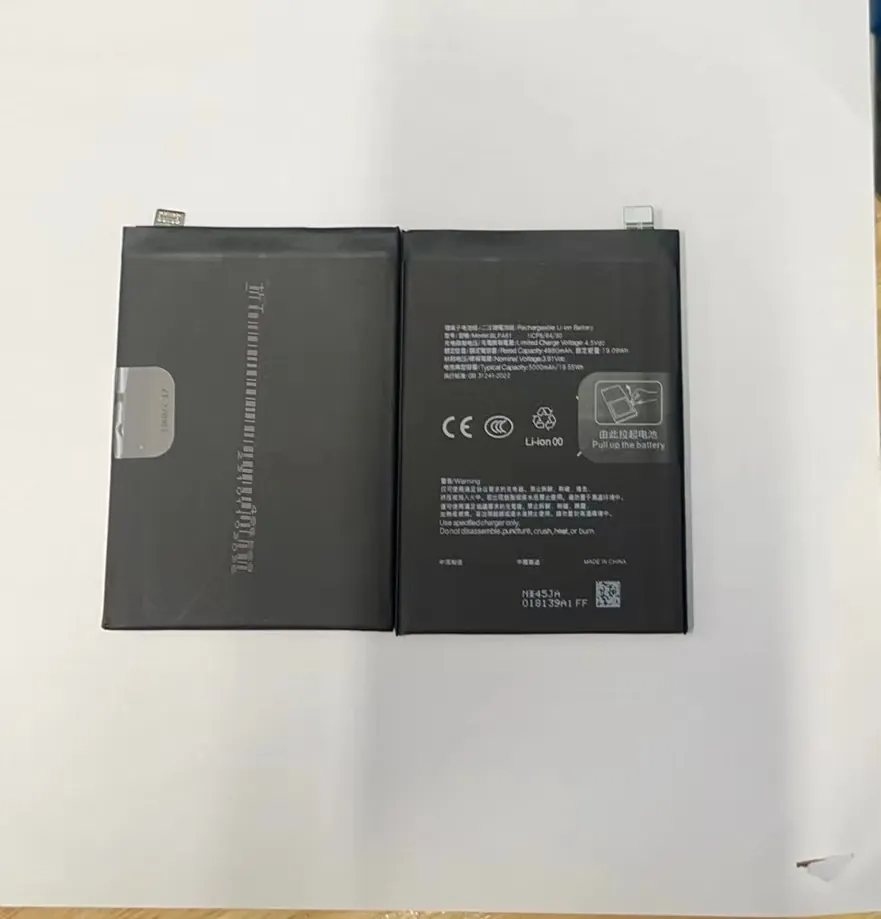
Knowing the signs helps you act early. Tests give proof and help avoid losing data or experiencing sudden shutdowns at critical moments.
Common Battery Problem Signs
Bad batteries can show many signs. Pay attention to patterns, not one‑off events.
Fast Battery Drain
If the battery drops quickly during normal use, this could mean lost capacity. For example, 100% to 50% in one hour with light tasks is abnormal.
Unexpected Shutdowns
When your phone shuts down at high battery levels, the battery cannot supply stable power. This often means internal resistance is high or some cells are failing.
Overheating
Excessive heat while charging or during use means energy is wasting as heat, not doing useful work. Overheating can also damage the battery further.
Slow Charging
If the battery takes much longer than usual to charge, it may lose charge acceptance. Old batteries cannot take a fast charge.
Swollen Battery
A physically swollen phone means the battery is failing. Never use a swollen battery — it is dangerous and needs immediate replacement.
Battery Percentage Fluctuations
The battery gauge jumps from 70% to 50% quickly or the percentage freezes. This means the battery and phone cannot estimate the real capacity.
Signs Checklist for Users
Below is a checklist to see if you should test your battery:
| Sign | Need Test? |
|---|---|
| Fast drain | Yes |
| Sudden shutdown | Yes |
| Heat during use | Yes |
| Slow charging | Yes |
| Swelling | Yes, replace now |
| Erratic percentage | Yes |
This list is simple to follow and helps decide when to test.
How Users Often Miss Signs
Many users ignore battery issues until the phone dies suddenly. You should watch daily battery behavior. Patterns over days show real problems.
If you wait too long, the battery may fail completely, leaving you with a dead phone or one that won’t hold charge at all.
What to Do When You Spot Signs
When you see signs above:
- Run battery apps
- Use built‑in diagnostics
- Do manual capacity checks
- Check for swelling or heat
- Decide if battery replacement is needed
Waiting will not fix the issue.
Signs vs Other Problems
Some issues look like battery problems but are not:
- Software bugs
- Background apps draining power
- Faulty charger or cable
- Screen brightness too high
You should rule these out before testing battery health.
Final Notes on Signs
Consistent signs mean real problems. One day of fast drain is not always a battery fault. But patterns over time matter.
conclusion
Testing your battery helps find real issues early. Use apps, manual checks, and diagnostics to get clear data. Watch signs like fast drain, heat, and shutdowns to know when testing is needed.
