
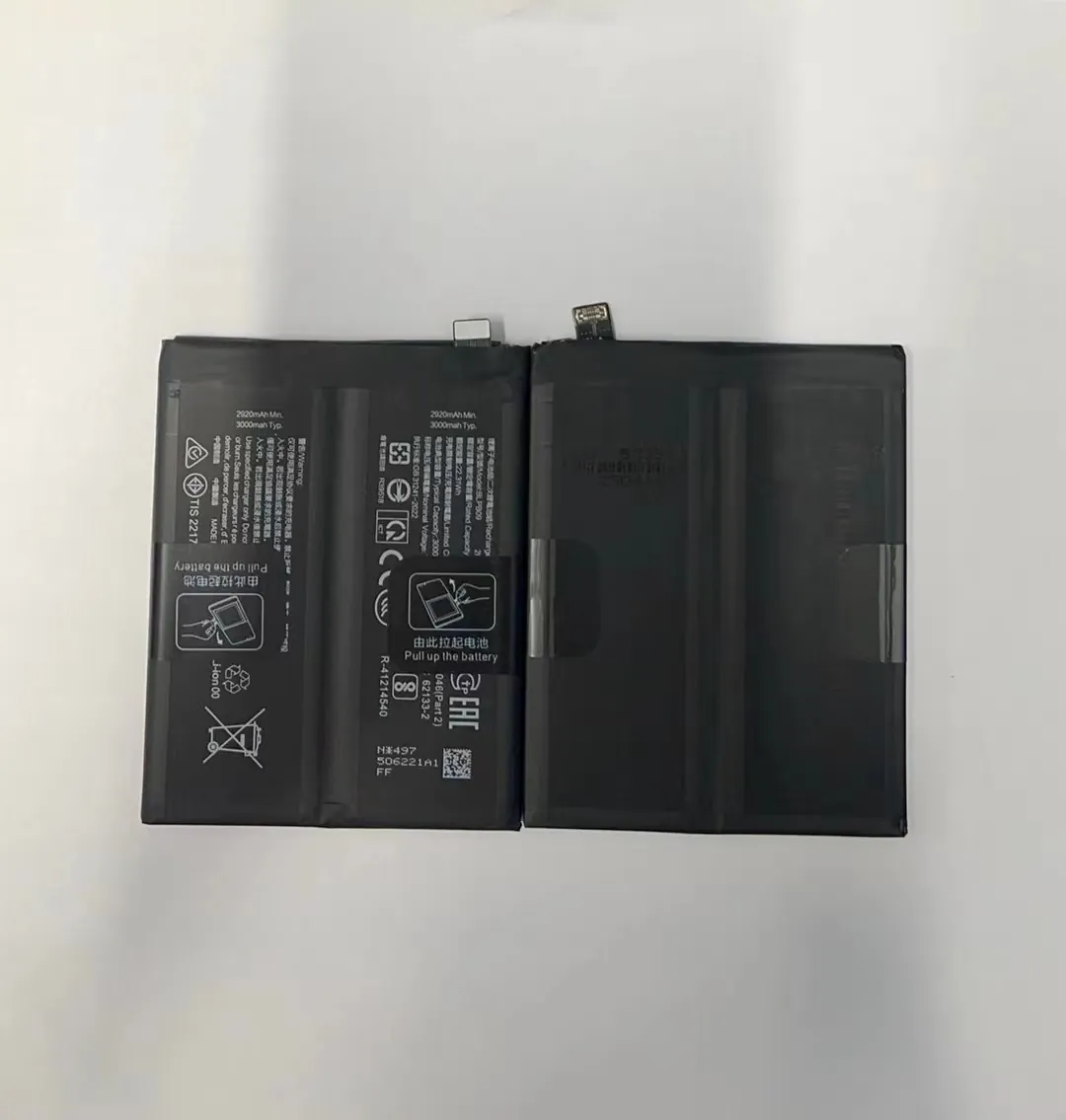
Many phones die fast each day. It feels annoying when battery drops too quickly. What causes it?
Battery drain usually comes from apps, settings, or hardware issues that use power constantly.
Continue reading to learn how to find the cause and solve it.
How can you identify power‑hungry apps on your phone?
Battery worry grows when you use phone often. You might ask: does that new app kill my battery?
You can spot hungry apps by checking battery stats in phone settings — high usage time or high percent drain are red flags.

When you open battery usage screen on your phone, you see apps ranked by energy used. Focus on apps that use a lot more power than typical. Many times games, video apps, or background syncing apps go up fast. Apps running in background still drain battery even if you don’t use them.
You can make a list of suspect apps. Then test: close one or two, observe battery usage next day. If battery lasts longer, those apps were the problem.
You can also use safe mode to block third‑party apps. If battery life improves in safe mode, third‑party apps are likely culprits.
Common high‑drain apps
| App type / Name | Why it uses much battery | What to do |
|---|---|---|
| Social media (e.g. feed apps) | Constant data fetch, background refresh | Limit background data, close when not using |
| Streaming video / music | High CPU usage, screen-on time, network usage | Use lower resolution, offline mode |
| Games | Heavy CPU/GPU, screen, animations | Limit play time, close after use |
| Navigation / GPS apps | GPS module always on, network use | Turn off GPS when not needed |
| Messaging or email apps | Frequent sync, push notifications | Increase sync interval or disable auto-sync |
These examples show typical battery hogs. But battery-hungry apps are not only heavy games. Even simple apps with poor coding can ask phone to wake often or run tasks. That keeps power flowing.
If phone keeps draining even with “less used” apps, check deeper. Sometimes apps misbehave. They request location, send network requests, or run hidden tasks. These tasks add up.
Also note: some apps may show as low drain but secretly trigger system processes. Often the “miscellaneous system” entry in battery stats gets large. That may hint at OS or system‑level tasks triggered by apps.
It helps to test by uninstalling suspect apps for a day or two. Or disable permissions such as location or background refresh. Then compare battery life.
If battery drain drops significantly, you found your culprit. If not, apps may not be real problem — move on to settings or hardware.
What phone settings drain battery the fastest?
You may not think of settings when phone dies fast. But some settings cause big power loss without visible apps.
Settings that keep screen bright, use GPS or data constantly, or push updates quickly drain battery fastest.
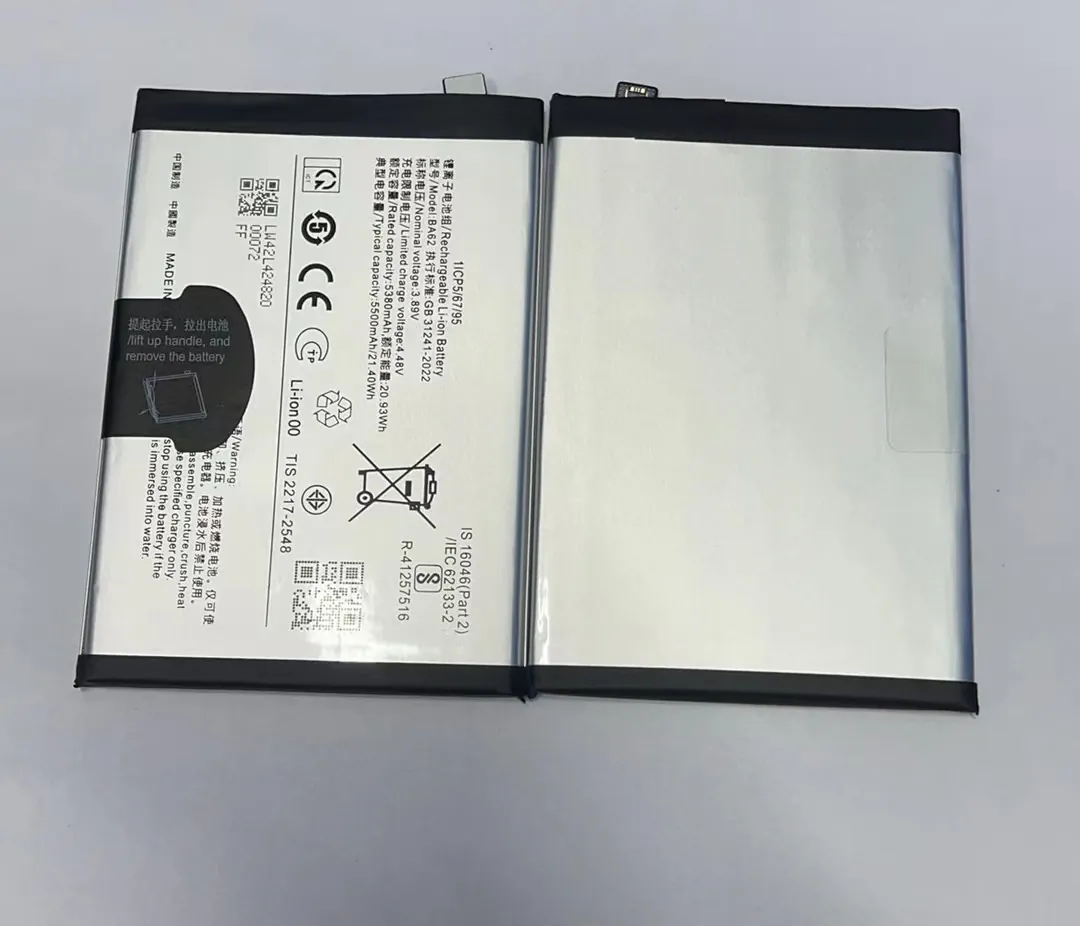
Phone makers try to make default settings easy. But defaults often favor performance over battery. Screen brightness, refresh rate, GPS, network data — all add up.
Some settings keep phone active even when you are not using it. Examples are push sync, auto‑update, high screen brightness, constant data connection. These settings drain battery quietly.
Some settings matter more on older phones or phones with small battery — they cannot absorb constant drain.
Key battery‑draining settings
| Setting | Impact on Battery | Suggested Adjustment |
|---|---|---|
| Screen brightness / auto‑bright | Screen uses much power constantly | Lower brightness, disable auto‑bright |
| High refresh rate / resolution | More GPU/CPU work, battery per second | Use lower refresh rate or standard resolution |
| GPS / Location services | GPS module drains energy | Turn off when not needed; use location only when required |
| Background data & sync | Network + CPU + wake‑ups | Manual sync or longer intervals |
| Push notifications & updates | Frequent wake-ups and downloads | Disable auto‑updates; reduce notification volume |
| Cellular data + strong signal | Phone boosts signal, draws power | Use Wi-Fi when possible; avoid poor signal zones |
These settings may sneak up on you. You might love auto‑brightness or constant GPS. But together they cost battery life. When you reduce or disable them, you often see big improvement.
A test: put phone in “airplane mode” overnight while inactive. If battery drop overnight is tiny, then settings/network were main drain.
Also monitor screen-on time. Some users screen on for hours without noticing: even 5 minutes of heavy brightness or video can drain as much as hours of standby.
Changing just a couple of settings — brightness and background sync — may double standby battery life.
Can battery drain indicate malware or hardware issues?
Sometimes battery drains even when apps and settings seem fine. That raises worry: is phone sick?
Yes — malware or hardware faults can cause abnormal drain. Watch for strange overheating, rapid drain when idle, or unknown apps/processes using power.
Malware can run hidden tasks. It may use CPU, battery, data without showing on screen. This can kill battery fast.
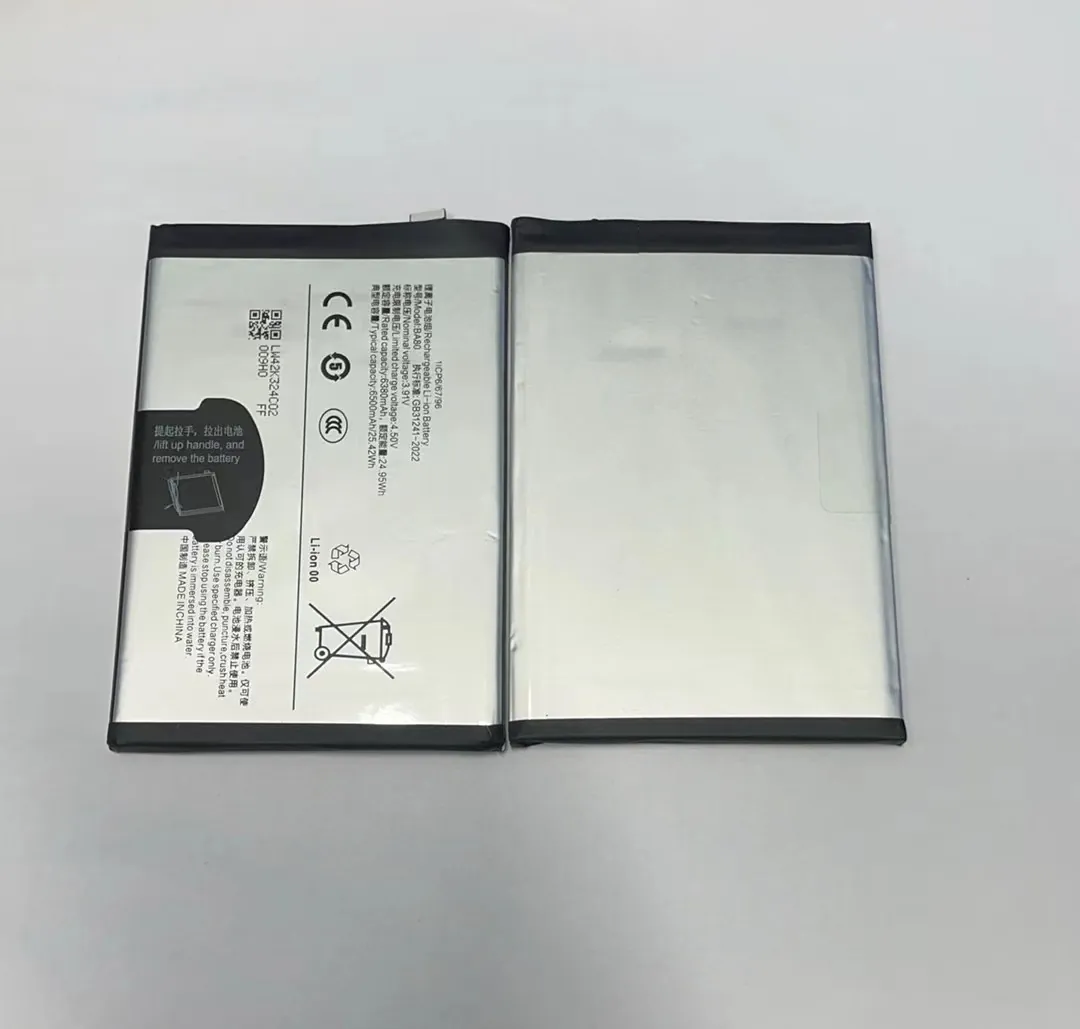
Hardware also wears out. Old battery loses capacity. Charging circuit may malfunction. That causes quick drain.
How malware or hardware issues affect battery
If phone battery falls 20‑30% while idle overnight, that is not normal. That may signal hidden tasks or battery failure.
If phone becomes hot when idle, that shows CPU or circuit working. No app should heat phone without active use.
If battery health report shows “poor” or “service battery soon”, then battery cannot hold charge. That causes quick drop even when nothing runs.
In some cases, replacement battery or repair is only fix.
Also battery drain caused by malware often shows unusual network activity, data use spikes, or popup ads even when phone idle.
On older phones, battery chemistry degrades. Even calibration may help: full charge, full discharge once. But if capacity stays low, only battery replacement works.
Before replacing battery, try safe mode. In safe mode third‑party apps stop. If battery drains still fast, problem lies deeper — hardware or OS.
If battery drains only after some hours but not immediately after reboot, it suggests wear rather than malware.
If phone slows down, crashes, or behaves weird with battery drain, check battery health. Sometimes charging cycle count grows, battery internal resistance rises. That kills battery life.
In general, suspect malware when battery drop is fast and unexplained, with abnormal CPU/network or popups. Suspect hardware if drain happens in safe mode and battery health is bad.
Why does standby mode still consume so much power?
You charge phone full before bed. Next morning battery is half gone. Standby drained much power. That feels strange.
Standby uses power mainly because background tasks, network wake‑ups, radio use and OS maintenance still run even when screen is off.
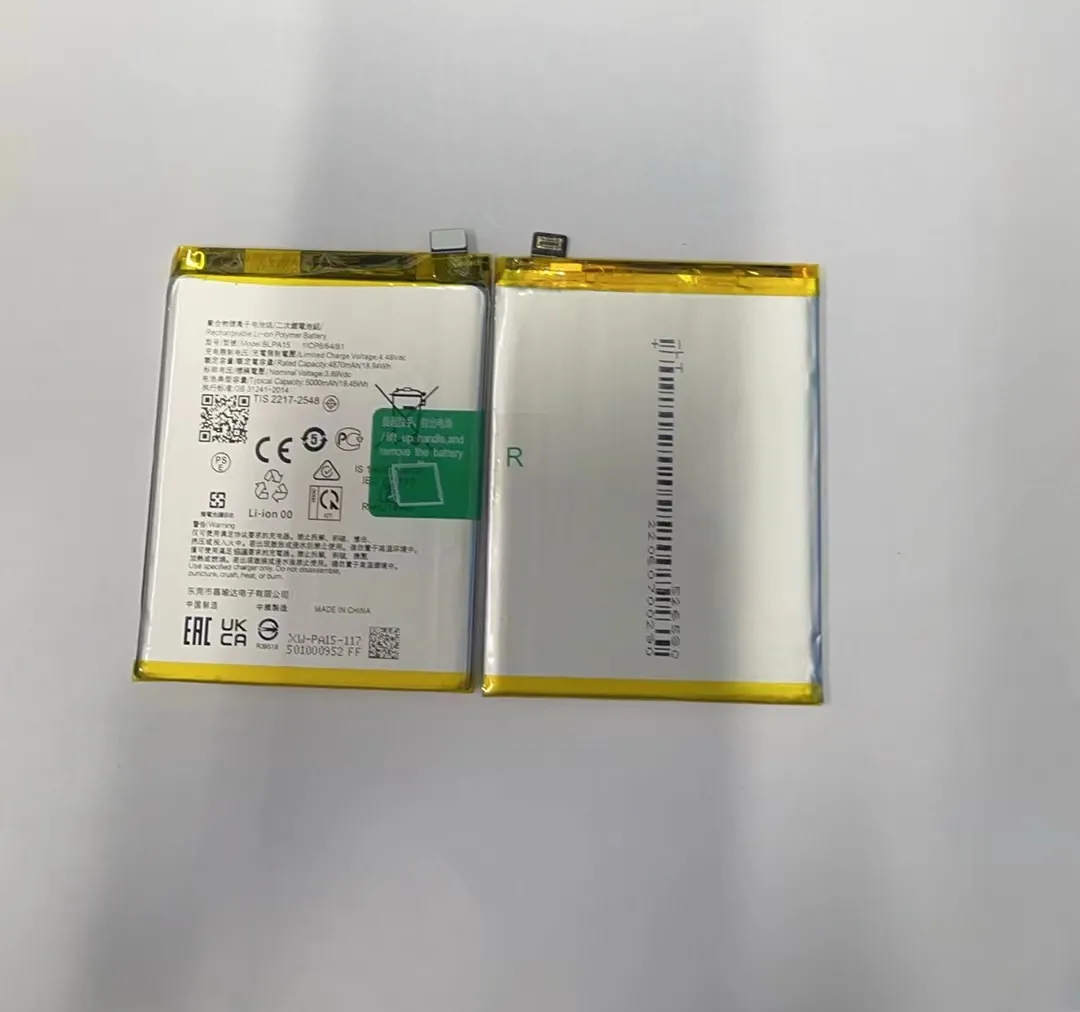
Phone never sleeps fully. Even with screen off, phone’s modem, Wi‑Fi, cellular radio, sensors, and internal clock stay alive. They all use energy.
Apps also wake phone periodically. Email, messaging, sync, push notifications — they prompt phone to check server. Each wake costs battery.
Updates, backups, indexing, location checks also drain battery quietly.
What keeps phone awake in standby
- Cellular radio stays active to receive calls and messages. Poor signal strength drains more power because phone boosts signal.
- Wi‑Fi or data stays connected. Even small data fetches use radio and CPU.
- System tasks: updates, backups, maintenance, background services.
- App wake‑ups: background fetch, notifications, auto‑sync.
- Sensor polling: sometimes phone checks location, motion, orientation.
If any of above is active often, standby drain becomes heavy.
Older phones or phones with degraded battery suffer more. Battery internal resistance rises. That means even small background power hurts battery much.
Also if screen brightness or refresh rate is high, screen may briefly turn on for notifications. Screen-on events kill battery fast.
Another factor: wake‑locks. Some apps request OS to stay awake until task ends, even if screen is off. Poorly written apps may hold wakelock too long.
For phones with fewer resources, each wake costs more.
One simple test: charge phone full, switch to airplane mode, disable Wi‑Fi and data, then leave idle overnight. If battery stays above 95%, standby drain was from network or background tasks.
If battery still drops 10‑20%, battery itself or hardware issue likely.
If battery drain only happens when you receive many messages or notifications, reduce push or sync frequency.
In summary, standby drain happens because phone is never fully off. Background work, radios, networks, system tasks — all draw power.
Conclusion
Battery drain comes from apps, settings, or deeper issues. Watch app use and phone settings first. If drain stays high, check for malware or hardware faults. Reducing background tasks and optimizing settings often helps a lot.
