
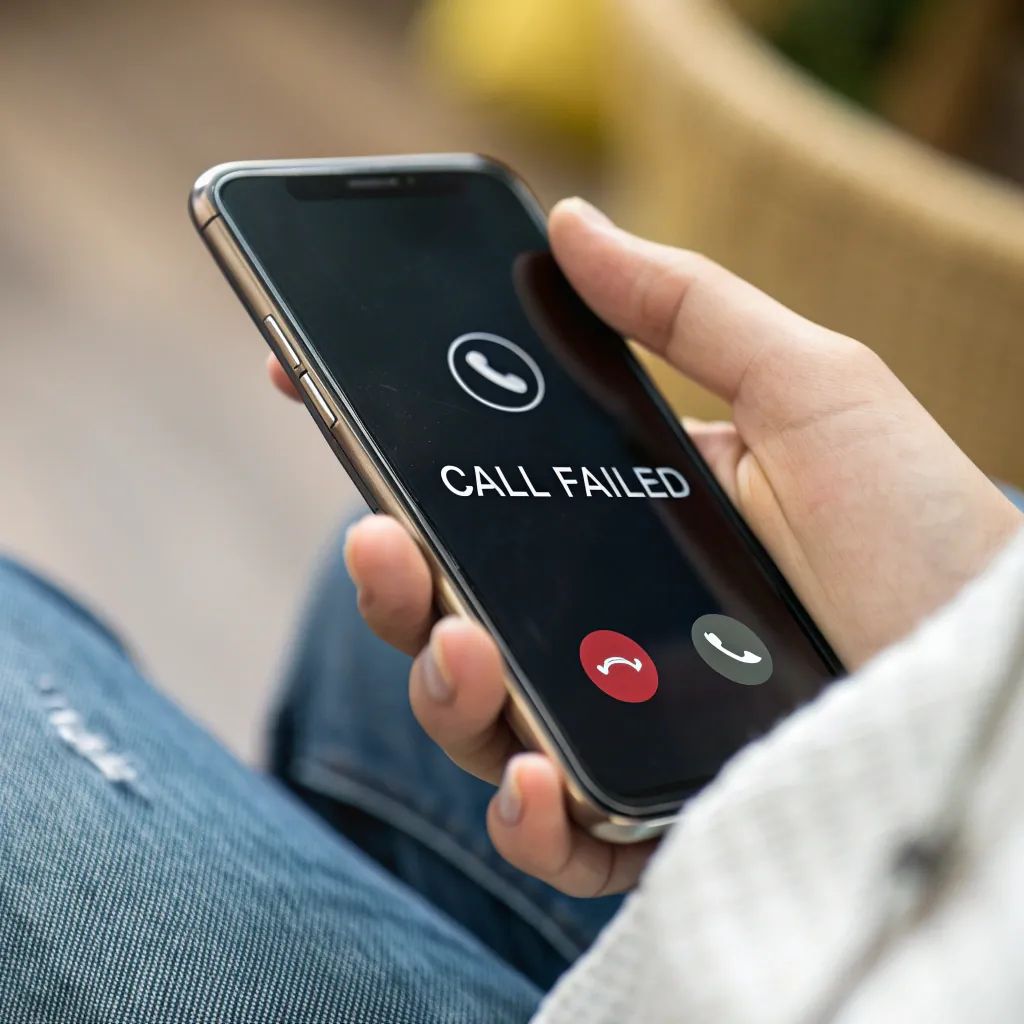
Frustrated by that "Call Failed" message? You're trying to make an important call, but your iPhone just won't connect. It's a common and annoying problem.
"Call Failed" errors on your iPhone usually happen because of a weak signal, carrier network issues, a faulty SIM card, or an iOS software bug. Simple fixes like toggling Airplane Mode, checking carrier settings, or resetting network settings often solve the problem instantly.
Seeing that red "Call Failed" notification is incredibly frustrating, especially when you need to connect urgently. But don't worry, it's usually a fixable issue. Let's break down the common reasons this happens and walk through the solutions one by one. This way, you can get back to making calls without any trouble.
Could a Bad Signal or Network Issue Be Causing My Calls to Fail?
Are you in a crowded place or a basement and your calls keep dropping? A weak signal is often the culprit, leaving you disconnected when you need it most.
Yes, a poor cellular signal is the most common reason for failed calls. This can be due to your location, like a basement or elevator, network congestion in crowded areas, or temporary outages from your carrier. Toggling Airplane Mode or restarting your iPhone can help.
Your iPhone's ability to make a call depends entirely on its connection to your carrier's network. When that connection is weak or unstable, calls will fail. This happens for a few key reasons. First, your physical location matters. Being deep inside a building, in an underground parking garage, or in a remote rural area can block the signal. Second, network congestion is a real problem. In crowded places like a stadium or a concert, thousands of phones are all trying to connect to the same cell tower, which can overload the network and cause your call to fail. I've heard from clients like Alex, a wholesaler in Spain, that his customers often complain about this during local festivals. Finally, your iPhone might struggle to switch between 5G, 4G (LTE), and 3G networks, causing a momentary drop. This is where VoLTE (Voice over LTE) is important, as it allows calls over the 4G network.
Quick Network Fixes
| Fix | How it Works | Steps to Try |
|---|---|---|
| Airplane Mode | Forces your phone to disconnect and reconnect to the cell tower. | Go to Settings > Airplane Mode. Turn it on, wait 10 seconds, then turn it off. |
| Toggle Cellular Data | Resets your data connection, which can impact modern calling features. | Go to Settings > Cellular. Turn Cellular Data off, wait, then turn it back on. |
| Check VoLTE | Ensures your calls can use the faster 4G network. | Go to Settings > Cellular > Cellular Data Options > Voice & Data. Make sure VoLTE is on. |
| Restart iPhone | Clears temporary glitches in the phone's operating system. | Press and hold the side button and a volume button until the power-off slider appears. |
What if My SIM Card or Carrier Settings Are the Problem?
Your signal looks fine, but calls still fail. The problem might be a tiny, overlooked culprit: your SIM card. This can silently disrupt your entire connection.
A loose, dirty, or damaged SIM card can definitely cause "Call Failed" errors. Also, outdated carrier settings can create conflicts. Try re-inserting your SIM card and checking for a carrier settings update in Settings > General > About to fix this.
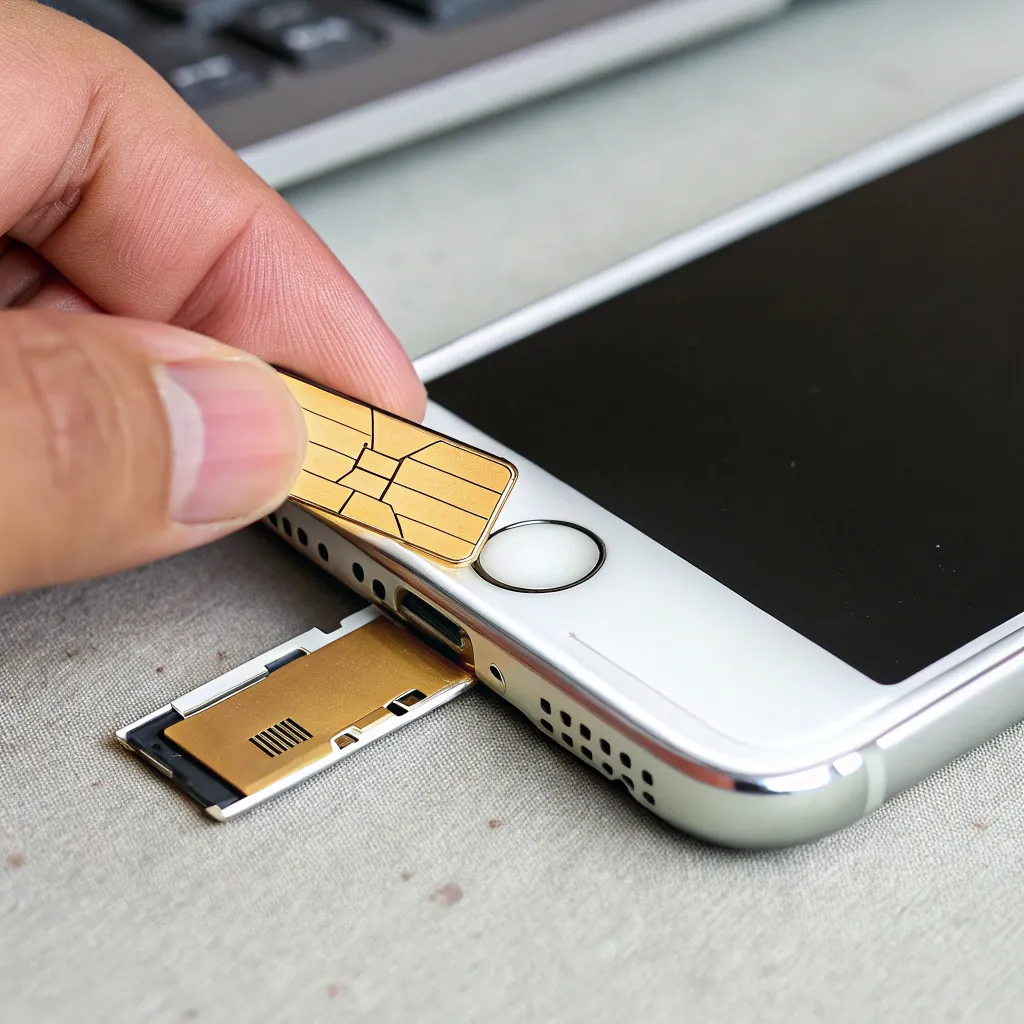
Your SIM (Subscriber Identity Module) card is the small chip that connects your iPhone to your mobile carrier. If it's not working correctly, your phone has no identity on the network, so it can't make or receive calls. The issue can be surprisingly simple. Over time, the SIM card might become slightly dislodged, or dust can get into the SIM tray and interfere with the contacts. In my 10 years of supplying phone parts, I've seen how a simple, high-quality SIM tray can make a difference in ensuring a secure connection. Sometimes the card itself can get damaged or just wear out. Another hidden issue is your carrier settings. Your mobile provider occasionally pushes out small updates to improve network compatibility. If you miss one of these updates, it can lead to connection problems. This is an easy thing to check and can often resolve call failures instantly.
SIM Card Troubleshooting Checklist
- Power Down Your iPhone: Always turn your phone off completely before removing the SIM card to avoid any damage.
- Eject the SIM Tray: Use a SIM ejector tool or a small paperclip to gently push into the hole on the side of your iPhone.
- Inspect the SIM Card: Check for any visible dust, dirt, or damage.
- Clean Gently: If it looks dirty, wipe it carefully with a soft, dry, lint-free cloth. Do not use water or cleaning solutions.
- Re-insert Securely: Place the SIM card back into the tray correctly and slide it back into the iPhone until it clicks into place.
- Check for Carrier Update: Turn your phone back on. Go to Settings > General > About. If an update is available, a pop-up will appear.
Can a Software Bug on My iPhone Make My Calls Fail?
You've tried everything, but calls still fail. The issue might not be your network or SIM, but a hidden bug in your iPhone's software, causing endless frustration.
Absolutely. iOS software glitches are a known cause of call failures. A simple restart often clears minor bugs. For persistent issues, resetting network settings or updating to the latest iOS version is the most effective way to resolve software-related call problems.
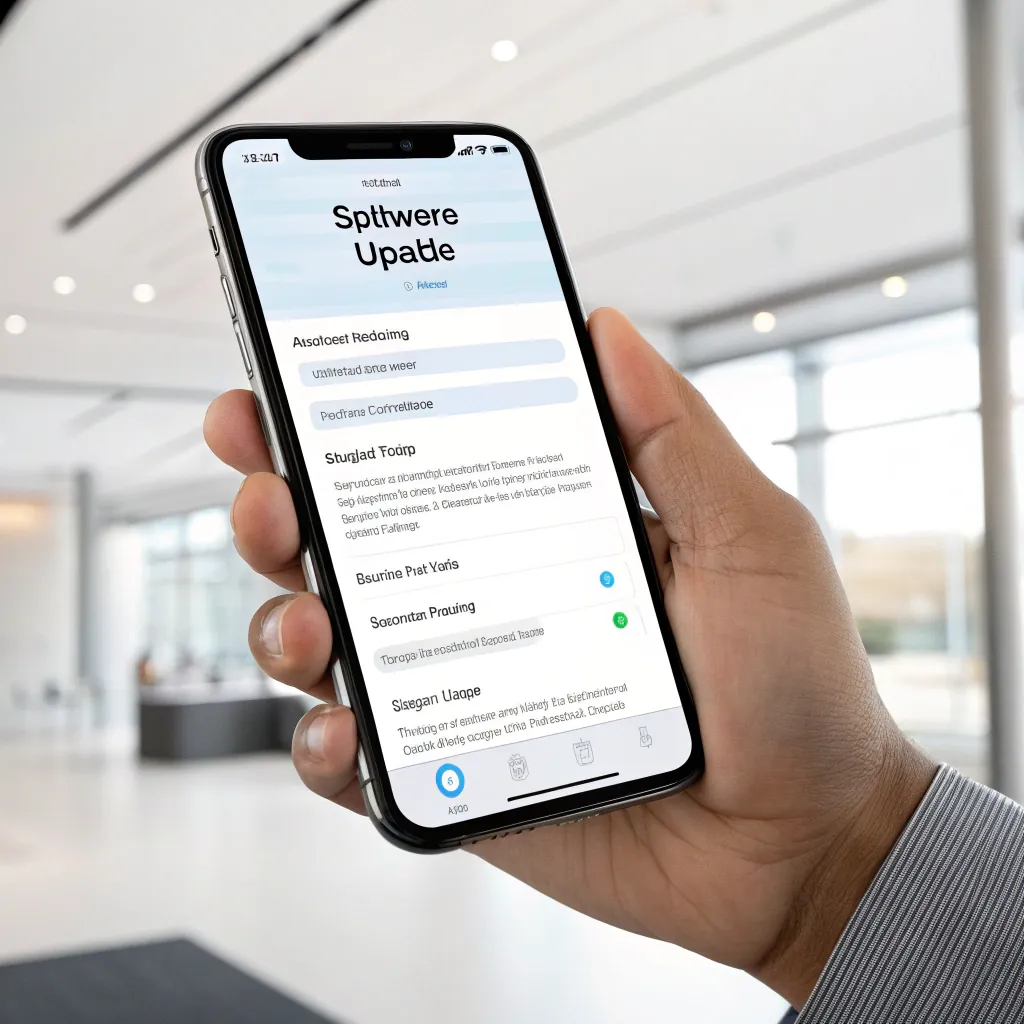
Your iPhone's operating system (iOS) is incredibly complex. Sometimes, things just go wrong. A minor software glitch can interfere with the phone's calling functions. These bugs can appear randomly or after an iOS update. I often advise my repair shop clients, like Pierre from France, to make sure a device is running the latest stable iOS version after a repair to rule out software conflicts. The simplest fix is a restart, which clears the phone's temporary memory and can resolve many small issues. If that doesn't work, the next step is to reset your network settings. This is a more powerful solution that erases all your saved Wi-Fi networks, Bluetooth connections, and other network configurations, returning them to factory defaults. It won't delete your personal data. For the most stubborn bugs, updating iOS is the best solution. Apple regularly releases updates that include bug fixes for issues like call failures.
Software Fixes: From Simple to Advanced
| Solution | What It Does | When to Use It |
|---|---|---|
| Restart iPhone | Clears temporary memory and closes background processes. | The first thing to try for any random glitch. It's quick and easy. |
| Reset Network Settings | Deletes all network-related configurations, including Wi-Fi passwords and VPN settings. | When call failures persist and you suspect a network configuration issue. |
| Update iOS | Installs the latest version of the iPhone operating system, including important bug fixes. | When other software fixes have failed and a known bug might be the cause. |
To reset network settings, go to Settings > General > Transfer or Reset iPhone > Reset > Reset Network Settings. Remember to back up your iPhone before any major iOS update.
When Should I Suspect a Hardware Failure Is Causing the Call Failed Error?
If software fixes don't work, you might fear the worst: a hardware problem. A damaged antenna or logic board can mean expensive repairs and continued call failures.
If you've exhausted all software fixes and the issue persists, especially after a drop or water damage, it could be a hardware fault. Common culprits are the antenna flex cable or the baseband IC on the logic board. This usually requires professional diagnosis.
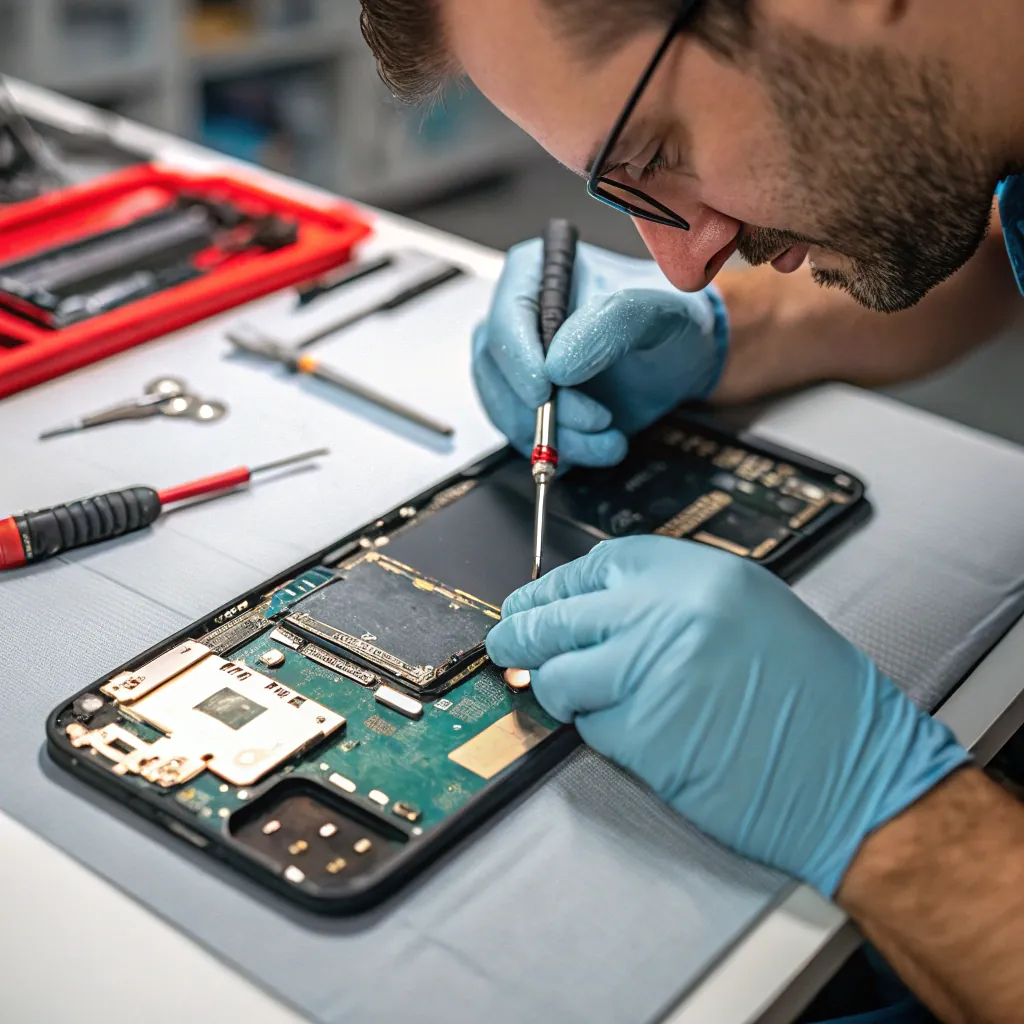
If you have tried all the software solutions and your iPhone still fails to make calls, it’s time to consider a hardware problem. This is especially likely if the phone was recently dropped or exposed to water. Inside your iPhone, a specific component called the baseband chip manages all cellular communications. If this chip or its surrounding circuitry on the logic board is damaged, your phone loses its ability to talk to the network. Another common point of failure is the antenna flex cable, which connects the antenna to the logic board. A tear in this cable can severely weaken your signal. As a supplier of high-quality replacement parts for over 10 years, we at XFD Phone Parts understand how critical these components are. We ensure the parts we supply to repair professionals, like Carlos Sánchez in Spain, are fully tested to prevent these exact issues after a repair. If you suspect a hardware fault, it's best not to open the phone yourself. You should take it to a qualified, reputable repair technician who has the tools and expertise to diagnose the problem correctly.
Conclusion
In summary, fixing the "Call Failed" error involves checking your signal, SIM, and software settings. If problems persist, it may be a hardware issue requiring professional repair.
