

We expect our phones to last all day, but sometimes the battery drains faster than we can charge it.
The battery on your mobile phone may drain quickly due to poor signal, background apps, outdated software, or improper calibration. Understanding these causes helps fix the issue and extend battery life.
If you're in the phone repair or parts business, solving battery problems is a top concern for your customers.
Is Poor Signal Reception Draining Battery Faster?
Many people overlook signal strength, but it quietly drains power throughout the day.
Yes, when your phone struggles to maintain a signal, it uses extra power to connect, which leads to faster battery drain.
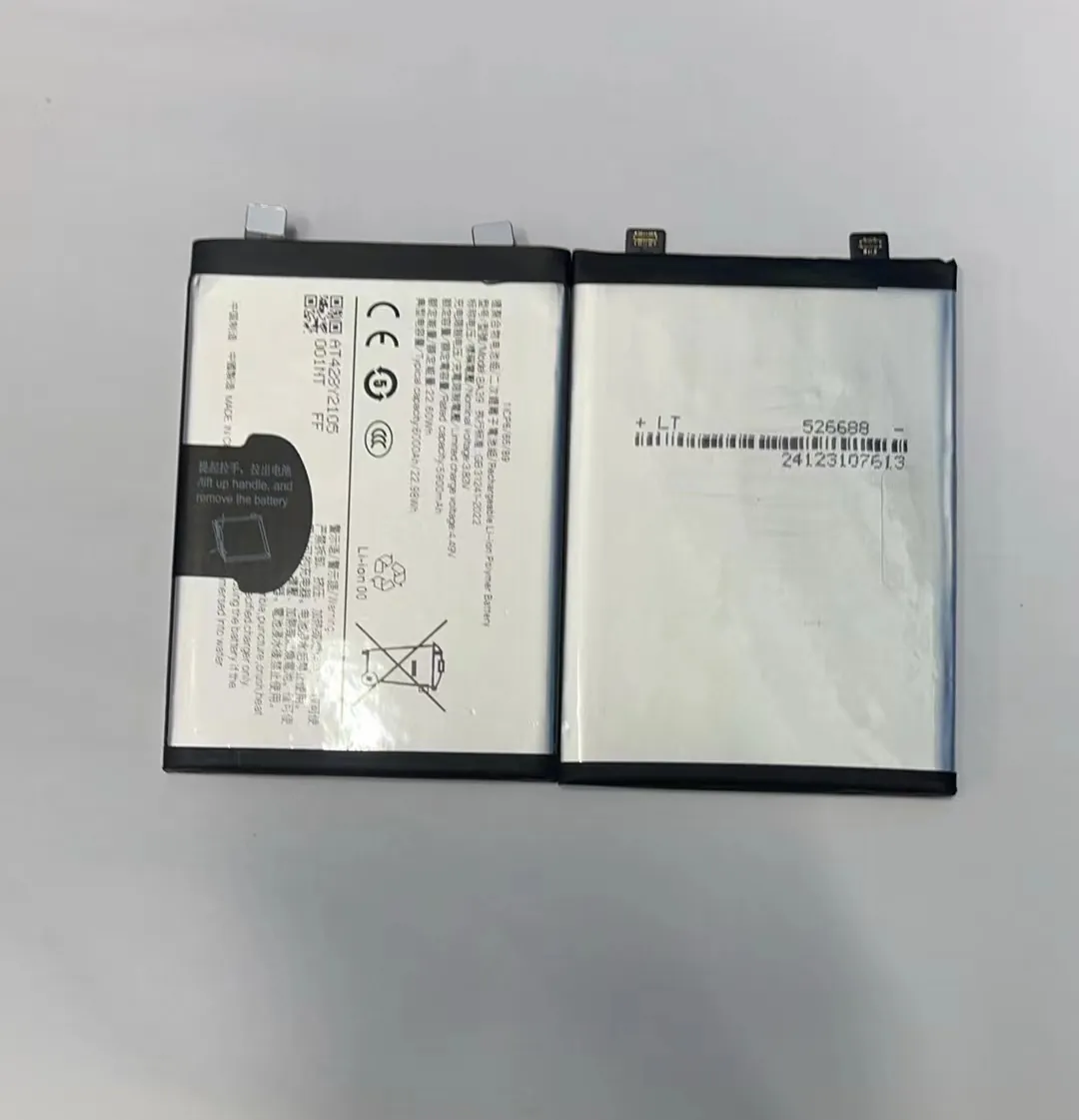
Why Poor Signal Affects Battery Life
Smartphones are designed to stay connected. If the signal is weak or unstable, your phone works harder to maintain that connection.
Here's what happens:
- The phone increases its antenna power.
- It repeatedly searches for better towers.
- Background apps retry syncing data.
All this uses extra energy—even if you’re not actively using the phone.
When Does This Happen Most?
- In elevators or basements
- In rural areas or near mountains
- Inside metal buildings
- During bad weather
Tip:
Switch to airplane mode when you know the signal is weak. This can save power until you're back in a strong coverage area.
Here’s a comparison of battery use based on signal strength:
| Signal Strength | Battery Impact |
|---|---|
| Strong (4–5 bars) | Normal consumption |
| Medium (2–3 bars) | Slightly higher |
| Weak (0–1 bar) | Significantly higher |
| No signal | Very high consumption |
Keeping a stable signal helps your battery last longer.
How Do App Permissions Affect Battery Use?
Some apps ask for access to features they don’t really need—and that can hurt your battery.
Apps with unnecessary permissions (like location, camera, or background sync) can keep your phone awake and drain your battery faster.
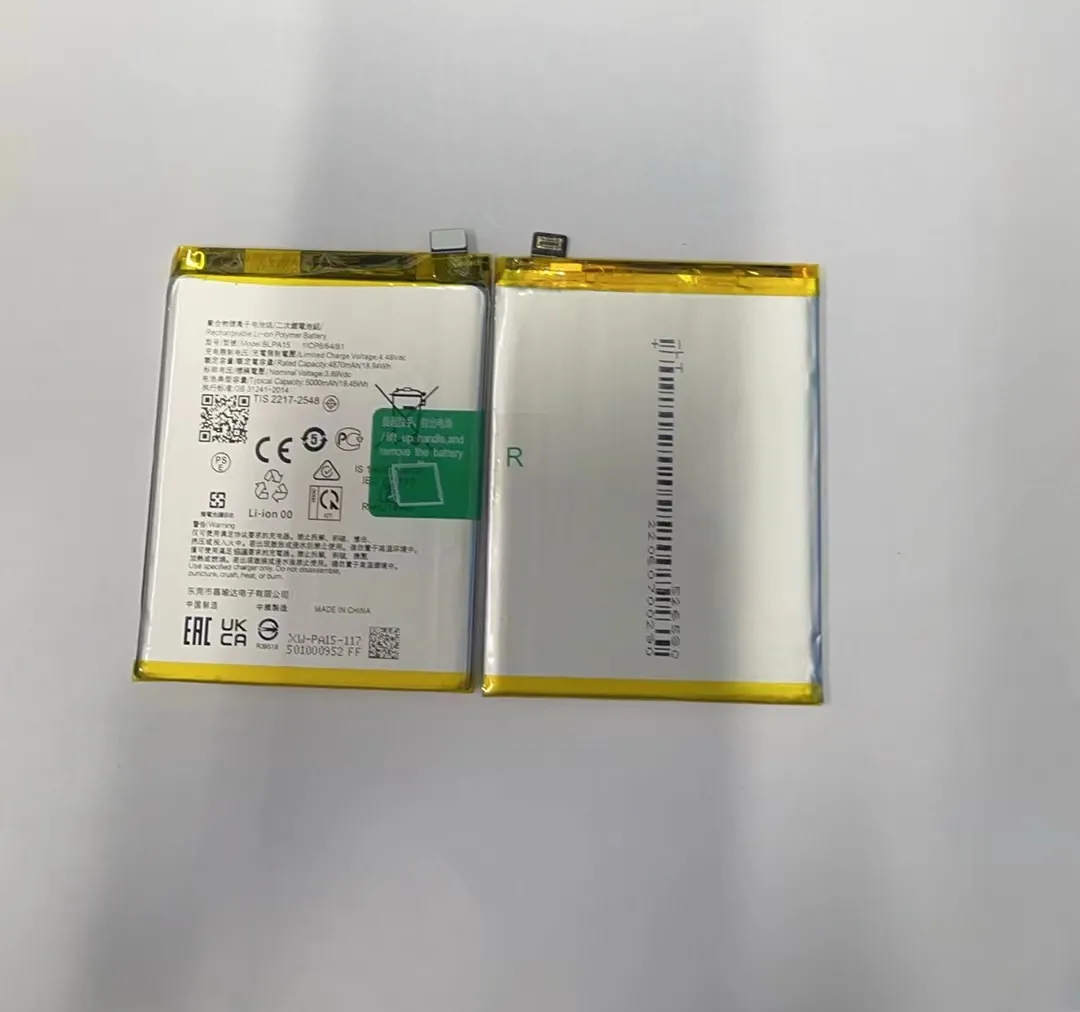
Why Permissions Matter
Apps that run in the background often use permissions like:
- Location services: For ads or tracking.
- Camera/mic access: For auto scans or calls.
- Background refresh: For notifications or updates.
If not managed, they continue to run—even when your screen is off.
How to Spot a Battery-Draining App
Go to:
Settings > Battery > Battery Usage
Look for apps high on the list that you didn’t use much.
Examples of Problematic Apps
| App Type | Common Permissions Used | Battery Risk Level |
|---|---|---|
| Navigation Apps | GPS, background refresh | High |
| Social Media | Notifications, location | Medium to High |
| Games | Graphics, internet access | High |
| Shopping Apps | Location, push notifications | Medium |
What You Can Do
- Disable location access for apps that don’t need it.
- Turn off background app refresh.
- Use “Battery Saver” or “App Sleep” modes.
Small permission changes can lead to noticeable power savings.
Could Battery Calibration Fix Quick Draining?
Batteries and software don’t always agree on charge level. That mismatch may cause your phone to shut down early or act like it’s draining fast.
Yes, calibrating your battery can help reset the battery level indicators and improve accuracy, which may stop it from draining “too fast.”
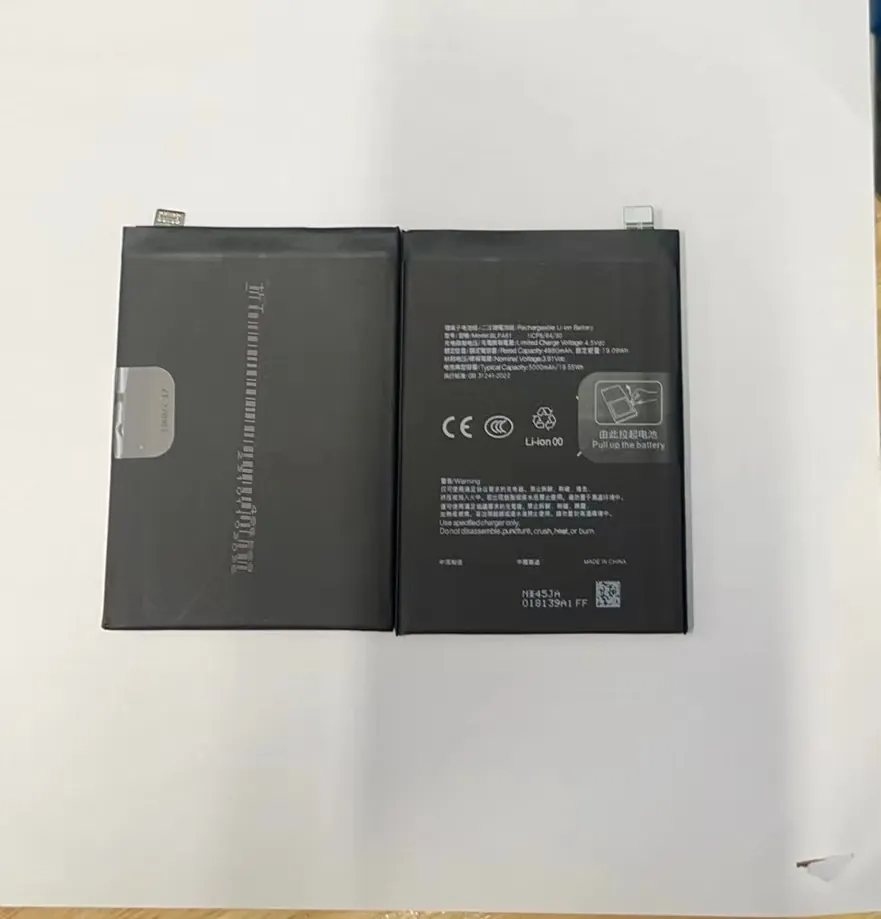
What Is Battery Calibration?
Phones use software to estimate how much power is left. Over time, that estimate can become inaccurate.
Calibration realigns the software and battery hardware, making the battery percentage more accurate.
Signs You Might Need Calibration
- Your phone shuts off before reaching 0%.
- The battery percentage jumps suddenly.
- Charging takes too long or finishes too fast.
How to Calibrate a Phone Battery (Safely)
- Charge your phone to 100%.
- Use it until it shuts off at 0%.
- Leave it off for 1–2 hours.
- Charge it to 100% again without using it.
Do this once every 2–3 months—not more. Too frequent deep cycles can reduce battery life.
| Calibration Task | Purpose |
|---|---|
| Full discharge | Reset power indicator baseline |
| Full uninterrupted charge | Allow software to relearn max value |
| Rest period after shutdown | Let voltage fully settle |
Important:
Calibration doesn’t fix battery health. It only helps the phone report the battery level more accurately.
Is a Factory Reset a Viable Solution?
If your battery drains too fast and nothing helps, it may be a deeper software issue.
Yes, a factory reset can fix battery drain caused by software bugs, corrupted updates, or hidden processes—but it should be your last resort.
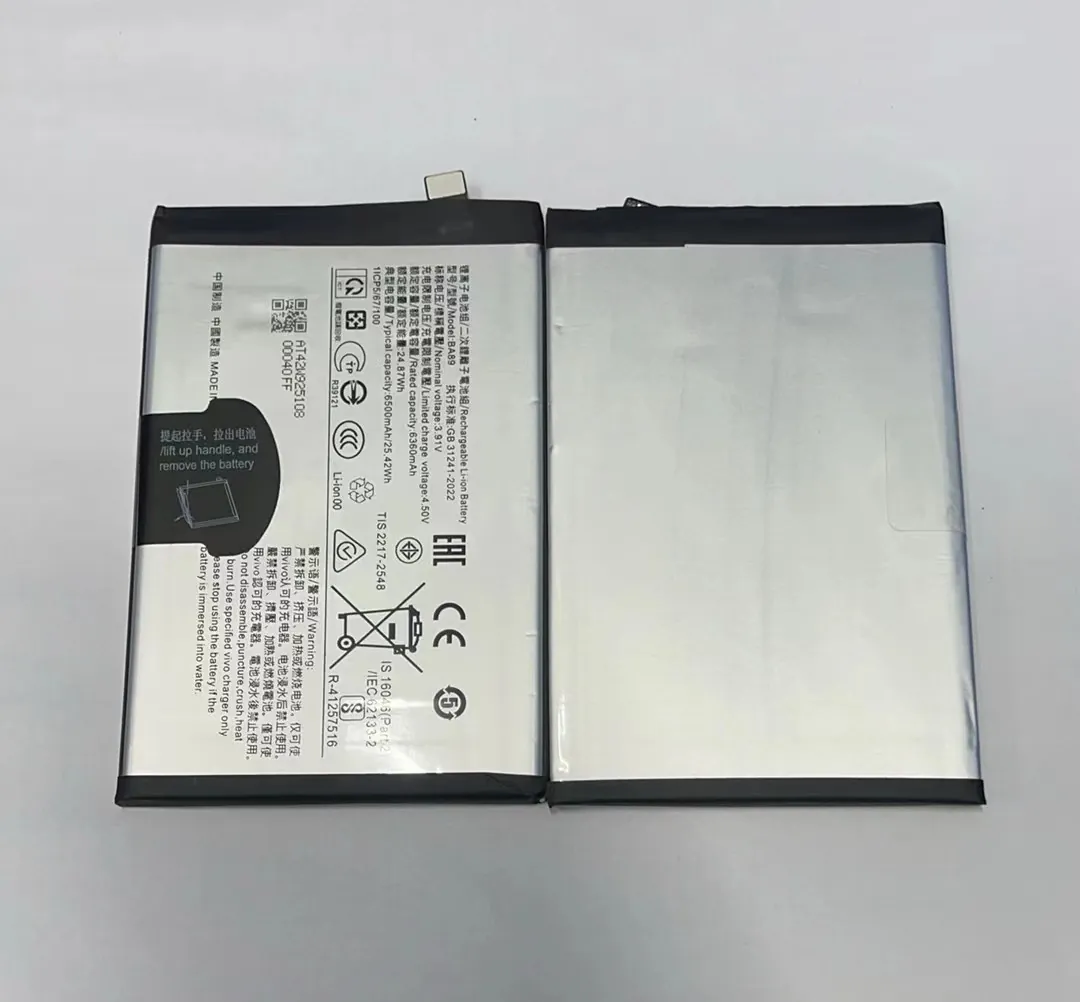
When to Consider a Factory Reset
- Your phone gets hot without use.
- Battery drain started after a system update.
- Background apps use power even after force-stopping them.
What Does a Reset Do?
- Wipes all apps and settings.
- Removes hidden files or bad configurations.
- Restores the phone to its default state.
Before You Reset
- Backup your data to cloud or PC.
- Sign out of accounts (like Google or Apple ID).
- Charge your phone to at least 70%.
Here’s what to expect:
| Task | Estimated Time | What It Fixes |
|---|---|---|
| Data Backup | 10–30 mins | Protects personal files |
| Factory Reset | 5–10 mins | Clears all system and app problems |
| Reinstallation of Apps | 20–60 mins | Only reinstall trusted and needed apps |
After the reset, only reinstall the apps you need. Skip unused or suspicious apps—they may have caused the issue in the first place.
Use With Caution
Factory reset is powerful but also disruptive. Use it only after trying all other options like app control, battery calibration, and updates.
Conclusion
Quick battery drain usually comes from hidden causes like weak signal, overactive apps, or software issues. With a few smart checks and changes, most of these problems can be fixed without replacing the battery.
