

I noticed many people asking this same question. A phone that dies too fast causes stress and frustration throughout the day.
Battery drain usually happens because something uses more power than expected. It might be apps, settings, hardware issues, or software updates that change the way your phone works.
Finding the real cause helps you fix it. This article goes through the most common reasons your phone battery drains quickly and what you can do to make it last longer.
Battery drain is more than an annoyance. We rely on our phones for communication, work, maps, banking, and entertainment. A battery that drains fast interrupts all of that. Before we jump into detailed reasons, understand that battery life depends on hardware capacity, software choices, usage habits, and environmental conditions. When one part struggles, the whole system shows it through faster drain.
Are system updates causing battery issues?
Many people blame battery drain on system updates. An update might change the way your phone uses power. Sometimes this is true, and sometimes it is not.
System updates can change how the phone manages tasks, network access, and background apps. This can lead to higher power use until the system adapts or until fixes arrive.

When a phone receives a big system update, it often re-indexes files, rebuilds caches, and updates app integrations. This takes extra power. After the update completes these background jobs, battery life often improves again. But if battery drain stays high after a day or two, something else might be wrong.
What happens after an update?
Here is a simple table of what often happens after a big update:
| Event | Impact on Battery | Why it happens |
|---|---|---|
| Re-indexing files | Higher drain | System reorganizes data |
| App updates | Varies | New versions may use more or less power |
| New features | More drain | Extra services can run in background |
| System optimization | Lower drain later | System cleans up inefficiencies |
Some updates bring new features like always-on display, background widgets, or new animations. Each feature may add power use, depending on your settings. Even small changes in how the system handles notifications or sensors can change battery profiles.
How to check if update caused drain
After an update, watch battery use for two or three days. If battery drain is much worse only right after the update, give it some time. Many phones finish background work in the first 24–48 hours after major changes.
If your phone still drains fast after a few days, check these:
- Look at battery usage details in settings. Which apps use the most?
- Notice if any apps were updated recently along with the system.
- Search online for your phone model and the latest update to see if others report similar issues.
An update is rarely the only cause. More often it reveals apps or settings that were already using power in the background.
What settings should I change to save power?
Settings have a big impact on battery life. Some features use more power behind the scenes, even when you do not see it.
Changing a few key settings can reduce battery drain without making your phone less usable. These include screen brightness, connectivity options, and background activity limits.

Here are key settings that often make a difference:
Screen and display
Your screen often uses the most power.
- Lower brightness to a level that is still readable.
- Enable auto-brightness so the phone adjusts to light conditions.
- Use a darker theme if your phone has OLED/AMOLED screens.
- Reduce screen timeout so the display turns off sooner when not in use.
Connectivity
Wireless features can drain battery if they are constantly searching for signals.
- Turn off Bluetooth when not needed.
- Turn off Wi‑Fi scanning and location scanning in background.
- Use airplane mode in low coverage areas to stop the phone from searching network constantly.
App settings
Some apps run in the background even if you do not open them.
- Go to battery usage and identify high drain apps.
- Disable background activity for apps that do not need it.
- Turn off notification badges or background refresh for less essential apps.
- Uninstall apps you rarely use.
System settings
Some system features also use power.
- Turn off always‑on display if installed.
- Disable live wallpapers or animated themes.
- Limit widgets on home screens.
- Set screen refresh rate to adaptive or lower if possible.
Quick checklist for settings
Here is a basic chart to help guide changes:
| Setting area | Recommended change | Expected effect |
|---|---|---|
| Brightness | Reduce or auto | Lower screen power use |
| Connectivity | Turn off unused radios | Reduce background scanning |
| Background apps | Limit or disable | Lower idle power waste |
| System features | Turn off non‑essentials | Reduce system load |
Small changes with big impact
Even small adjustments can add hours to your battery life. For example, if you reduce screen brightness by 20–30%, the display may use significantly less power each hour. Similarly, stopping a few apps from running in the background can save power that otherwise goes unnoticed.
If you try these changes and battery life still drains fast, it may be time to look at deeper issues like apps that misbehave or hardware concerns.
Can battery saver modes extend usage time?
Battery saver modes are built into most phones. People often ask if they help and how much.
Battery saver modes do extend usage time by limiting background tasks, lowering performance, and stopping unnecessary services. These modes are useful when you need extra hours before charging.
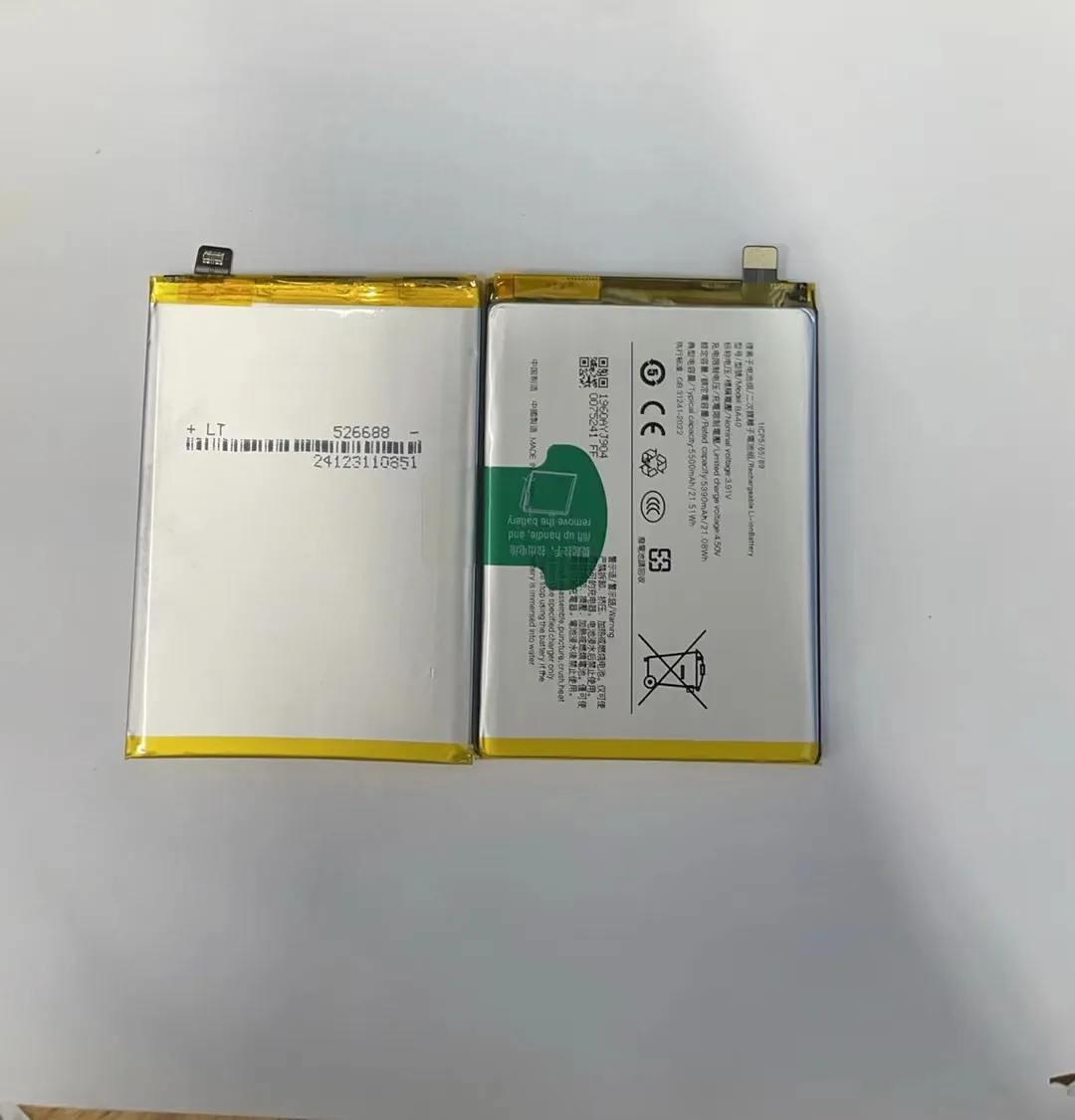
Battery saver mode works in different ways on different phones. Some restrict background app activity. Others reduce CPU speed or dim the screen. Some even limit network use for apps you rarely use.
Types of battery saver mode
Here is a simple table of common saver types and their effects:
| Saver mode | What it does | Effect on battery |
|---|---|---|
| Basic saver | Limits background tasks | Medium boost |
| Extreme saver | Restricts most services | Large boost |
| Adaptive saver | Learns from usage | Variable boost |
| Custom saver | User chooses limits | Depends on settings |
Adaptive saver modes learn from your usage patterns and make decisions automatically. This can save power without too much loss of experience. Extreme saver modes are best when you need your phone to last until you reach a charger but will limit features significantly.
When to use battery saver
Use saver mode when:
- You are far from a charger.
- Battery percentage is low (e.g., under 20%).
- You are traveling or in an emergency.
Battery saver is less useful when your phone already has enough battery and you can charge soon. But it is a great tool when you need extra hours.
Does battery saver slow the phone?
Yes, it can slow performance. It often limits CPU speed and background tasks. This means apps may open slower and notifications may arrive later. But that trade‑off is how the phone saves power. When battery life matters more than speed, saver mode is worth using.
If battery saver significantly improves life, it also tells you that your normal settings or apps were consuming more power in the background. It can point you to what needs deeper attention.
Is overheating linked to fast battery drain?
Overheating and battery drain are closely linked. When a phone gets hot, it uses more power to stay cool and to operate safely.
Heat increases power consumption and speeds up battery wear. A hot phone often drains faster because the battery and components work harder than they should.
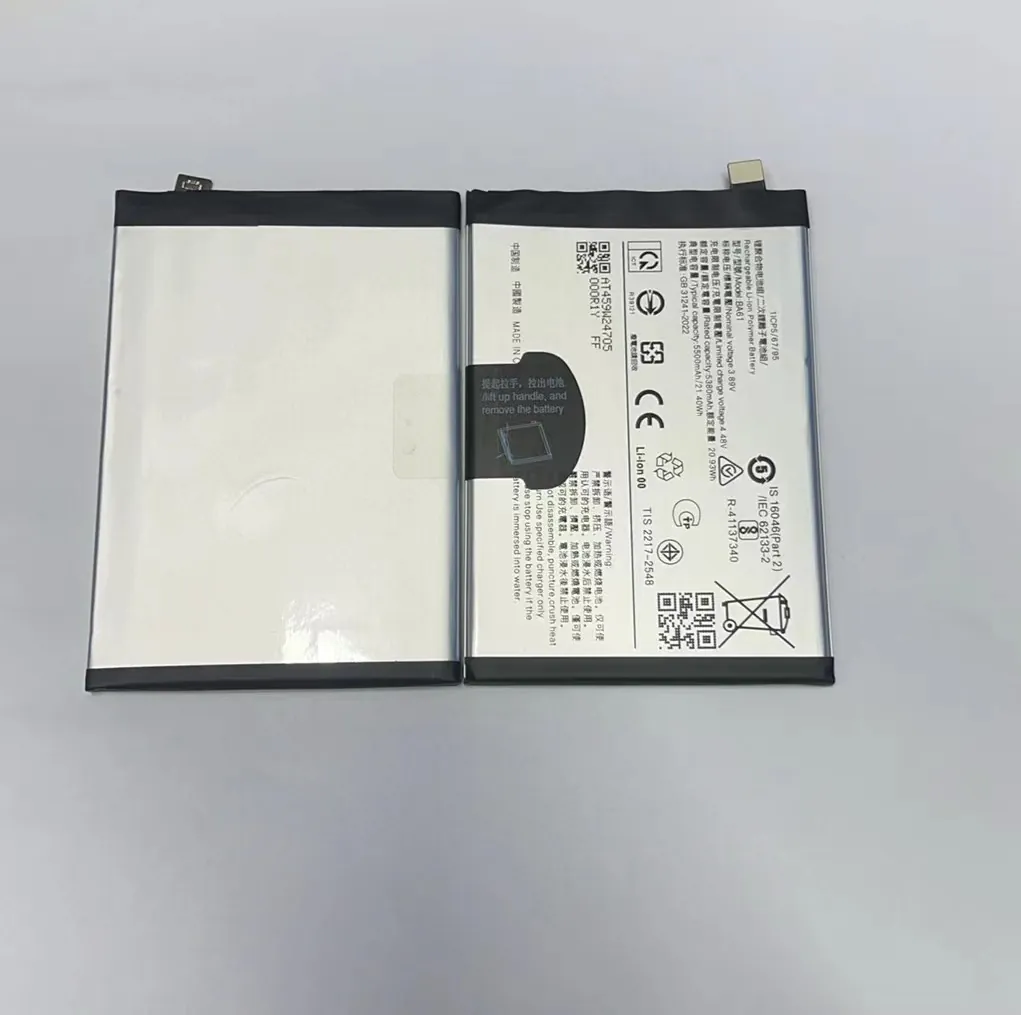
Phones generate heat when doing heavy tasks like gaming, video editing, or extended camera use. At the same time, background apps, poor signal area, or a faulty battery can make the phone work harder and produce heat.
How heat affects the battery
Heat affects battery in these ways:
- Chemical reactions inside the battery speed up, reducing efficiency.
- The system reduces CPU performance to lower temperature, which can make tasks take longer and use more power.
- Heat stress can damage battery health over time, leading to faster drain even when cool.
Here is a deeper look at causes and effects:
Common heat sources
- Heavy gaming or video rendering
- High screen brightness in sunlight
- Charging and using the phone at the same time
- Poor ventilation in a case
- Direct sunlight or hot environment
Signs of overheating
- Phone feels very warm to touch
- Battery percentage drops quickly
- Sudden shutdowns or performance lag
- Charging gets slower or stops near high temperatures
What to do about overheating
Cooling down your phone helps battery life. Try these tips:
- Remove thick cases if the phone gets hot.
- Turn off heavy tasks until the phone cools.
- Reduce screen brightness in hot environments.
- Avoid gaming or video streaming when the phone is very warm.
- Keep your phone out of direct sunlight.
If your phone overheats often even with light use, there may be a deeper problem like a failing battery or misbehaving app. In that case, a repair shop or professional diagnosis could help.
Long term heat effects
Repeated overheating shortens battery lifespan. A battery under constant heat stress loses capacity faster over months. This means even after solving immediate drain, the overall battery health can decline faster if the phone stays hot often.
Heat and battery drain are linked in a cycle. Heat causes drain, and drain can cause heat if the system works harder to keep up. Breaking that cycle improves both temperature and battery life.
Conclusion
Fast battery drain can come from updates, settings, apps, or heat. Changing key settings and using saver modes helps. If none of that works, check for overheating or battery wear. With the right fixes, your phone can last much longer each day.
