
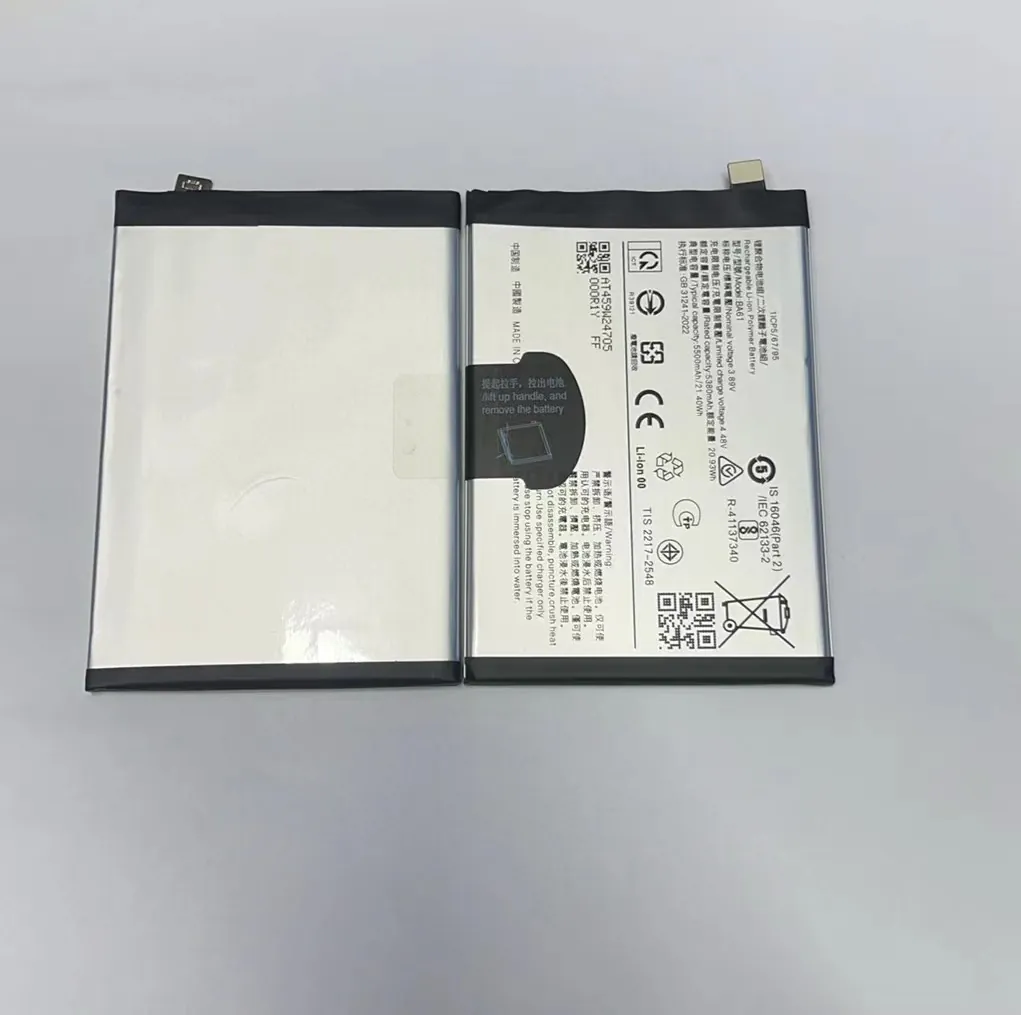
We all want our phones to be secure, but is it costing us battery life?
Yes, mobile security apps can drain your phone's battery, especially when they scan in the background or run real-time protection.
Security is important, but so is battery life. Understanding what drains power and how to manage it can help keep your phone safe and efficient.
How do security apps consume power?
Security is a top priority, but it comes at a cost. Sometimes that cost is your phone’s battery life.
Security apps use power by running background tasks, checking every file and app for threats, and keeping watch in real time.
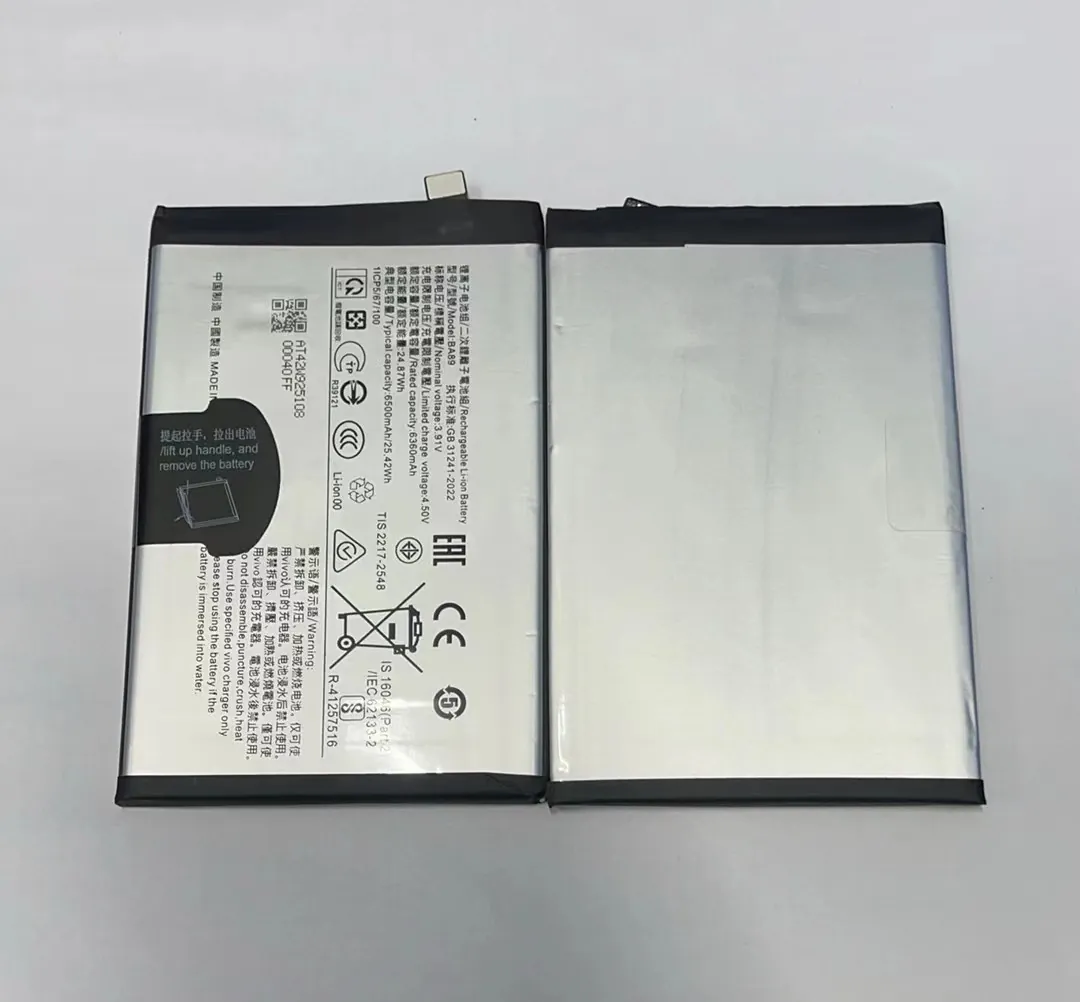
Most security apps have features like real-time scanning, app monitoring, and threat detection. These tasks run continuously or at scheduled intervals. Every time your phone is active—or sometimes even when it’s idle—these apps stay busy. That activity uses processing power and memory, which in turn consumes battery.
Real-time protection
This feature checks every app and file in real time. That means when I open a new email attachment or download an app, the security app checks it right away. This constant monitoring uses CPU cycles and prevents the phone from going into deep sleep mode.
Frequent background activity
Security apps may run tasks in the background even if you’re not using your phone. They could be updating virus definitions, syncing data to the cloud, or performing scheduled scans. All these tasks keep your phone’s CPU and network busy.
Battery usage comparison
Here’s a quick comparison of battery use for common security activities:
| Task | Average Battery Use per Hour |
|---|---|
| Real-time scanning | 4% – 7% |
| Scheduled full device scan | 6% – 10% |
| Background syncing | 2% – 5% |
| App monitoring | 3% – 6% |
If you're using multiple layers of protection, the total battery impact can be noticeable. That’s why it’s important to choose lightweight security apps that are optimized for power use.
Why do scans increase battery use?
Running a scan seems simple, but the impact on battery tells a different story.
Scans increase battery use because they activate the processor, search storage, and block sleep mode while checking every file.
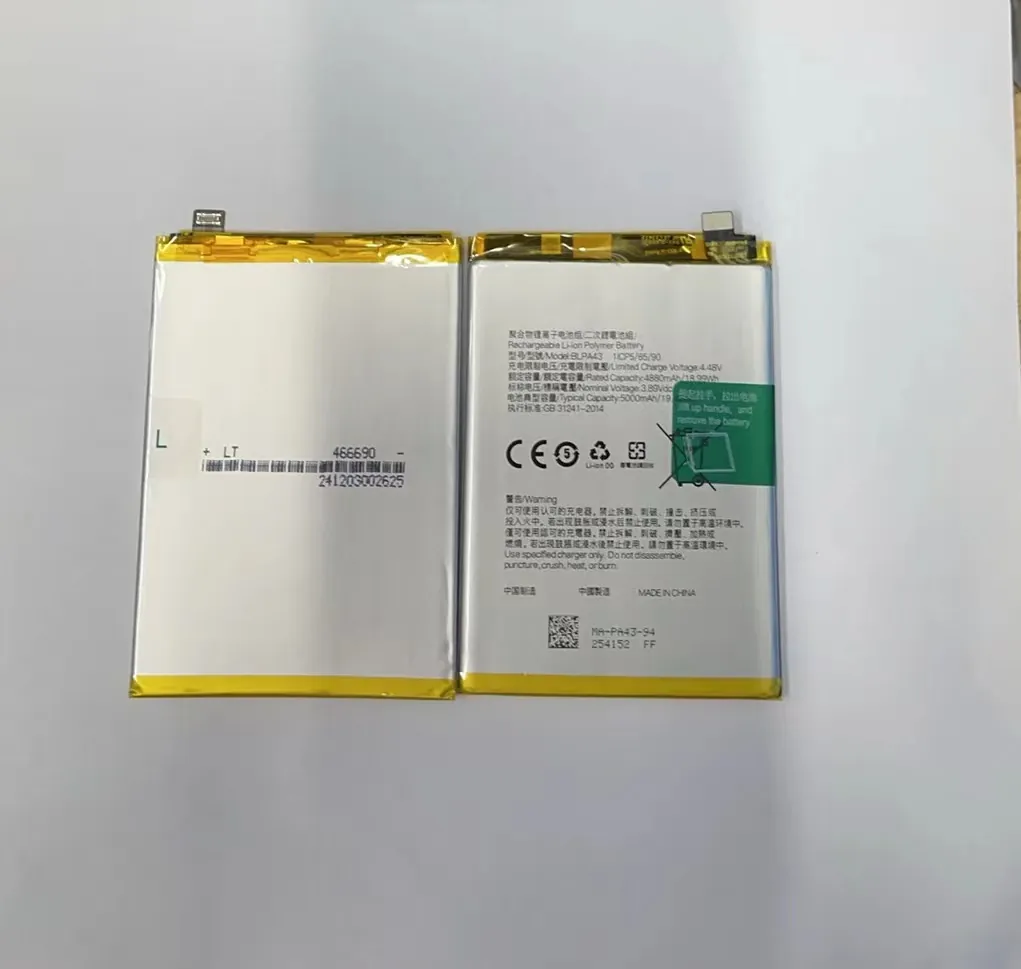
When a scan begins, the security app searches your device for harmful software. It checks system files, apps, downloads, media files, and cached data. This deep activity forces the processor to work harder. It also prevents your phone from entering low-power states.
Full vs. quick scans
A full scan checks every part of your phone. This might take 5 to 15 minutes or longer, depending on storage size. A quick scan, however, only checks common threat areas. It finishes faster and uses less battery.
Here’s a basic overview:
| Scan Type | Time Required | Battery Impact | Use Case |
|---|---|---|---|
| Full Scan | 10–30 minutes | High (6–10%) | Weekly deep inspection |
| Quick Scan | 1–5 minutes | Low (1–3%) | Daily quick checks |
Scanning triggers
Scans can also be triggered by:
- New app installations
- File downloads
- Connecting external storage
- Scheduled tasks set by the user or app
If your settings allow daily full scans, battery life will suffer. It’s better to schedule full scans when the phone is charging or to use quick scans during the day.
Which settings reduce security app drain?
Many users accept the default settings. But smart changes can save battery.
To reduce battery drain, adjust scan schedules, limit real-time checks, and disable non-critical features.
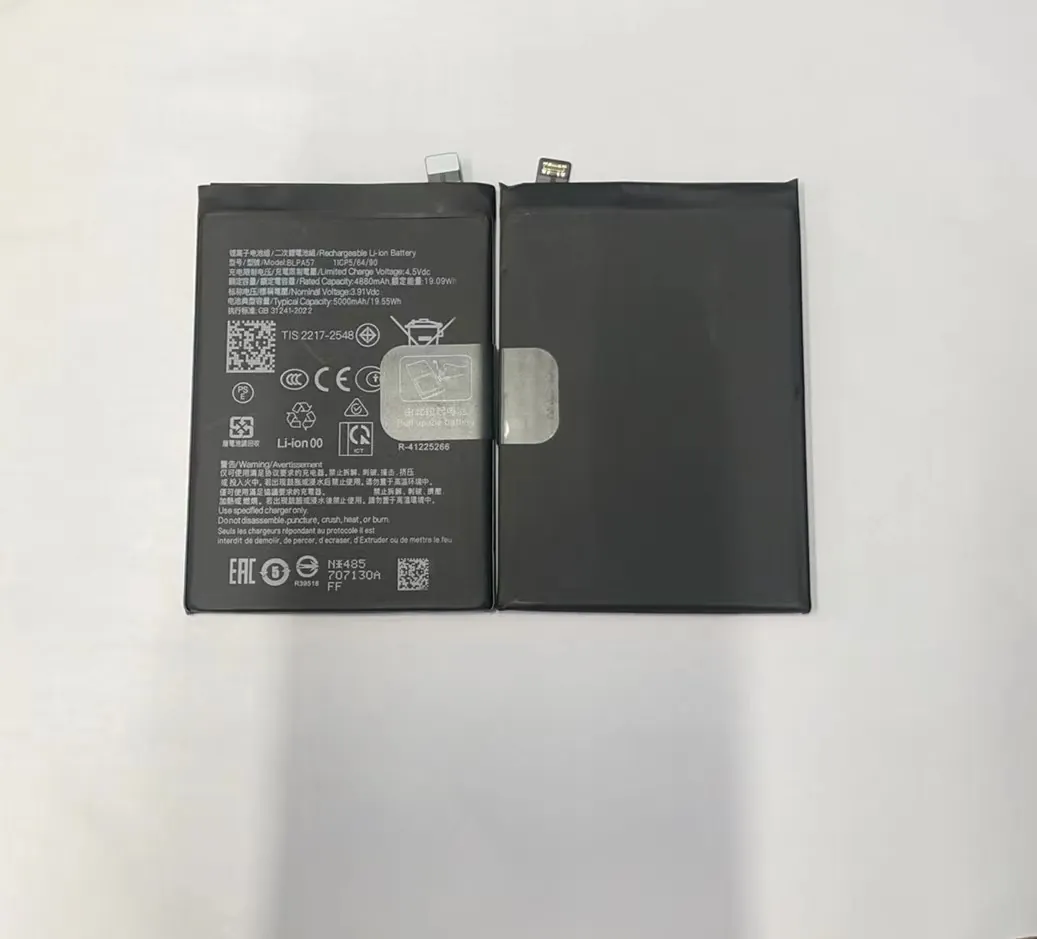
Tweaking app settings can lower the impact of security tools. Many apps allow you to change when scans run, what they scan, and how often updates occur.
Adjust scanning frequency
Instead of daily full scans, schedule one deep scan per week. Use quick scans during other days. This helps reduce CPU strain and power use.
Turn off constant monitoring
If your phone isn’t used for high-risk activity (like installing apps from unknown sources), real-time monitoring can be limited. You can keep protection for new apps only, instead of scanning every file in real time.
Disable unnecessary features
Some security apps include tools like:
- App lockers
- Wi-Fi scanning
- Safe browsing filters
- Identity protection monitors
While useful, these can be turned off if not needed. Disabling them will lower background activity.
Use battery-saving mode
Some security apps offer low-power or performance modes. These reduce scan speed and frequency. You can turn this on if your battery is low or during travel.
Use trusted lightweight apps
There are many security apps on the market. Some are optimized for performance, others are not. Choose apps that have strong reviews for low power use.
What causes background security activity?
You may not see it, but your phone is working hard behind the scenes.
Background security activity comes from scans, updates, system checks, and real-time protection running silently.
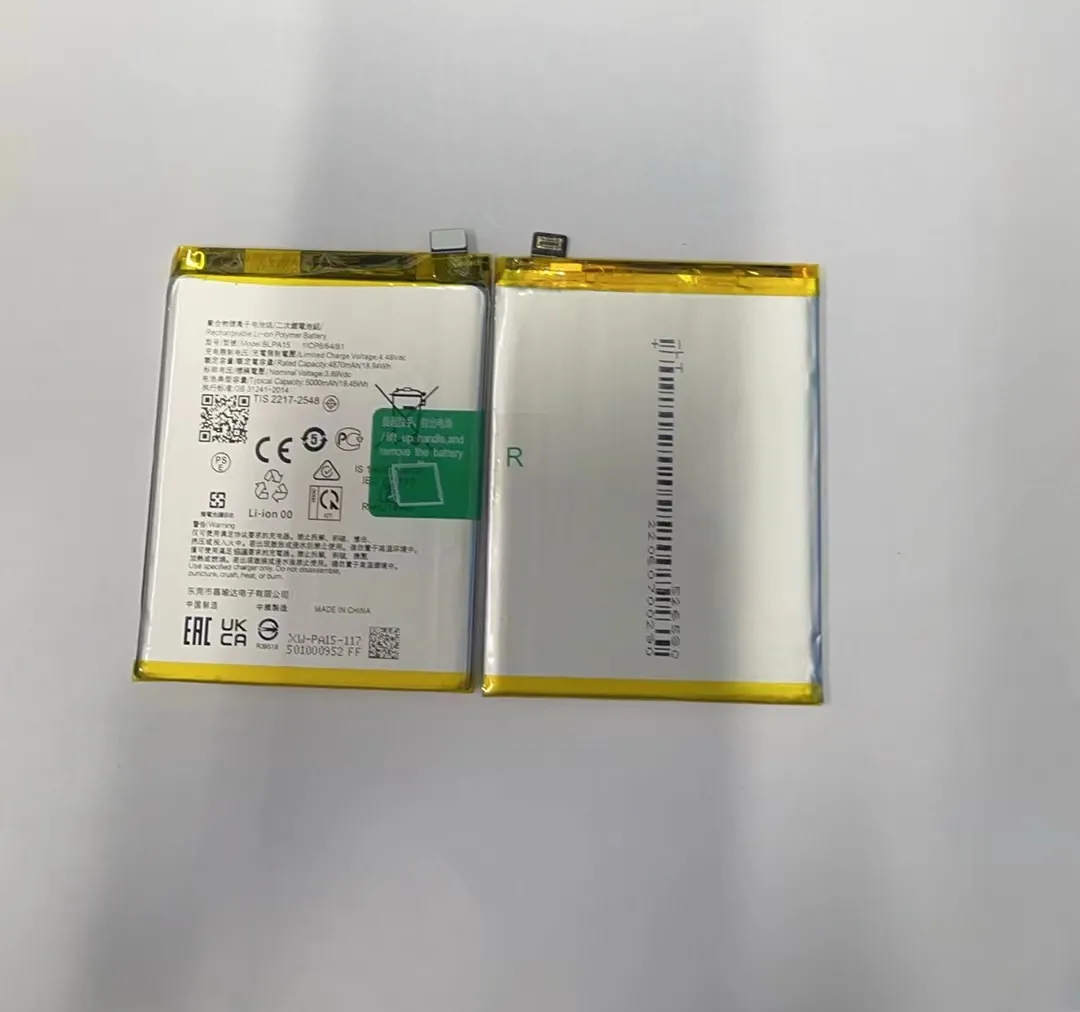
Even if the security app isn’t open, it may still be active. These tasks don’t need your input. They often run during idle time or when certain triggers occur.
Common background tasks
Here’s what typically runs in the background:
- Definition updates: The app checks for new virus threats and downloads new rules.
- Cloud sync: If the app stores scan logs or alerts, it may sync with the cloud.
- Silent scans: Some apps scan new files as they arrive, even without notifications.
- Network checks: Some tools constantly monitor your Wi-Fi for suspicious activity.
These tasks consume battery. They also prevent the phone from fully entering sleep mode.
App behavior varies by brand
Some security tools aggressively scan everything. Others are more passive and only react when threats are detected.
You can test which app causes drain by checking your phone's battery usage stats. Look under Settings > Battery > App Usage. If the security app appears near the top, it’s working constantly.
Tips to reduce background drain
- Turn off cloud sync unless you need it
- Block auto-updates unless connected to Wi-Fi and charging
- Pause background scans while on low battery
- Limit app permissions that allow background activity
Some modern phones also allow you to limit background activity per app. Use this to manage how often security apps can run silently.
Conclusion
Security apps help keep phones safe, but they can use a lot of power. With the right settings and habits, you can protect your device and still keep battery life strong.
