
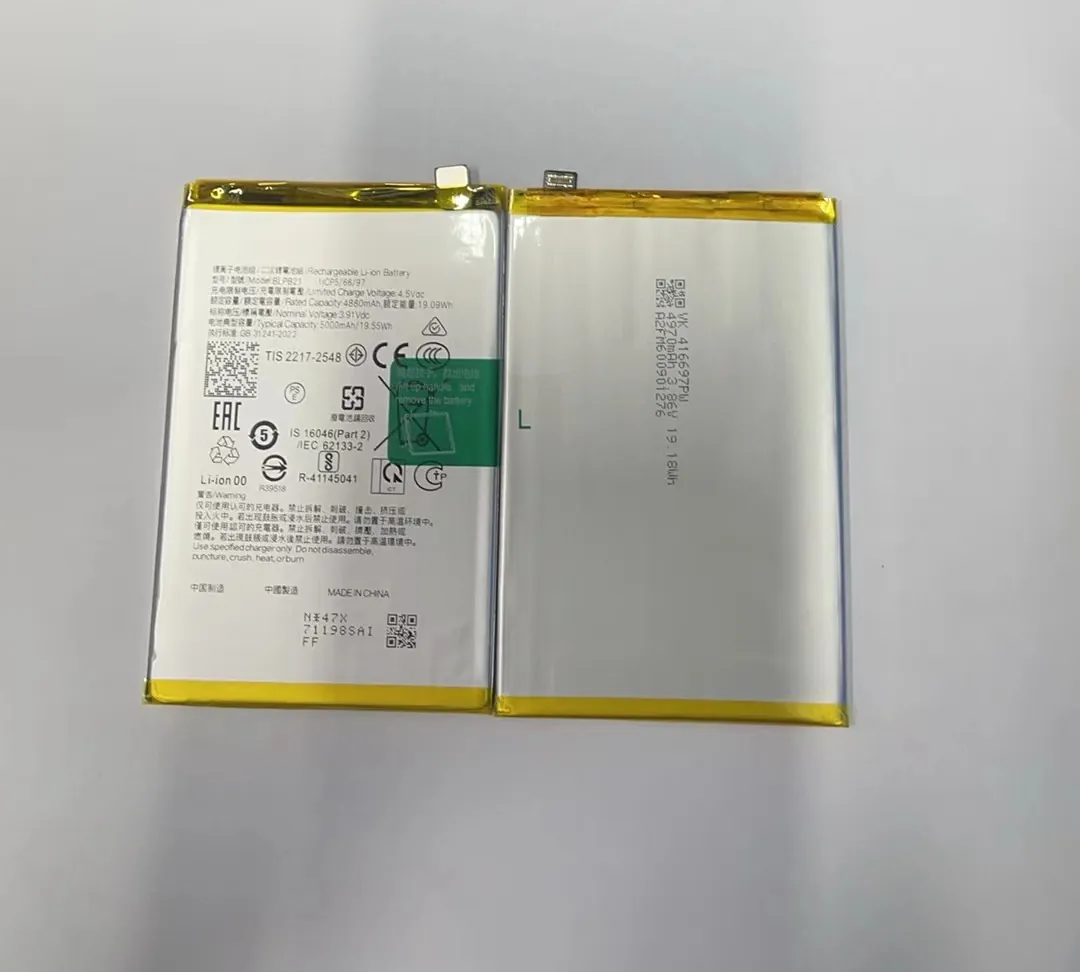
I know many Samsung users feel worried when their phone battery drops too fast. I hear this often from buyers and repair shops. I had the same problem when I tested many Samsung replacement batteries years ago.
Poor battery life in Samsung phones usually comes from settings, apps, software issues, and long-term usage habits that create high drain even when the phone is idle.
I want to explain these points in simple words, so you understand what truly affects Samsung battery life and how you can fix it.
Which settings drain Samsung batteries?
Many Samsung users feel confused when their phone loses power even without heavy use. I talk with repair shops who face this every day. I had the same questions when I first checked battery drain data on Samsung models.
Battery drain in Samsung phones often comes from display settings, connectivity options, background sync, high refresh rates, and constant location access.
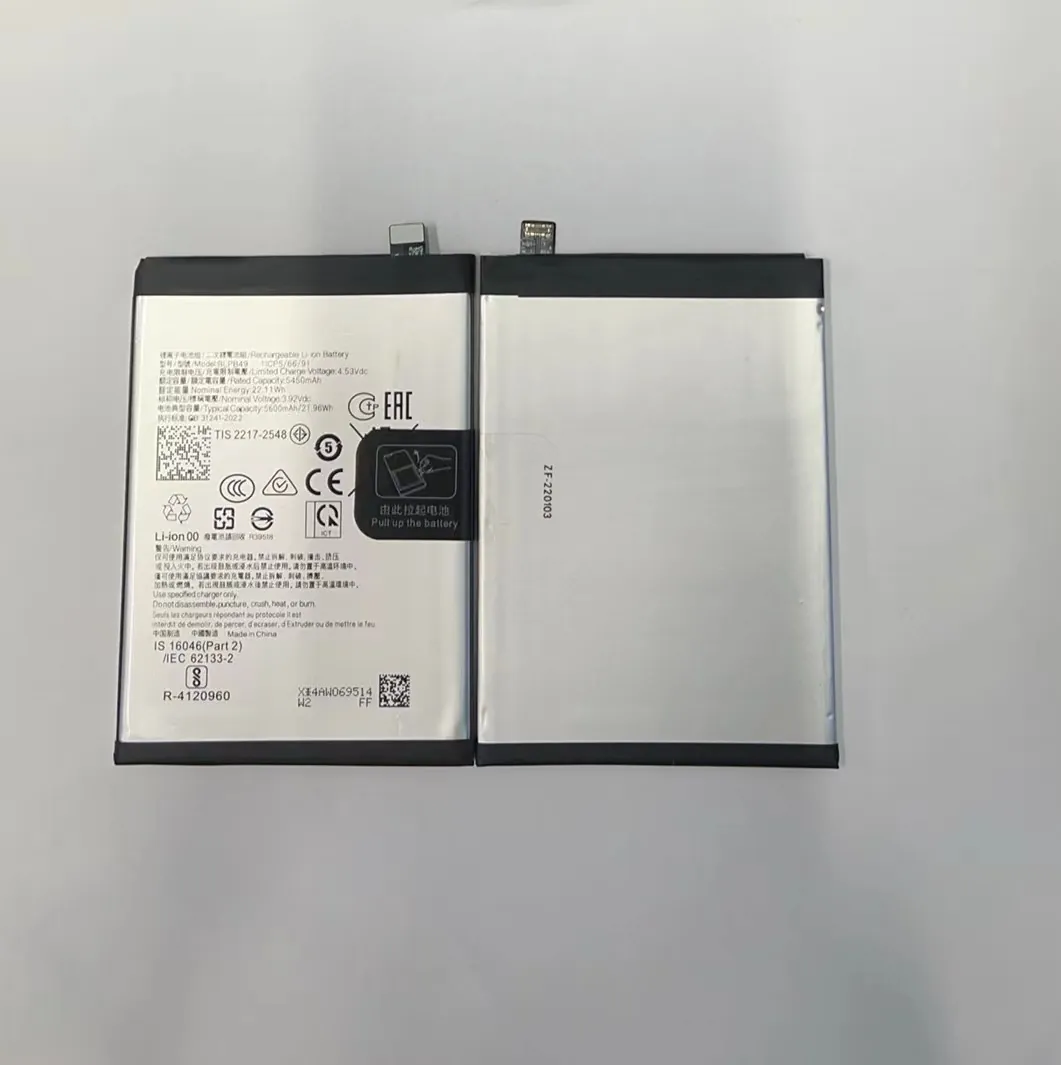
Display settings that drain fast
Samsung displays are bright and sharp. But they also use a lot of power. When I test Samsung phones, the display is almost always the top power consumer. These display settings drain fast:
- High brightness
- Adaptive brightness that stays too bright
- Always On Display
- High refresh rate (120Hz)
Connectivity options that stay active
Many users forget about these settings:
- Bluetooth
- Wi-Fi
- Mobile data
- NFC
- Hotspot
If they stay on, the phone keeps searching for signals. This drains power even when the screen is off.
Background sync
Samsung phones sync many apps in the background:
- Samsung Cloud
- Google services
- WhatsApp backups
- Social media updates
This constant syncing wakes the phone again and again.
A simple table for draining settings
| Setting | Why it drains power | What I see in tests |
|---|---|---|
| High brightness | Screen uses most energy | Very high drain |
| 120Hz refresh | More screen updates | Medium to high drain |
| Always On Display | Screen stays active | Slow, steady drain |
| Location access | Constant GPS scans | High spikes in drain |
| Sync features | Many background tasks | Moderate drain |
Why Samsung settings drain more
Samsung adds many features to make the phone smooth and smart. But more features mean more processes. When I check power logs, Samsung phones show more background activity than many other brands. This is normal but needs good control.
How I handle these settings
When I test Samsung batteries before shipping, I always turn off these settings to check if the battery behaves normally. When drain drops after disabling them, I know the problem is not the battery itself.
How do apps impact Samsung endurance?
Many people blame the battery when their Samsung phone drains fast. But apps are usually the real problem. I learned this after testing hundreds of phones with the same battery but different apps installed.
Apps drain Samsung batteries through background tasks, frequent refresh, push notifications, location use, and constant network access.
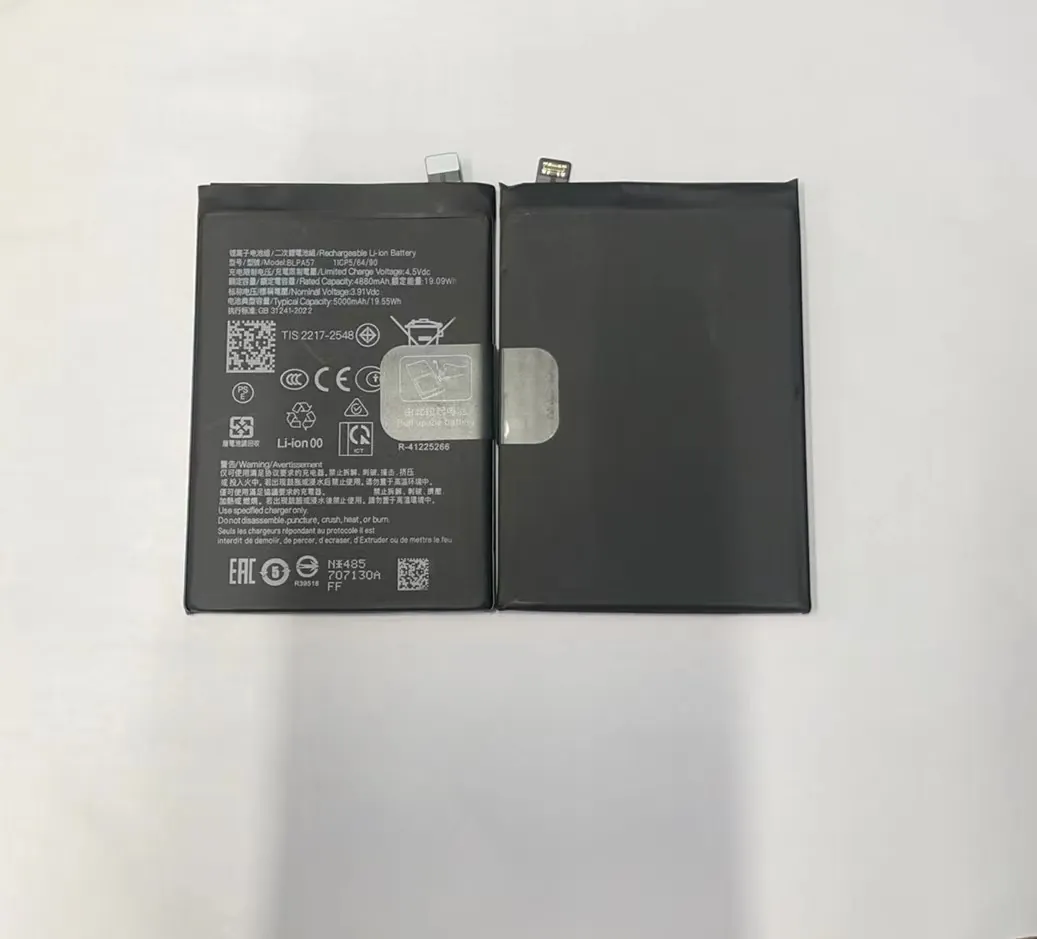
Social media apps
Apps like Facebook, Instagram, TikTok, and Snapchat refresh nonstop. They load images, videos, ads, and messages. They also track user behavior in the background.
When I check power usage reports, these apps appear on the top list almost every time.
Messaging apps
Messaging apps seem simple, but they drain more than people expect. WhatsApp, Messenger, Telegram, Viber, and similar apps stay active so they can deliver messages instantly. This means:
- They keep internet access open
- They check for new messages
- They perform background tasks
Games and high-load apps
Games heat the phone and use the CPU and GPU heavily. Samsung phones show fast drain during gaming because the display and processor both work at high load at the same time.
System apps that run quietly
Samsung has many system apps like:
- Samsung Push Service
- Samsung Health
- Bixby routines
- One UI background services
If they bug or update in the background, the drain rises.
A detailed look at how apps drain
Below is a table I use when explaining drain issues to customers:
| App Type | What it does | How it drains |
|---|---|---|
| Social media | Syncs and loads media | High background drain |
| Messaging | Keeps connection open | Constant moderate drain |
| Games | Heavy graphics | Fast and high drain |
| Navigation | Uses GPS | Very high drain |
| Shopping apps | Track activity | Medium drain |
Why Samsung phones show higher app drain
Samsung uses its own interface, called One UI. It adds many extra features and background controllers. These tools are helpful but also increase activity inside the phone. When the phone has many apps, these interactions grow and cause drain.
How I study app drain
When repair shops send me drain reports, I check which app spikes the power. Most of the time, the battery is fine. The app behavior is the real cause.
Why does software affect battery use?
Many users do not understand why software updates change battery life. I understand because I felt the same confusion when I saw drain numbers jump after major Samsung updates.
Software affects Samsung battery life because system updates change background processes, power management, app behavior, and how the phone handles temperature and performance.
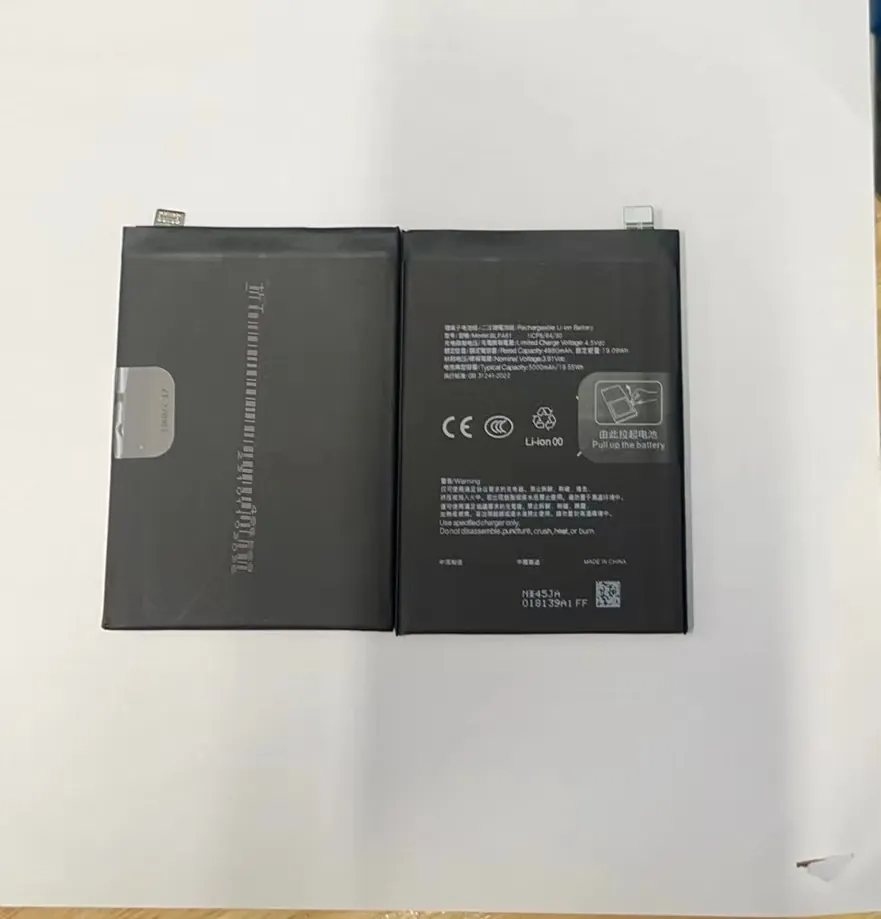
How software changes background activity
Every Samsung update adds new features. It also fixes old bugs. But when new features arrive, they need more power. When bugs appear, they can cause high drain.
I see this often after major One UI updates.
How apps behave after updates
After a system update:
- Apps re-index files
- Apps rebuild cache
- Apps sync data again
- Apps request new permissions
This increases drain for several days.
Power management changes
Samsung adjusts its battery management systems often. Some updates:
- Limit how apps sleep
- Change refresh rate rules
- Adjust brightness logic
- Improve heat control
These changes affect drain directly.
Why software bugs cause drain
A small bug can wake the phone again and again. One tiny process can drain 10–20% overnight. I see this often in the logs repair shops send me.
Heat changes due to software
If software pushes the CPU harder, the phone heats. Heat increases drain and aging. Samsung often releases fixes once users report heat issues.
Why One UI uses more power
Samsung adds many extra tools such as:
- Device Care
- Samsung Cloud
- Bixby services
- Edge panels
- Theme services
These tools improve experience but also use resources.
My experience with software drain
I tested a Samsung phone after a major update. It drained 25% overnight. After the next patch, the drain dropped to 5%. This happens because software controls almost everything inside the phone.
What habits reduce drain issues?
Many Samsung users think battery drain is something they cannot control. But habits make a big difference. I explain this often to repair shops who want to teach their customers.
Good habits like controlling brightness, limiting background tasks, using clean charging cycles, and avoiding heat can greatly reduce Samsung battery drain.
Keep the phone cool
Heat is the largest enemy of battery health. I test batteries at different temperatures. Warm batteries degrade faster. Users should:
- Keep phones out of cars on hot days
- Avoid gaming during charging
- Remove thick cases when charging
Control screen settings
Simple actions help a lot:
- Use medium brightness
- Turn off Always On Display if not needed
- Switch to 60Hz when battery is low
I see drain drop by 20–30% in many cases just from these steps.
Limit background activity
Samsung phones have many tools:
- Device Care
- App Sleeping
- Deep Sleeping Apps
Using these tools reduces drain fast.
Turn off unused connectivity
These features drain even when idle:
- Bluetooth
- Location
- NFC
- Hotspot
When I turn them off in tests, the drain curve becomes stable.
Restart the phone
Many Samsung devices collect background processes over time. Restarting clears them. This simple step solves many drain complaints.
Avoid full discharges
Samsung lithium batteries weaken when they drop to 0% often. Keeping the phone between 20% and 80% helps slow down aging.
